Which products need one
Packaged goods already have a barcode printed by their maker, and the ready catalogue fills in their name and picture when you scan them. The rest is what this article is about:
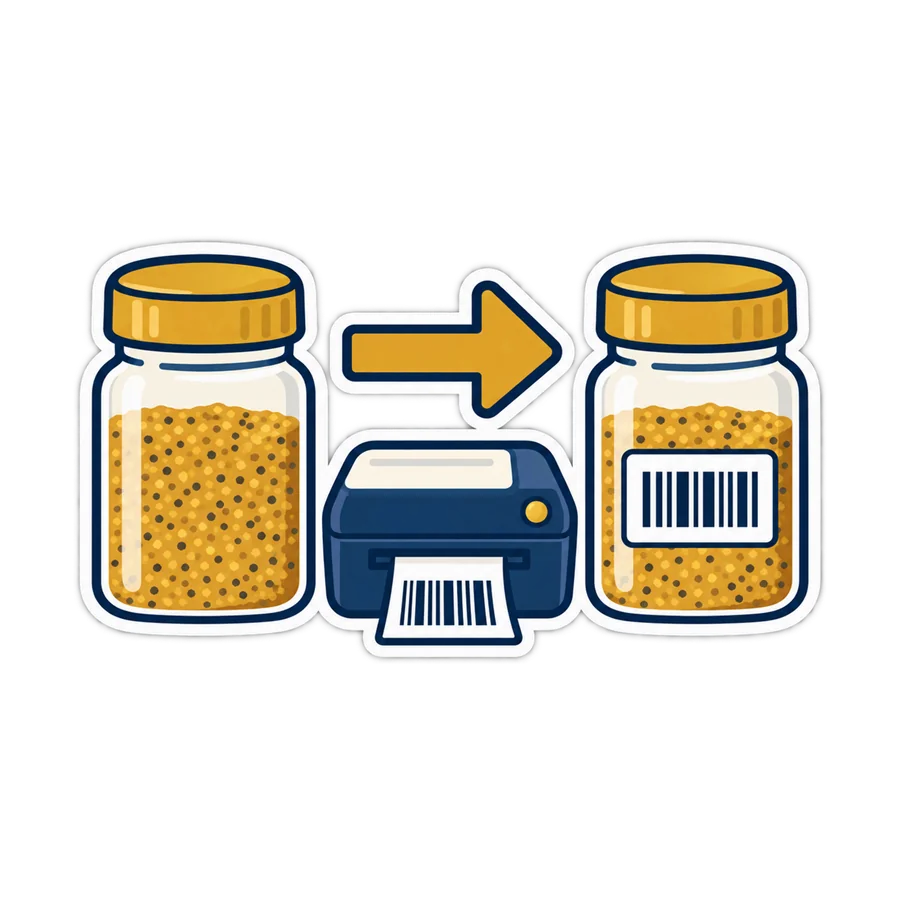
- Loose goods you pack yourself: beans, rice, nuts, spices, sweets by the box.
- Local products whose maker never registered a barcode: a bakery, a workshop, a home kitchen.
- Clothes, shoes, bags, accessories — often each size or colour needs its own code.
- Spare parts, stationery, hardware bits bought in bulk and sold by the piece.
Before 5.1 you could invent numbers by hand — and sooner or later two products shared one, or a made-up number turned out to be a real product's barcode. That is what the new button is for.
What the code looks like
Each generated code is a 13-digit EAN-13 number, the same length as the barcodes on supermarket shelves:
| Part | Example | Meaning |
|---|---|---|
| Prefix | 29 | The in-store range. Codes starting with 2 are never given to a product sold in shops, so a generated code can never be some real product's barcode. |
| Your shop's counter | 0000000001 | Ten digits that count up: 1, 2, 3… |
| Check digit | 8 | Calculated, so a mis-scan is caught |
So the first product gets 2900000000018, the next 2900000000025, and so on. Nobody has to remember anything: the number is saved on the product like any barcode.
Why it never repeats
- A code the shop already has is skipped. If you once typed a number that happens to be next in line, the counter jumps over it.
- The counter only moves forward. Press Generate and then cancel the product, and that number is simply not used — it is never handed out twice.
- It keeps clear of your scale labels. Label-printing scales also print codes starting with 2 (see weighed goods with scale labels). If scale labels are on, PosMasr takes the next free prefix — 29, 28… down to 20 — that cannot be read as a scale label, and tells you once: “Scale labels start with 2, so the new barcodes start with …”. With a one-digit scale prefix
2every 2x range is taken, so the codes start with04, another in-store range.
One product: the Generate button
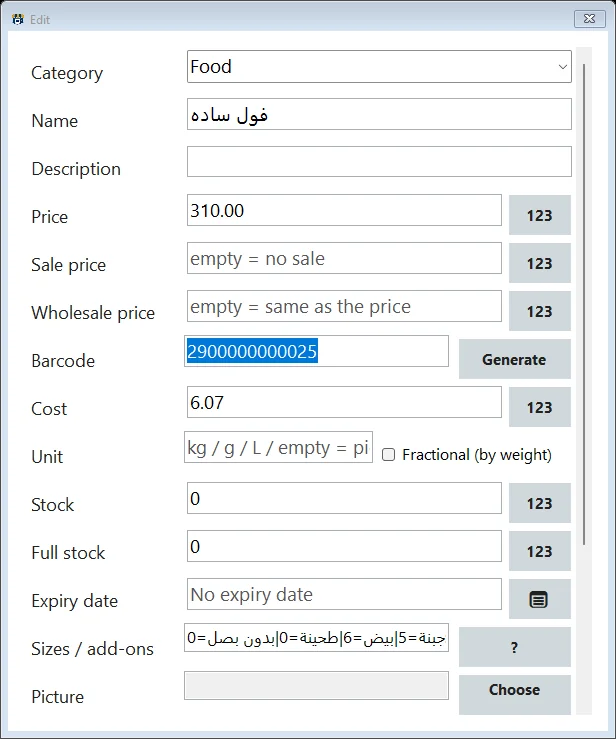
In the product editor there is now a Generate button next to the barcode field.
- Add or open the product.
- Press Generate: the next code appears in the field.
- Save as usual.
If the product already has a barcode, PosMasr asks first — “This product has the barcode … Replace it with a new one?” — so a real maker's barcode is not thrown away by one wrong click.
All of them at once
The common case is a shop that has just entered two hundred products, forty of them without a barcode. In the products screen:
- Optionally, choose the No barcode filter to see which ones they are.
- Press Bulk actions. With nothing selected it goes straight to the barcodes; with products selected, choose Give a barcode to the N products without one.
- Confirm. The message says how many, and which prefix the codes start with.
- PosMasr answers “N barcodes made” and asks: Print barcode labels for these N products now?
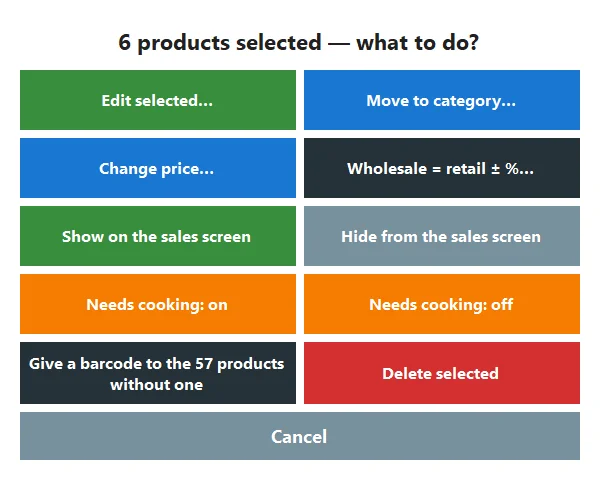
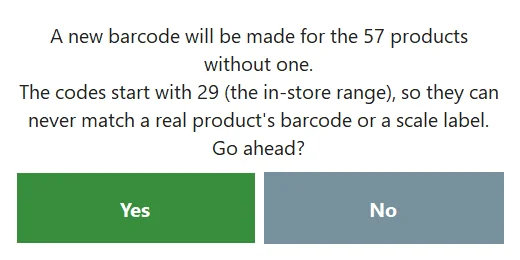
A product with variants — a shirt in three sizes — is left out on purpose: each size gets its own code, because each size is what gets scanned. Products that already have a barcode are never touched by the bulk action.
Printing the labels
A code is only useful once it is on the product. Say yes to the question after the bulk action and the label window opens with just those products, one label each. From there it is the same label printing described in the label printer guide: pick the size, look at the preview, print one and scan it, then print the rest.
- On the Windows program: a label printer, or the receipt printer if you leave the label printer empty. Ready sizes from the 3-across 12 × 38 mm roll to 100 × 50 mm, or your own.
- In the PosMasr Cloud web app: a 3-across roll, a pharmacy label and a single 50 × 30 mm label, plus an A4 sheet of 63 × 38 mm labels for an ordinary office printer — handy when you have no label printer yet.
- The label carries the name, the price and the code in Code 128 bars, which any ordinary scanner reads (why, in the barcode types guide).
At the till
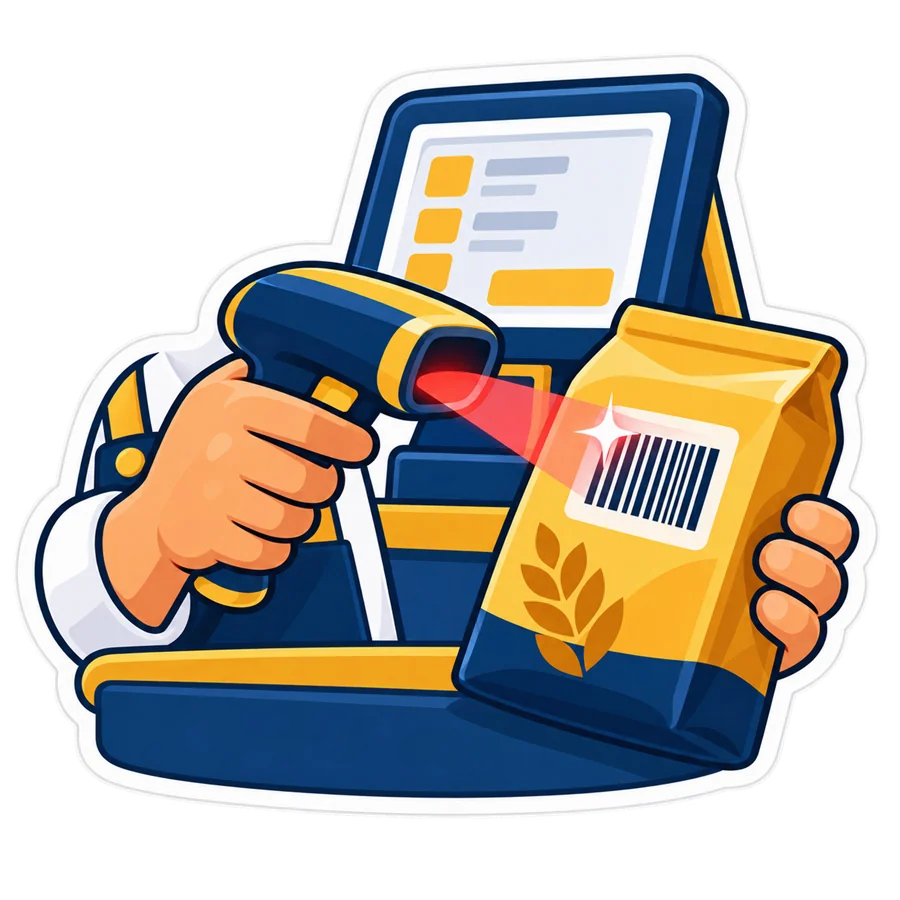
From here on the product sells like a can of cola: scan, and it lands in the cart; scan again, and the quantity goes up. The same code works for receiving stock and for the stock-take. Two small details:
- An in-store code is never looked up in the ready catalogue — there is nothing to find, because no product outside your shop carries it.
- The scanner needs nothing special. If you are unsure it reads well, the barcode input test in Settings → Devices shows exactly what it sends (the Devices tab).
Two tills, and PosMasr Cloud
Two tills must never hand out the same number, so:
- Two desktop tills linked with PosMasr Link: new codes are made on the main till, which keeps the product list. The second till says so and sends you there.
- PosMasr Cloud: the numbers come from one counter on the server that every till and the web app share, so two tills pressing Generate at the same moment still get two different codes. In the web app, the products list shows “N without a barcode — Generate”, and after it the labels page lists only the products that were just given a code. A code generated for a new product is reserved until you save it.
Generating is a manager's job in both: a cashier without the products right cannot do it.
One afternoon, in order
For a shop doing this for the first time, this order saves reprinting:
- Clean the list first. The No price (0) and Duplicate name filters in the products screen show what to fix. A label printed with the wrong name or price is a label printed twice.
- Sizes and colours as variants. If a product comes in sizes, set up its variants before generating, so each size gets its own code.
- Generate for all of them with Bulk actions, and say yes to the labels.
- Print one, scan it at the till, then print the rest. One test label costs almost nothing; a roll printed at the wrong size does not.
- Stick the label on the product itself where you can — on the bag, the box, the tag. For goods you keep loose in a bin, a label on the shelf edge works too, as long as the cashier knows to scan the shelf and not guess.
Goods sold by weight are a different story: there the barcode must carry the weight or the price of that bag, which is what a label-printing scale does — see weighed goods with scale labels.
What an in-store code is not
Which package has it
Generating barcodes belongs to products and barcodes, so it is in every desktop package from Bronze, and on every PosMasr Cloud plan from Basic. Printing the labels is part of Silver and up on the desktop, and of the Shop plan and up online (prices). Coming from another program? Import from anywhere first, then give the gaps their codes.
Quick answers
Can I choose the numbers myself?
You can still type any barcode by hand, as before. Generate only saves you from inventing one, and from the mistakes that come with it.
I reinstalled PosMasr from a backup. Will the numbers start again from 1?
Even if the counter were behind, a code the shop already has is skipped, so no two products end up with the same number.
Why do my new codes start with 28 and not 29?
Because scale labels are on and your scale prefix clashes with 29, so PosMasr moved one step down. That is on purpose; it tells you once when it happens.
Do I need a label printer?
No. The Windows program can print labels on the receipt printer, and the web app can print an A4 sheet of labels on an office printer. A label printer is simply faster and neater for many products.
Will a generated code clash with the scale labels?
No. When scale labels are on, the prefix is chosen so that a generated code can never be read as a scale label.
Give the shelf without barcodes its codes
Download PosMasr 5.1, open Bulk actions, and print the labels for the products that had none. 7 days free, every feature open.