Your products are already typed. Don't type them again.
Changing a program should not mean two days of typing. Whatever your products live in today — an old program, an Excel sheet, a database the accountant keeps — PosMasr reads it, shows you what will land, and only then writes it.
It ships in version 4.0. Update to 4.0 and the wizard is in Settings → Products → Import from another program.

Whatever your list is sitting in today
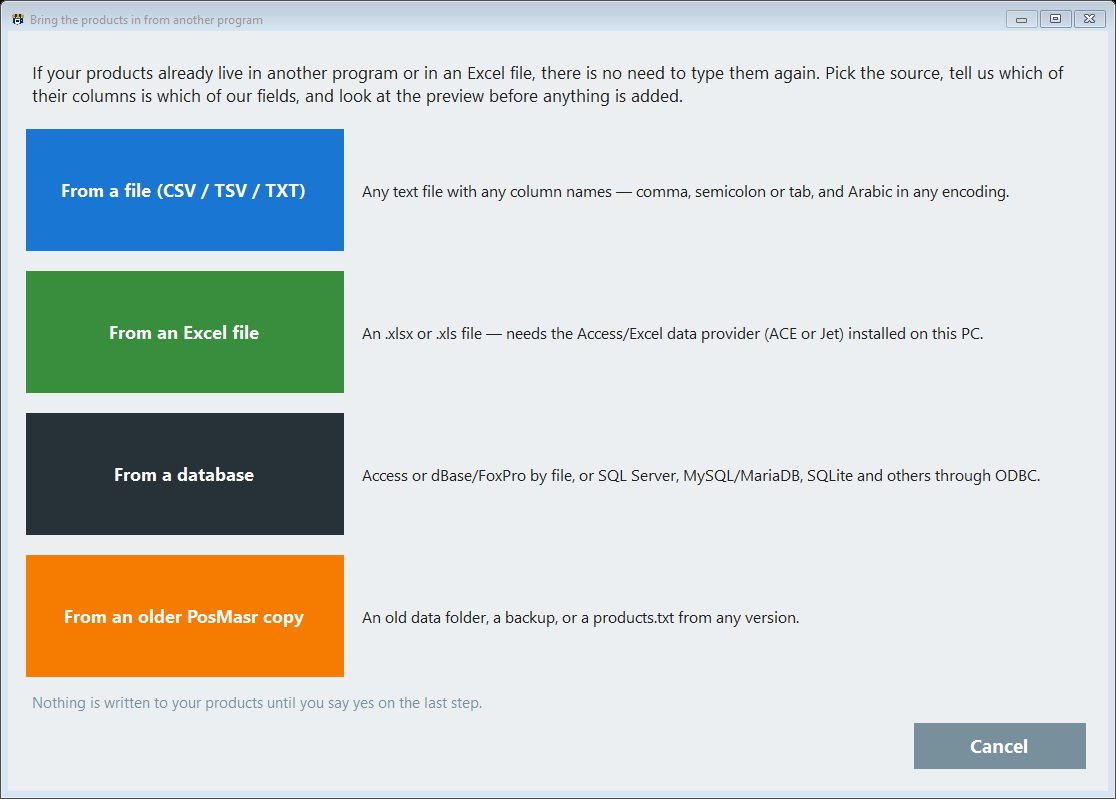
Settings → Products → “Import from another program” opens one wizard with four buttons. You pick the one that matches what you have.

A text file
CSV, TSV or TXT with any column names — comma, semicolon or tab, and Arabic in any encoding. If the old program can export anything at all, this is the one.

An Excel file
.xlsx and .xls, straight from the file — it needs the Access/Excel data provider on that PC, and if it isn't there the program tells you to save as CSV UTF-8 instead.

A database
A file on the PC (Access .mdb/.accdb, dBase and FoxPro .dbf) or a server through an installed ODBC driver — SQL Server, MySQL and MariaDB, SQLite and the rest. After it connects you pick the table or the view.

An older PosMasr copy
An old data folder, a backup, or a products.txt from any version — the old-copy importer, now one source inside the same wizard.
From Excel, another program or an old PosMasr — and out again any day: Bring your products from anywhere → · Your data is yours →

Their column names don't have to be ours
This is the part that stops most imports: the other program calls it “Item Description”, or “ITEM_NAME”, or “COL3”. It does not matter. You tell us which is which, once.
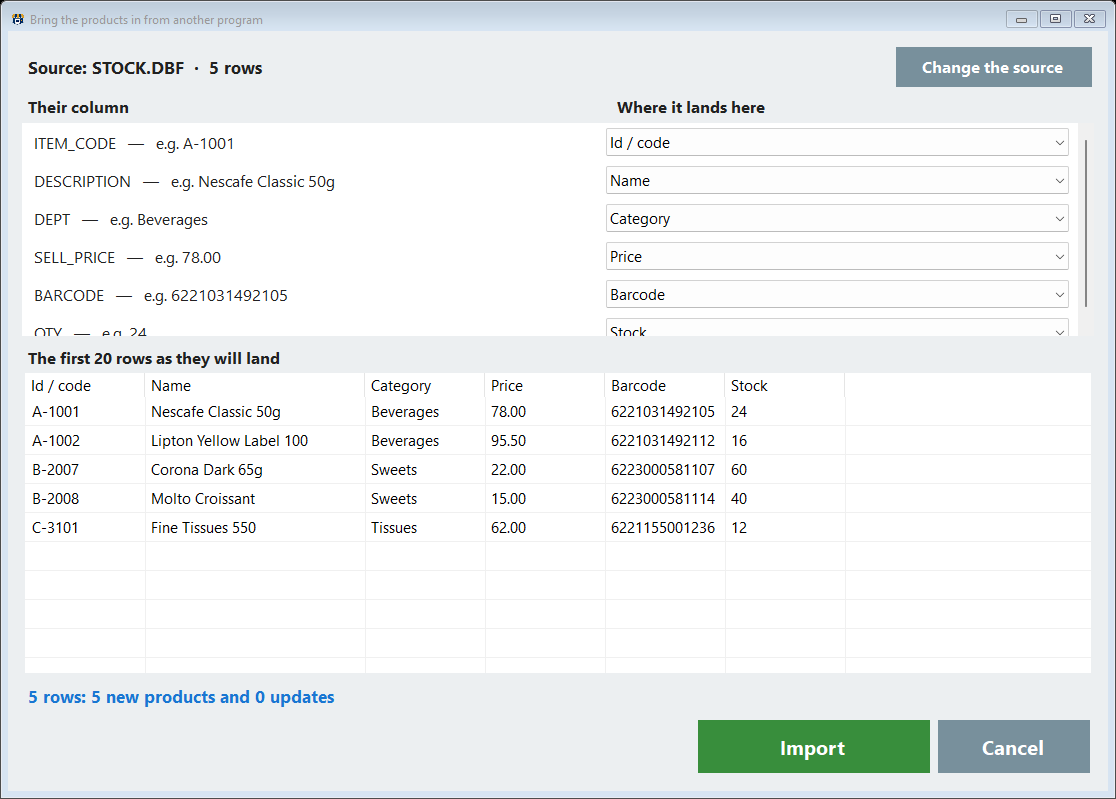
- Every column of theirs gets a row: its name, a real example from the values in it, and a drop-down saying where it lands here.
- The drop-down arrives already filled with a guess from the column's name — you correct what's wrong, not fill in what's empty.
- A column you don't need stays on “ignore this column”. Nothing forces you to bring it.
- You can land on the name, the price, the cost, the barcode, the category, the stock, the unit, the expiry date, the wholesale price, the sale price, the description, the tax code and the rest.
- The map is remembered per source — next month the same file opens already mapped.
In the manual: The import wizard, step by step


You see it before it happens
Nothing is written to your products until you say yes on the last step — and by then you have already read the result.
- The first twenty rows are shown exactly as they will land, under our field names, not theirs.
- One line tells you the whole story: so many rows, so many new products, so many updates.
- A name column is required. Without it the Import button stays off and the wizard says so.
- A barcode that already belongs to another product is reported and that row is skipped — never a second product with the same code.
- A blank cell keeps what you already have instead of wiping it, so a partial list is safe to import.
- A run touching more than 200 products takes a backup first and tells you where it put it.

No list yet? Pick one. Already have a list? Bring it.
Every shop opening on PosMasr is one of these two, and neither of them types a few hundred products by hand.

A new shop — pick from the ready catalogue
More than 50,000 products that Egyptian shops actually sell, each with its name, barcode and category, and 18,493 of them with a picture. Type to find, tick what you sell, add them and type your prices — the catalogue has none. It works offline, from one encrypted file kept on your PC. It is open to the shops that share their own product list.

A shop that already runs something — bring your list
Your names, your prices, your barcodes, your categories — as they are today, with nobody re-typing them and nobody deciding what a thing is called in your shop.

The door opens both ways
A program that is easy to move into and hard to move out of is a trap. This one is easy in both directions, and that is on purpose.
- Export the whole product list to a CSV that Excel opens with the Arabic intact — edit it there and import it back.
- A daily copy into a folder writes the products, the day's receipts, the receipt items and the stock into a folder on the PC or a server share — and the products file re-imports as it is.
- A read-only feed lets the accountant's software read the products, the receipts and the stock directly — with a token you generate and can replace whenever you like.
- Your data sits on your own PC in a folder you can open, back up to a USB stick, or carry to another machine.
In the manual: Export & link Backup & restore

Quick answers about bringing your products in
My old program's column names are nothing like yours.
That is the normal case, and it is exactly what the wizard is for. Any column names work: you map each of theirs onto one of ours from a drop-down that already carries a guess, and a column you don't want stays ignored.
My file is Excel and the import says there is no data provider.
Reading an .xlsx or .xls directly needs the Access/Excel data provider installed on that PC. If it isn't, the message tells you what to do instead: open the file in Excel, Save As ➜ CSV UTF-8, and import that with “From a file”. The result is identical.
Can it read straight from our SQL Server / MySQL?
Yes, through an ODBC driver installed on that PC — SQL Server, MySQL and MariaDB, SQLite and others. You type the server, the database and the user, press Connect, then pick the table or the view you want. If the server has a port, write it as server:1433.
Do you keep our database password?
No. The password is used for that one connection and is never written anywhere — you are asked for it on every connect. Everything else (the driver, the server, the database name and the user) is remembered so the next import is quicker.
What if I import the same file twice by mistake?
Nothing doubles. A row that matches an existing product — by its code, then its barcode, then its name — is an update, not a new row, and a barcode that already belongs to another product is reported and skipped. The confirmation before the import tells you how many are new and how many are updates, so a double run shows itself as “0 new”.
My list is bigger than 20,000 products.
One source is read up to 20,000 rows and the wizard says so instead of dropping the rest silently. Split the file and run it twice — the mapping is remembered, so the second run is a click.
Moving to PosMasr Cloud instead?
The web app takes the same kind of list: a CSV or Excel export with any column names, matched column by column. A PosMasr desktop backup brings the products, customers, suppliers, stock and sales history in one go. How, in the manual · PosMasr Cloud
Try it free for 14 days Everything the products screen does →