One rule: a list that exists is never typed again
Many shops stay on a program they do not like because of the list. The old program is slow and the support never answers — but it holds 900 products with their prices, and nobody wants a week of typing them again. Typing is also where the mistakes come from: a price with a zero too many, a barcode on the wrong product, the same item twice under two names.
So the rule is simple: if your products are written anywhere a computer can read, they come in by import, not by hand. If they are written nowhere, most of them are already written for you in the ready catalogue. Typing is for what is left — your prices, and a few things only your shop sells.

Where is your list today?
Find your case, then jump to its section. Most shops are in the first row even when they think they are not: almost every program can save its product list as an Excel or CSV file, from a menu called Export, Save as or Reports.
| Your list is in… | On the desktop | Online |
|---|---|---|
| An Excel sheet or a CSV file | The import wizard: any column names, a preview first | Products → Import and export: a CSV file |
| Another program's database | The same wizard reads it directly | Export it to CSV first |
| An older PosMasr copy | The old-copy importer, or a backup and restore | One file from the desktop, imported in Settings → Data |
| Nowhere — a notebook, or your head | Pick from the ready catalogue | Pick from the ready catalogue |
From Excel or a CSV file: any column names, and a preview first
In the desktop program open Settings → Products → “Import from another program”. One wizard, four sources; pick a text file (CSV, TSV or TXT — comma, semicolon or tab, Arabic in any encoding) or an Excel file.
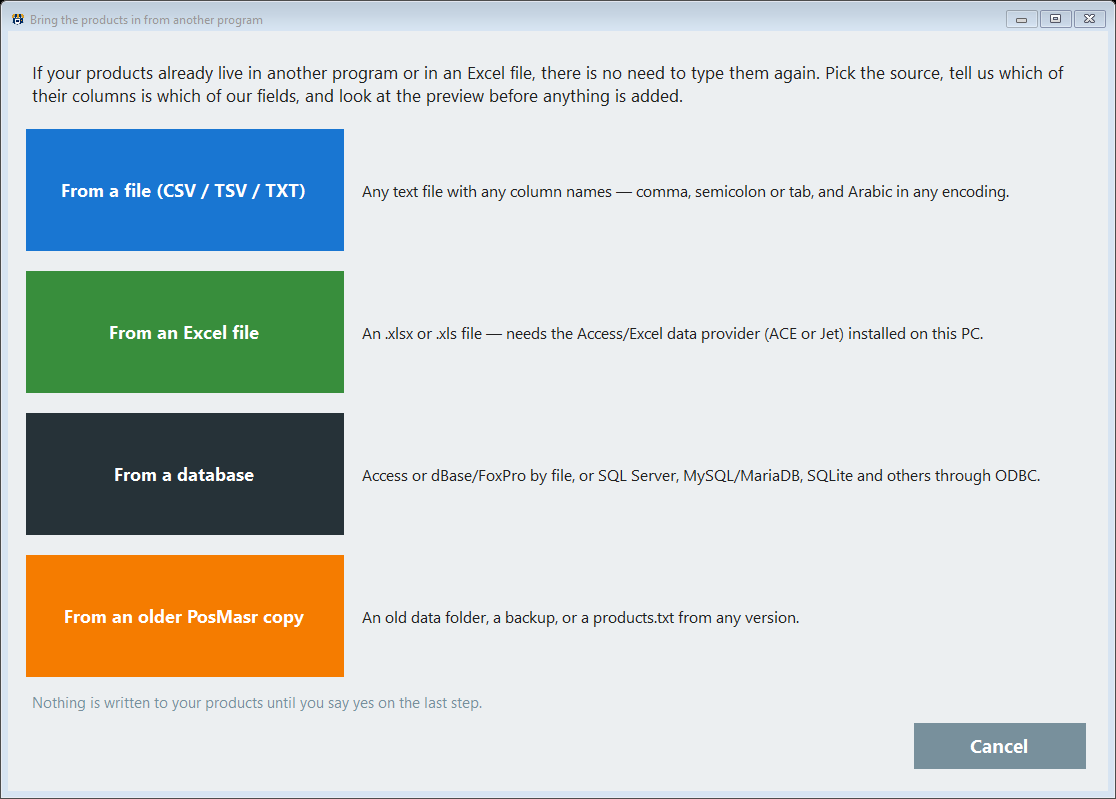
Then comes the part that usually stops an import: the other program calls it “Item Description” or “COL3”. It does not matter. Every column of theirs gets a row with a real example and a drop-down saying where it lands — already filled with a guess from the column's name, so you only correct what is wrong. A column you do not need stays on “ignore”.
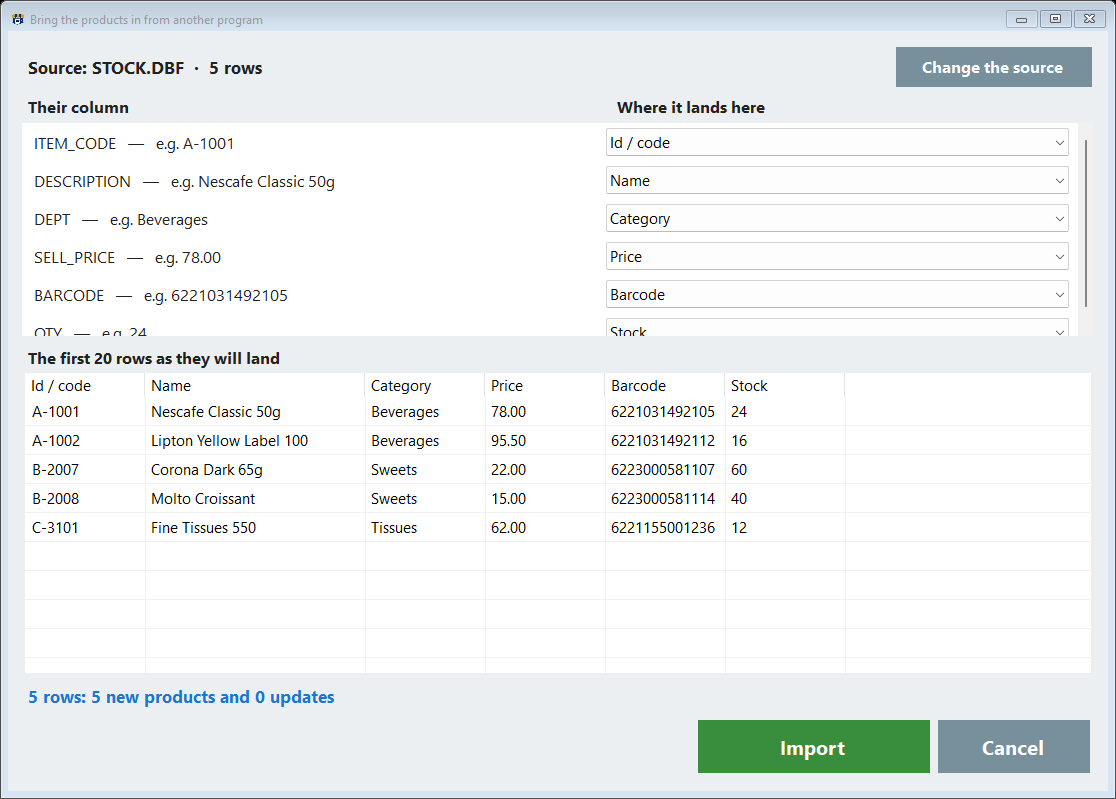
Before anything is written you see what will happen:
- The first 20 rows as they will land, and one line with the story: so many rows, so many new products, so many updates.
- A barcode that already belongs to another product is reported and that row skipped — never two products with one code.
- A blank cell keeps what you already have, so a partial list is safe to import.
- A run that touches more than 200 products takes a backup first.
One source is read up to 20,000 rows, and the column map is remembered, so next month the same file opens already mapped. The full walk-through is on Import from another program, and why a list in Excel is worth moving at all is in Excel or a real POS.
From another program's database
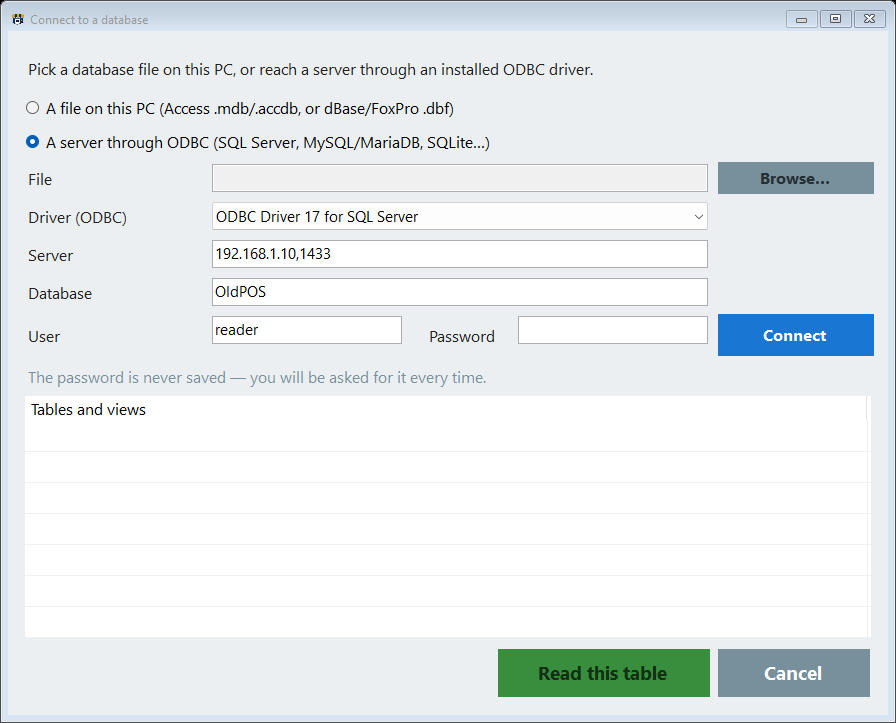
Some programs never offer an export. If the data sits in a database the PC can reach, the wizard's database source reads it directly: a file on the PC (Access .mdb / .accdb, dBase and FoxPro .dbf), or a server through an ODBC driver installed on that PC — SQL Server, MySQL and MariaDB, SQLite and others. Connect, pick the table or the view that holds the products, and the same map and preview follow.
From an older PosMasr copy
- The same shop on a new PC (or after a format) is not an import but a backup and restore — everything comes back, sales and credit included. The order matters: follow Moving PosMasr to a new PC.
- The products of an old copy into a copy that already runs — a second shop, an old version on a forgotten PC, a folder on a USB stick: the wizard's fourth source, an older PosMasr copy. It finds old copies on the PC by itself, or you browse to one.
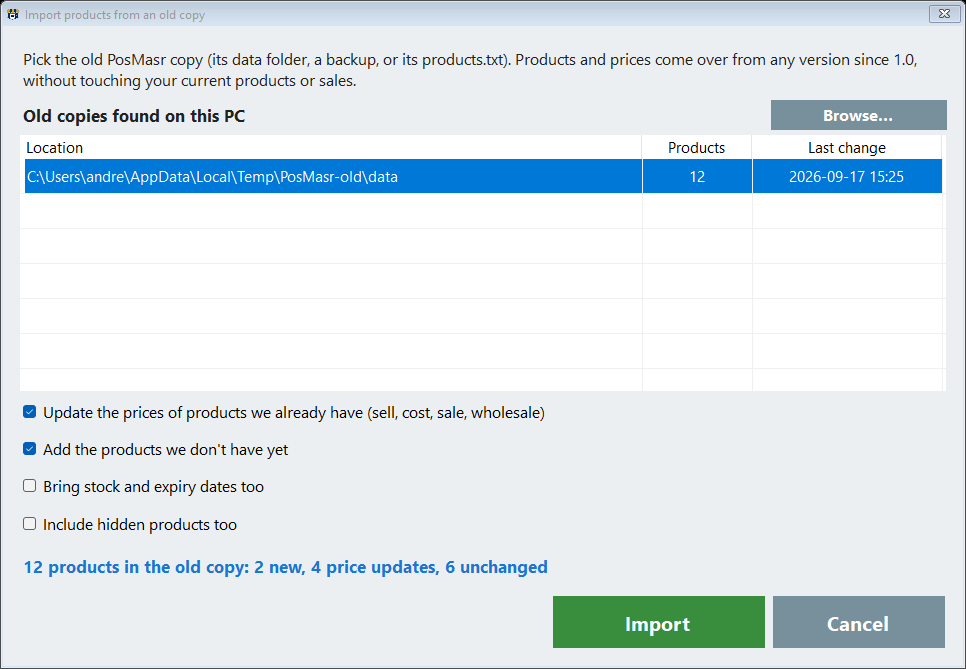
It matches by barcode, then by name, so products you already have are updated instead of doubled, and you read a summary before you press Import.
Into PosMasr Cloud
The online edition takes a list in two ways, both from the browser:
- A CSV file — Products → Import and export: a CSV, or an Excel sheet saved as CSV. The column names it knows are the ones PosMasr's own export writes, in Arabic or English; rows are matched by id, then barcode, then name, and the result says how many were added, updated and skipped. There is no column-mapping step online, so a list with odd headers is easier to rename in Excel first — or to pass through the desktop wizard.
- A whole desktop shop — Settings → Data → Import a desktop copy. Products, customers with their balances, suppliers, sales and shifts arrive under their original dates, and the report compares the last 30 days of Z totals with the desktop's own files.
In the desktop program (5.1), Settings → Backup → Move to PosMasr Cloud… makes that file in one go, with the products' pictures and about a year of sales. Nothing on the desktop changes while you try the online edition. The whole move is in Moving your desktop to the cloud.
The gaps: the ready catalogue
An import brings what you had. A shop with no list — or a list that covers half the shelf — fills the rest from the ready catalogue: more than 52,000 products sold in Egyptian shops, each with its Arabic name, the barcode printed on the pack and its category, and 18,493 of them with a picture. Type to find, tick what you sell, add.
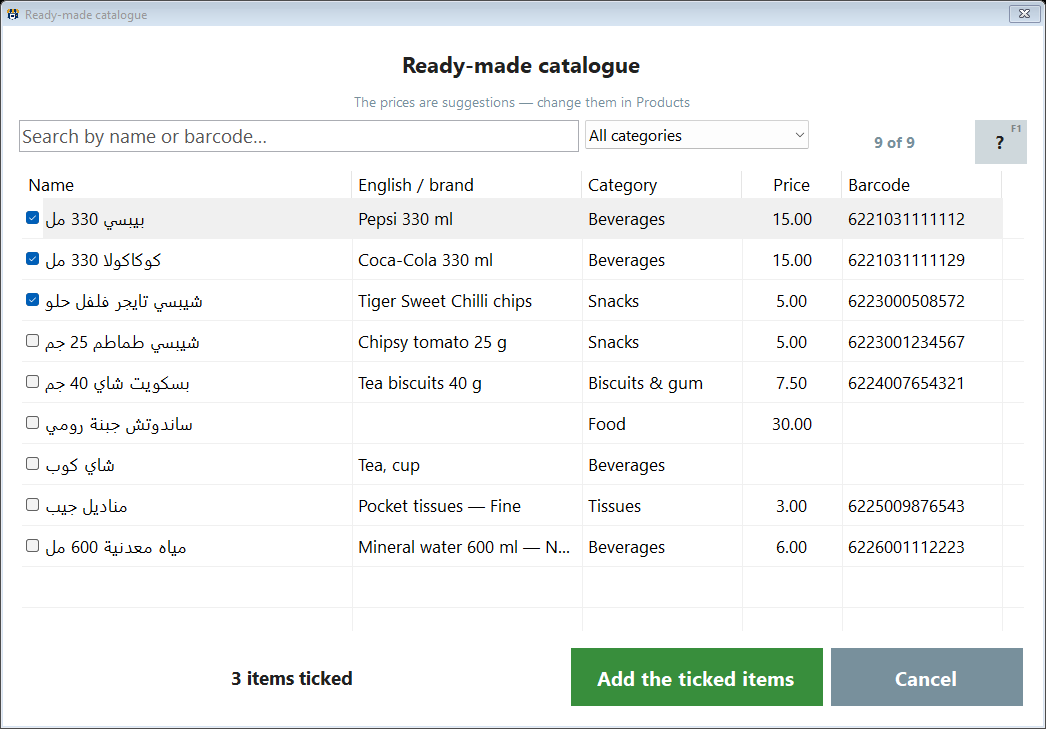
The catalogue carries no prices on purpose: products arrive without one, and the no price filter lists what is waiting for yours. A pack that neither the import nor your ticks brought in can be scanned in the product screen, and if the catalogue knows the barcode, the name, category and picture fill themselves in. On the desktop the catalogue is open to shops that share their own product list; online it comes with every plan.

The first hour after the import
An import is fast; checking it is what makes it safe. Before the first customer, on the Products screen:
- Filter No price and No barcode: type what is missing, or scan the packs.
- Filter Duplicate name and Duplicate barcode: two programs often called one thing by two names.
- Open ten products you know by heart and compare the price with the shelf.
- Ring up one test sale with a scanned barcode, print it, then return it.
An hour of this saves a month of “why is this price wrong?”. Keep the old program's file for a few weeks — not to go back, but to answer the odd question about an old price.
Quick answers
My old program's column names are nothing like yours. Is that a problem?
Not on the desktop: the import wizard maps any column names, with a guess already filled in, and shows 20 rows before it writes anything. Online, the CSV import knows PosMasr's own column names, so rename the headers in Excel first or use the desktop wizard.
What if I import the same file twice by mistake?
Nothing doubles. A row that matches an existing product — by its code, then barcode, then name — updates it instead of adding a new one, and the confirmation shows “0 new”.
Do customers' balances come over from another program?
The import wizard brings products only. Customers with their balances come over whole only from a PosMasr copy. From another program, print its list of who owes what and keep it next to the till until those old balances are settled.
Does the catalogue set my prices?
Never. It brings names, barcodes, categories and, for 18,493 products, a picture. Every price is yours, and the no-price filter lists what still needs one.
My list is bigger than 20,000 products.
Split the file and run the wizard twice. The column map is remembered, so the second run takes a click, and the wizard says when a source hit the limit instead of dropping rows silently.
Import your own list during the trial
Try PosMasr free for 7 days with your real products: run the import wizard on your file, read the preview, and sell a test receipt the same day.