Hardware
Works with the hardware you already have
We don't force you to buy special or custom hardware like others do. Any Windows PC, any thermal printer with a driver, any cash drawer, any USB barcode scanner — keep what you have, or buy what suits you from us or from anywhere. If it's sold in Egypt, it almost certainly works.
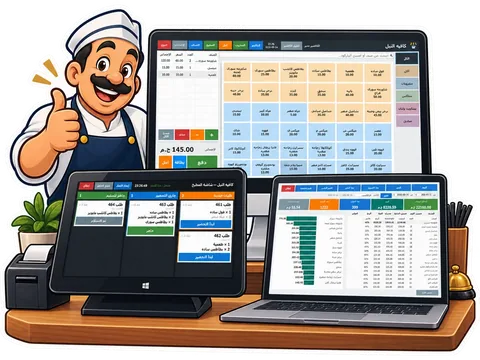

The computer
- Windows 7, 8, 10 or 11 — 32 or 64 bit
- Light: runs fine on older, cheaper PCs
- Mouse, keyboard, or a touch screen
- No internet connection required
Receipt printer
- Since 5.1 the installer sets up the common USB receipt printers by itself — which ones; any other thermal printer with a Windows driver works too
- 58 mm or 80 mm paper (also 57 / 76 mm)
- USB, LAN or Bluetooth — whatever the driver supports
- Common brands: Xprinter, Epson, Bixolon, Rongta, Gprinter and the like
Cash drawer
- Connected to the printer's RJ11 drawer port (the usual setup)
- Or to the PC through a USB/serial (COM) trigger
- Kick commands: ESC p, DLE DC4, BEL or custom bytes
- One-button diagnostic finds the command that works
Barcode scanner
- Any USB scanner that types like a keyboard (all the common ones)
- Wired or wireless, handheld or desktop
- Reads EAN-13, Code 128 and the labels PosMasr prints
- Card reader (3.1): any USB magnetic-stripe or RFID/NFC reader in keyboard mode (≈300–900 EGP) — manager cards approve voids, returns and discounts, and any account can log in with its card
- Weighing scale (3.2): any scale with an RS-232 / USB-serial port — CAS (PD-II, ER, AP), DIGI DS, Mettler Toledo and the Chinese price-computing scales (Rongta and the like); tap a by-weight product and the weight goes straight into the cart. Scale-label barcodes (EAN-13) still work as well

Label printer (optional)
- Any label printer with a Windows driver (Xprinter, Zebra, TSC…)
- Or print labels on the receipt printer itself
- 3-across rolls, pharmacy split labels, and standard sizes

Kitchen screen (optional)
- A second monitor on the till PC, or
- Any Windows PC/tablet on the same Wi-Fi or LAN
- Connects to the till by IP — no server, no cloud
- Or a second thermal printer in the kitchen: every order with items to prepare prints a ticket (2.2)

Customer screen (optional, 2.1)
- Any second monitor on the till PC: HDMI, VGA or a USB display adapter
- Windows display mode set to Extend (not Duplicate)
- Shows the order, the total, the amount paid and the change to the customer
- Or a small pole display (3.1): any 2-line VFD/LCD (2×20, EPSON / AEDEX / plain text) or 8-digit LED amount display on a COM or USB port — numbers and totals; Arabic names show as the barcode
Set up in minutes, tested from inside the program
Settings → Printer: pick your printer and paper width. Settings → Cash drawer: pick how it's connected. Then use the Tests tab: test print, test drawer, detect the drawer port, and preview the receipt at real size — before you enable printing on every sale.
Printer setup guide → What 5.1 sets up by itself →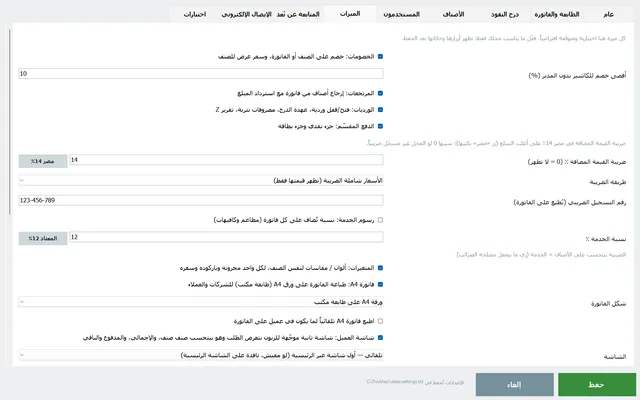

A typical setup
What a small shop usually buys — PosMasr works with all of it.
PC or all-in-one
Any Windows machine, even an old one.
80 mm thermal printer
With a drawer port on the back.
Cash drawer
RJ11 cable into the printer.
USB barcode scanner
Plug and scan.
Not sure about your device? Send us its name on WhatsApp and we'll tell you — or just try the free trial on it.