What the installer does, in one paragraph
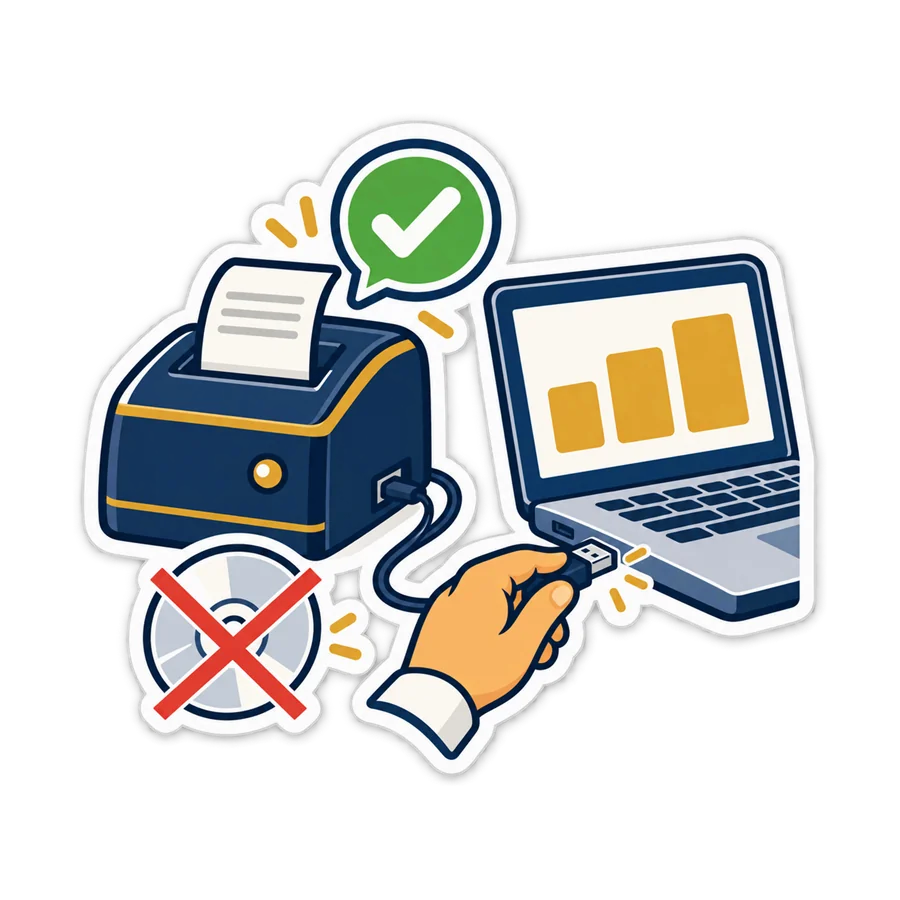
The PosMasr 5.1 setup has a new box on the tasks page: Set up connected devices (printer and USB devices), ticked by default. Leave it ticked. Near the end, a small helper installs the USB-serial driver PosMasr carries, looks at the USB devices plugged in right now, and creates a Windows print queue for each receipt printer it recognises for sure. When the program opens, it picks that printer if you have not chosen one yet. No download, no CD, no restart.
So: plug the printer in and switch it on before you install. And if this step goes wrong, the setup does not fail — it logs the reason and carries on, so the worst case is the old way: choose the printer yourself in Settings.
Which printers it sets up by itself
A printer is recognised by its USB identity — two codes every USB device reports to Windows. PosMasr only sets up a printer automatically when that identity is on a short, checked list and the printer is really in USB printer mode. Today the list has eight identities:
| Printer | Note |
|---|---|
| Epson TM-T20 · TM-T20II · TM-T20III | The TM-T20II only in its printer mode, not Epson's own vendor mode |
| Citizen CT-S310II | USB |
| Bixolon SRP-350plus | The plus model; not proof for the SRP-350II or III |
| Xprinter (one shared USB identity) | Used by several Xprinter models, but not every XP-80C, XP-58IIH or XP-Q200 reports it |
| POS58 / POS80 generic printers | One shared identity, accepted only when the device is really a printer |
| The Rongta / OEM family | One shared identity, accepted only in printer mode |
Why so few? The same box can leave the factory with different USB insides, and a guessed identity puts a queue on the wrong device. So an identity joins this list only with solid sources behind it. Many more models are in the Devices tab with connection advice, but they are not set up automatically.
What “set up” actually means
- A Windows print queue named
PosMasr— for examplePosMasr TM-T20III— on the printer's own USB port. - The driver is Windows' own “Generic / Text Only”, which ships with Windows. The queue passes PosMasr's receipt commands to the printer as they are, which is what a thermal receipt printer wants. Nothing is downloaded from a vendor.
- PosMasr picks it as the receipt printer — only if no printer was chosen yet. On a fresh install the cash drawer is also set to open through the printer.
And what it never does: delete a printer, replace a driver you installed, touch a queue already on that port, or change the Windows default printer.
The Devices tab: what is plugged in, and what state it is in
Settings → Devices is new in 5.1. It lists the USB devices it knows, with their role (receipt printer, label printer, scale, USB-serial adapter…), the queue or port, and a status line such as “Port ready — test the device to confirm”, “Needs setup” or “Device not recognized by PosMasr”.
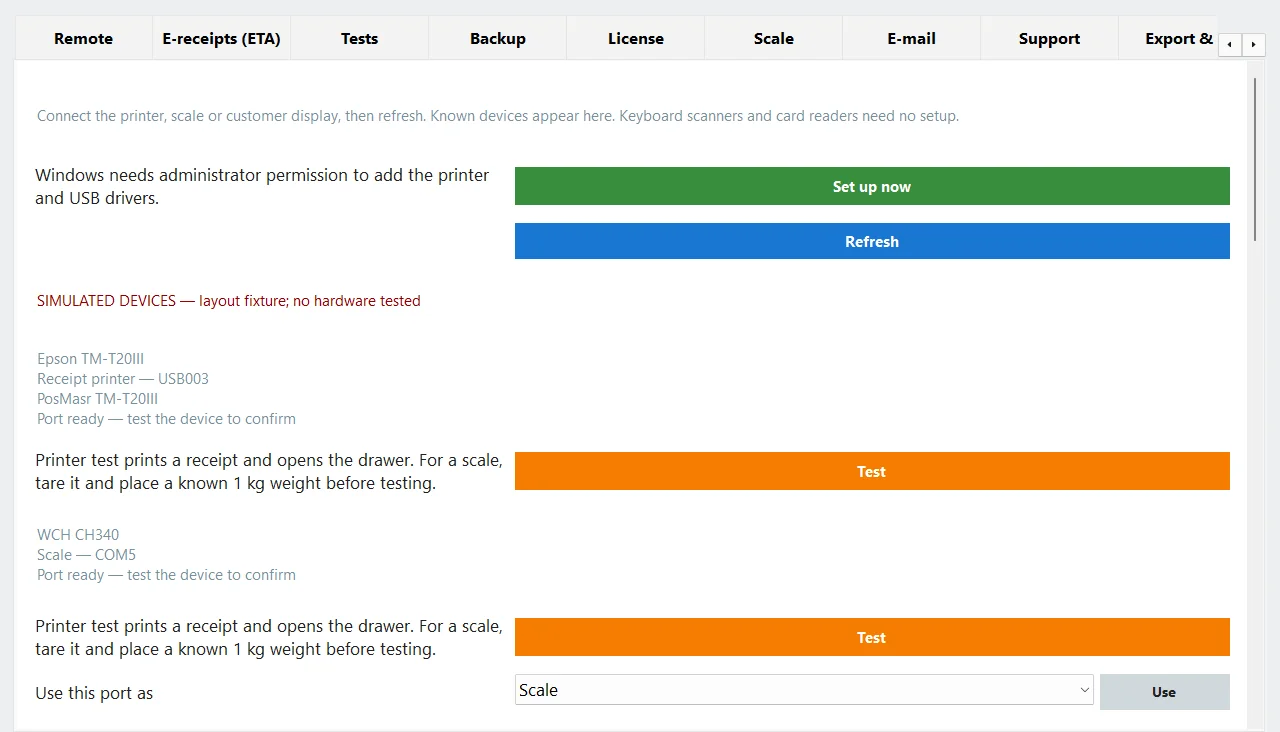
Taken from the program's own test run with simulated devices, as the red line on the screen says — not from a real shop.
- Set up now does the installer's step again, for what is connected now. Windows asks for administrator permission once.
- Refresh only looks. Nothing is changed until you press Set up now or a Test button.
- Test next to a printer prints a test receipt and opens the drawer; next to a scale it reads a weight (zero the scale first and put a known 1 kg on it).
- Use this port as — a USB-serial adapter cannot tell whether a scale, a pole display or a drawer hangs on it, so you say which.
- A model list with connection advice for printers, label printers, barcode readers and drawers. It only shows advice; a listed model is not necessarily connected or tested.
- Barcode input test: click the box and scan. A reader that types like a keyboard shows its code here, with no sale and nothing saved; such readers need no driver.
A printer you plug in later
Bought the printer a week later, or moved it to another USB socket? While PosMasr is open it notices the new device and — if it is one of the printers above — asks for administrator permission once. Said no by mistake? Settings → Devices → Set up now.
A network (LAN) printer
A network printer does not show up as USB. At the bottom of the Devices tab, choose the shop's network and press Find printers: PosMasr checks that network for the port receipt printers listen on (9100) — only when you press it.
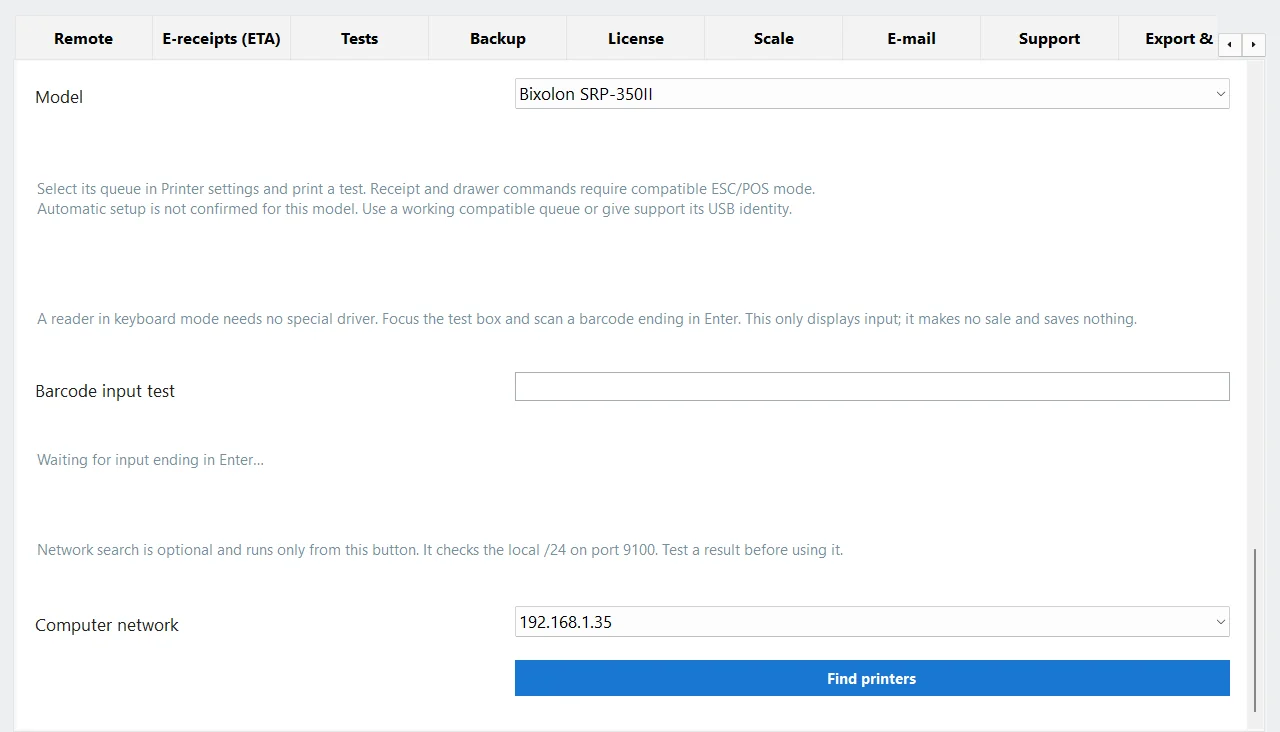
What it finds is a candidate — an address with that port open — not proof that it is a receipt printer. Add it to Windows as a network printer with its address, choose it in Settings → Printer & receipt, and print a test. A drawer plugged into a network printer is set in Drawer settings by the printer's address and port 9100 (manual, section 6).
The cash drawer through the printer
Most drawers in Egyptian shops plug into the printer: an RJ11 cable into its drawer socket, and the printer sends the opening pulse. Such a drawer has no USB identity of its own, so it never appears in the Devices list. A fresh 5.1 install already sets the drawer to open through the printer; press Test next to the printer.
- Did not open? Check the cable is in the drawer socket (not the network one) and that the drawer's voltage (12 V or 24 V) matches what the printer gives. Then Tests → Drawer diagnosis tries each opening command in turn.
- Drawers with their own USB or serial box (a dedicated variant, not the printer-driven one) use their maker's own commands; PosMasr does not guess a pulse for them, and some are not supported.
The long version — sizes, cables, locks and fixes — is in the cash drawer guide.

When you still need the maker's driver
Automatic setup is a shortcut, not a promise for every printer. You will still install a driver, or change a setting, when:
- Your model's identity is not on the list — most models sold in Egypt today. Install the printer the usual way (its driver, or Windows' Generic / Text Only on its USB port), then choose it in Settings → Printer & receipt. Our thermal printer guide walks through it.
- The printer is in its maker's own USB mode instead of printer mode — some Epson models, for instance. The tab says “Needs a USB print port; check the printer's USB mode in its manual”. Either switch the mode as its manual says, or install the maker's port driver.
- Label printers use their own driver and language; they are never set up automatically. See the label printer guide.
- Some models need their maker's software — Star printers that emulate these commands only through Star's software, and the Sunmi NT210. The model list says so.
- USB-serial adapters other than CH340/CH341 (FTDI, CP210x, PL2303): their drivers are not bundled; the tab names the chip and links its maker's download. And all of this is the Windows program — nothing here applies to a Mac or Linux PC yet.
The test receipt: 58 or 80 mm
Once a printer is chosen, check one thing before the first customer: the paper width. Settings → Printer & receipt → Paper width: 80 mm is the common one, 58 mm the small one. Leave the printable width at 0 and PosMasr works it out (48 mm on 58 paper, 72 mm on 80). Then print a test — from the Devices tab, or Tests → Test print.
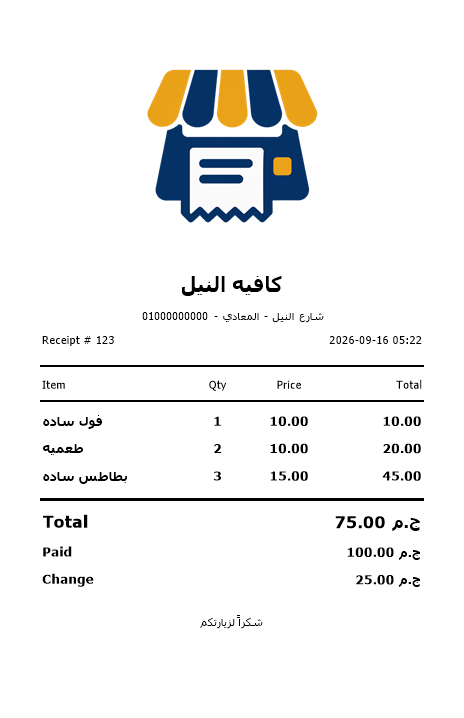
What to look at on the test:
- Nothing is cut off at the sides.
- Arabic prints as Arabic, not squares or question marks.
- The paper is cut and the drawer opens, if you have them.
Squares instead of letters usually mean a wrong driver or queue, not a bad printer — the fixes are in the printer guide's problems section.
Which package has it
This is part of the PosMasr Windows program and its installer from 5.1, not a package feature: Bronze gets the same printer setup as Platinum, and so does the program in PosMasr Cloud mode. Devices that are features follow the packages: the scale comes with Silver and up on the desktop and from the Shop plan online, and the customer display with Silver and up on the desktop (prices, and start small, upgrade later).
Quick answers
I installed before plugging in the printer. Do I have to reinstall?
No. Plug it in with PosMasr open and accept the one permission prompt, or go to Settings → Devices → Set up now.
Will it change my office printer or the default printer?
No. It only adds a new queue on a free port of a recognised receipt printer. Existing queues, drivers and the Windows default printer are left exactly as they were.
My Xprinter is not set up automatically. Is it broken?
Almost certainly not. Xprinter models do not all report the same USB identity. Install it the usual way and choose it in Settings → Printer & receipt; it prints the same.
Does the barcode reader need anything?
A reader that types like a keyboard — most USB readers — needs nothing. Check it in the Devices tab's barcode input test. If nothing appears, its manual shows how to put it in USB keyboard mode.
Plug in the printer, then install
Download PosMasr 5.1, keep “Set up connected devices” ticked, and print the test receipt. 7 days free, every feature open.