From the counter to the cook, instantly
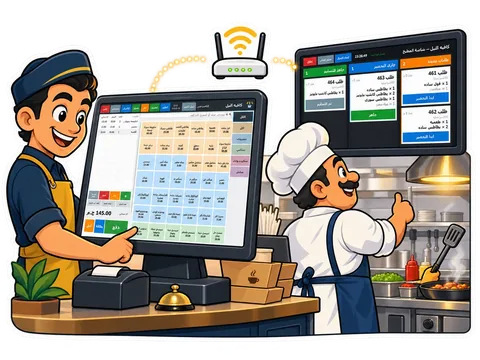
The moment a sale is made, the order appears on a screen in the kitchen — like the big fast-food chains. No paper tickets, nothing lost, nothing shouted.
The order used to reach the kitchen through the air
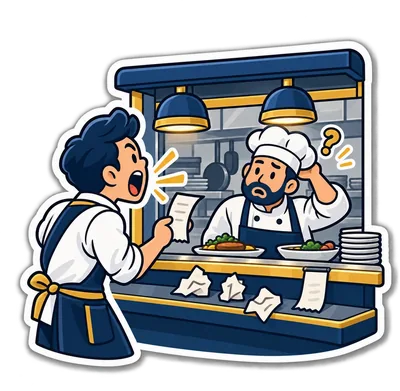
Someone calls the order through the hatch, the cook hears half of it, and a ticket on the counter gets wet or goes missing. At the rush hour the kitchen is guessing, and the customer waits for a sandwich nobody started.
With the kitchen screen the order is written once — at the till — and the cook reads exactly what was sold.
What the kitchen sees
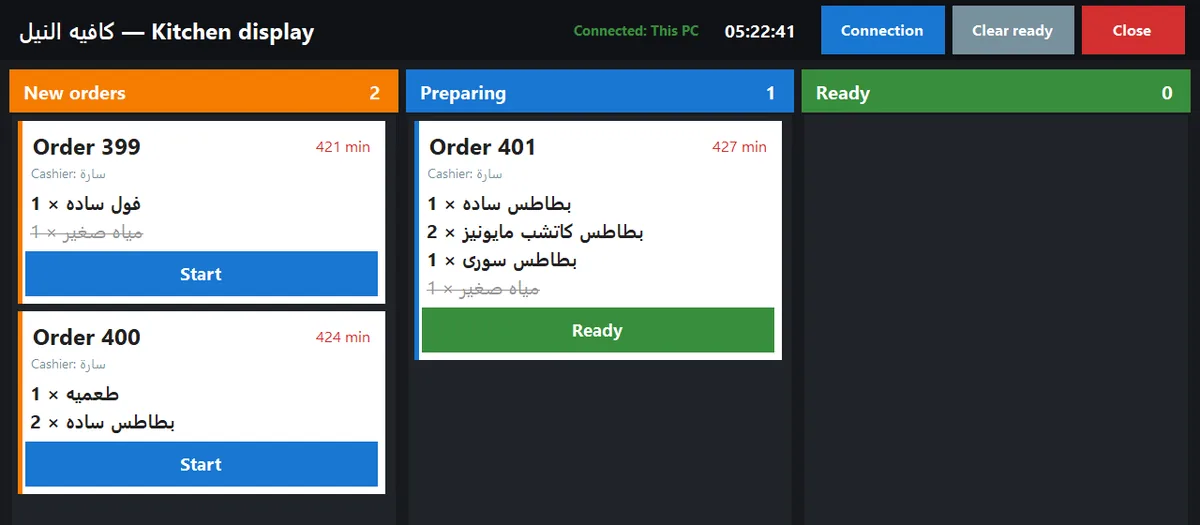
① New
Every new order lands here with its number, time and items. A ding plays so nobody misses it.
② Preparing
The cook taps the ticket to start. Everyone knows what's on the fire.
③ Ready
Tap again when it's done. Ready orders clear automatically after a while.
Only what needs cooking
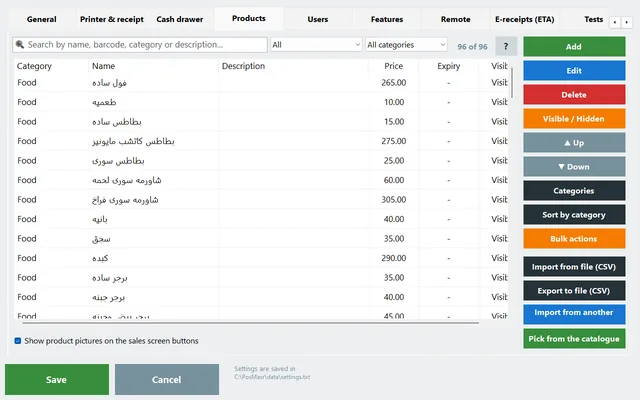
Each product has a “needs cooking” flag. A can of soda doesn't need the kitchen — a shawarma does. So only orders with something to cook reach the screen, and the ready-made items on the same ticket appear struck through, so the cook sees the whole order without preparing what's already done.
- Defaults are set by category (food = cook, drinks & snacks = ready)
- Change it per product in the product editor
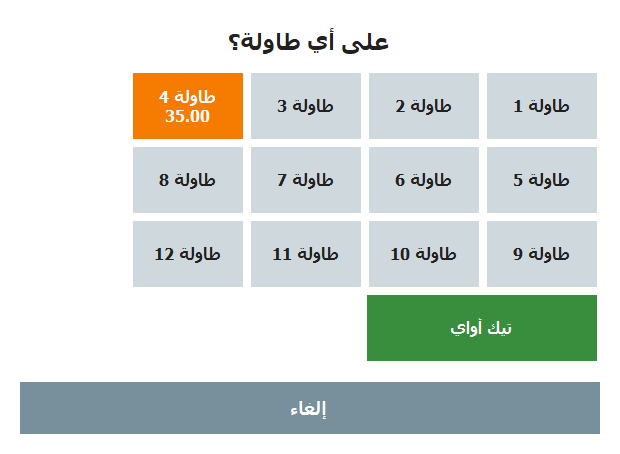
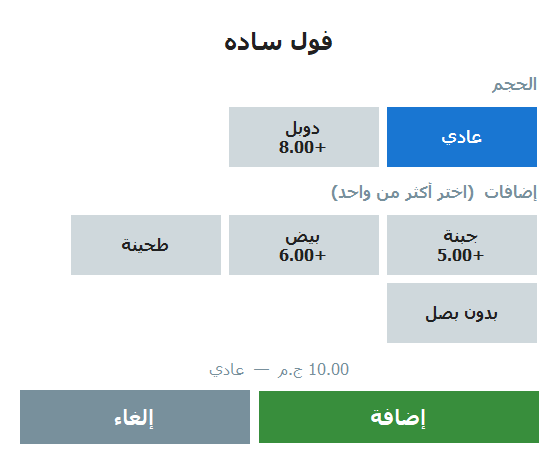
The table, the size and the extras travel with the order
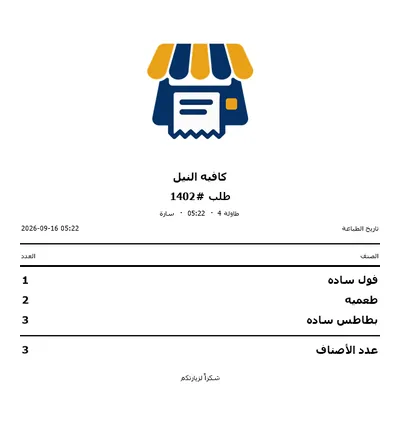
Hold parks the order on a table and sends it to the kitchen at the same time, and the table number rides along. A size or an extra picked at the till prints on the kitchen ticket, so the cook makes what the customer actually asked for.
More for cafés and restaurants: Tables, sizes, service and VAT
A kitchen ticket printer, with the screen or instead of it
Some kitchens like a ticket in the hand. Put a second thermal printer in the kitchen and every order with something to prepare prints its own ticket there.
- The same switch — “send orders to the kitchen” — drives the screen and the printer.
- Only the items that need cooking are on it, with the table number.
Same PC, or a second PC over the network

Option A — a second monitor
Plug a second screen into the till PC, open the Kitchen board from the top bar, and drag it to the kitchen screen. Zero network setup.

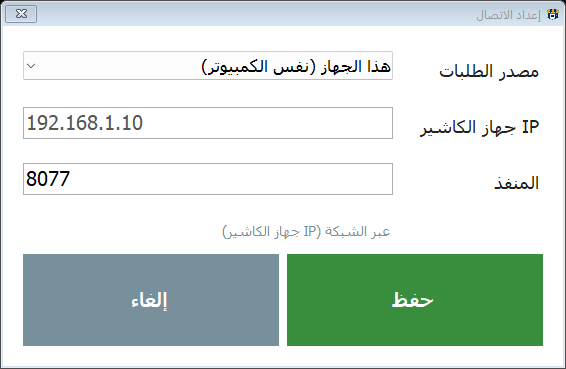
Option B — another PC on your Wi-Fi
The till acts as a built-in server. On the kitchen PC, run PosMasr in kitchen mode, enter the till's IP address, and it connects. No shared folders, no cloud, no extra software — and you can connect more than one screen.

The kitchen screen comes with Gold
Gold and up: the kitchen screen, tables and held orders, sizes and add-ons, and the service charge.
8,500 EGP · once, per till
Who it is for
 Restaurants & fast food
 Cafés with a kitchen
 Canteens & cafeterias
 Pizza & bakeries