The order of things
PosMasr keeps everything in one folder — C:\ProgramData\PosMasr\data — and the license is tied to the PC it was activated on. So a move is really two moves: the data (a backup and a restore) and the license (a release on the old PC, a new key on the new one). Do them in this order and nothing is lost:

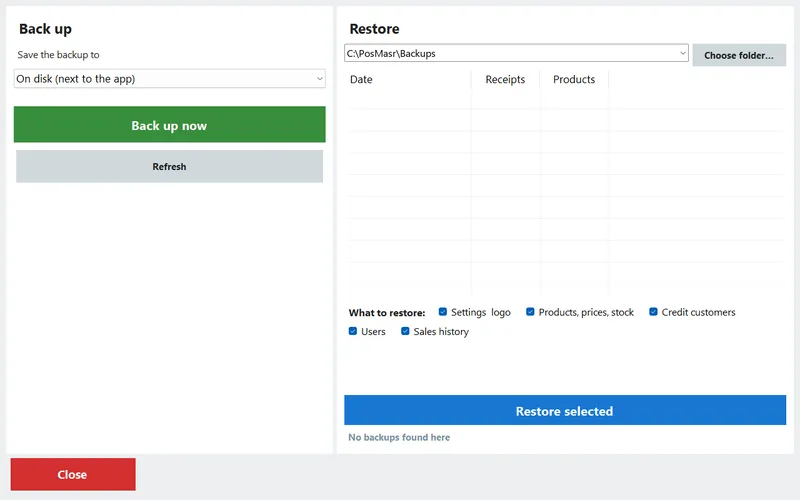
1. Back up first — to a USB stick, not to the same disk
- Plug in a USB stick. On the sales screen press Ctrl+B (manager), or open Settings → the Backup tab.
- Choose USB drive — it appears by itself once plugged in — and press Back up now.
- A folder named like
PosMasr-Backup-2026-09-18_213005is created with your products and stock, settings and logo, credit customers, users, suppliers, shifts, expenses and every day of sales. It is a plain folder of copied files — nothing special is needed to read it back, and you can open the sales files in Notepad or Excel. - Open the stick in Windows and make sure the folder is there and has files in it. Then put the stick in your pocket — not in the PC that is about to be formatted.
2. Release the license on the old PC (keep the RL code)
An activation key works only on the machine it was issued for — the machine code (PM-XXXX-XXXX-XXXX) is computed from the hardware, and a new PC, or even the same PC after a format, has a different one. So the key you have will not activate the new install. The clean way to move is to release the license first:
- Settings → the License tab → Activate / enter key opens the activation screen (or Settings → Tests → License status).
- Press Release the license to move it to another PC and confirm. Activation ends on this PC at once and a release code appears:
RL-XXXX-XXXX-XXXX. It is copied to the clipboard as well. - Write it down or send it to yourself on WhatsApp right away. That code is your proof that the old activation is gone — it is what lets us issue the new key without any questions.
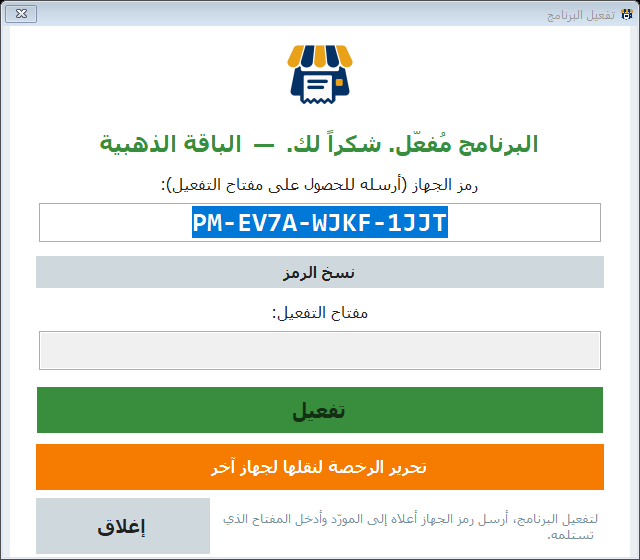
After the release the old PC will not sell again without a key — the program says so before you confirm. So release in the evening, after the last sale, and only when the new PC (or the fresh Windows) is ready to receive the data.
3. Install on the new PC
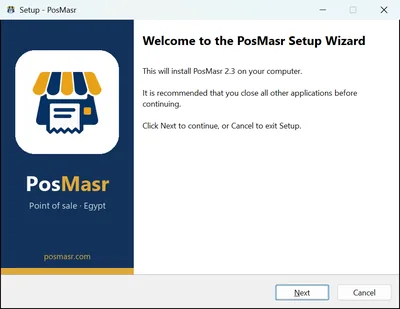
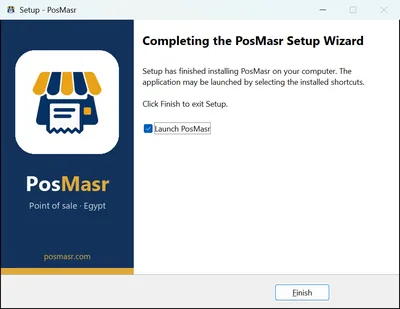
- Download PosMasr-Setup.exe from the download page — the latest version, not an old copy from a USB stick. Next, Next, Finish; it adds the desktop shortcut and opens the program.
- Windows 8.1, 10 and 11 need nothing else. Windows 7 (SP1) needs .NET Framework 4.8 once — Windows asks for it on the first run.
- The first run asks you to create a manager account. Create any name — the restore in the next step brings back your real users.
- The new install starts a fresh 14-day trial, so you can restore and set up the printer before the key arrives.
4. Restore from the stick
- Plug the stick in. Settings → Backup tab → the restore half. Pick the USB drive (or Choose folder… and point at the backup folder).
- Select the backup in the list — it shows the date and the number of receipts, so you can tell last night's copy from an older one.
- Tick everything: settings & logo, products & stock, credit customers, users, sales history. Press Restore selected. The program reloads with your data.
- Log in with your old manager name and password — the users came back with the restore.
C:\ProgramData\PosMasr\data folder from the old disk onto a stick. Settings → Products → Import from an old copy brings the products and prices back from its products.txt; for the sales history and the rest, send us the folder and we will help you restore it.5. Activate with a new key
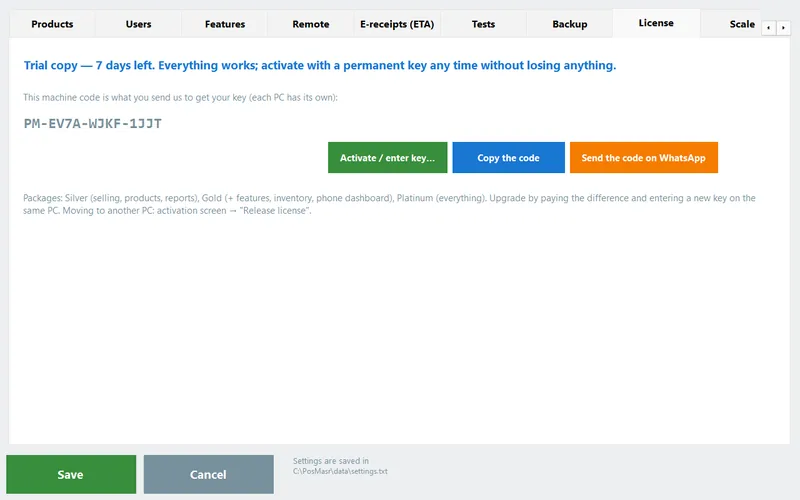
- Settings → License tab. Copy the new machine code — the Send on WhatsApp button puts it in a message for you.
- Send us two things: the new machine code and the RL release code from step 2.
- We check the release code against your license and send the new key right away. Type it, press Activate, and the package you paid for is back — same package, same features, nothing to pay.
If the old PC died and you never released
It happens: the power supply burns out, the disk stops spinning, the PC is stolen. There is no release code because there was no chance to press the button. Here is what to do:
- Send us the old machine code — it is on your activation e-mail or WhatsApp message from the day you bought, and since 3.2 the program reports its machine code and license state to us once a day (Settings → Support, on by default), so we usually have it on your license page already.
- The release-code check is skipped and the transfer is done on a short written declaration that the old PC is out of service. This is allowed once a year per license — it is how we keep one key from quietly becoming two tills.
- The data is a separate story. If the disk is readable, a technician can pull the
ProgramData\PosMasr\datafolder off it — see the tip above. If it is not, your last USB or automatic backup is what you have. This is the whole reason the backup habit exists.




Printer, drawer, scanner — the re-setup checklist
The restore brings your settings back, but Windows on the new PC does not know your printer yet, and anything on a COM port may have a new port number. Go through this list once — ten minutes:
| Device | What to do on the new PC |
|---|---|
| Receipt printer | Install its Windows driver (USB: from the maker's site or the CD; LAN: add it by IP). Then Settings → Printer & receipt → pick it, check the paper width, Tests → Test print. Details in the thermal printers guide. |
| Cash drawer | The RJ11 cable stays in the printer; nothing to install. Tests → Open drawer. If it does not kick, Tests → Diagnose drawer. |
| Barcode scanner | Plug it in. It types like a keyboard; nothing to set. |
| Card reader for manager cards | Plug it in — the registered cards came back with the users. |
| Pole customer display / connected scale | Both live on COM ports and the number probably changed. Settings → Customer display (or Scale) → Refresh → pick the new port → Test. Install the USB-serial cable driver first if Windows shows no port. |
| Second monitor as customer display | Plug it in, set Windows to 'Extend', and the display comes back on it. |
| Kitchen screen on another PC | The till's IP is new. On the kitchen PC: Connection settings → type the new IP (Settings → General on the till shows it). Allow the program through the Windows firewall when asked. |
| Phone dashboard / remote monitoring | Settings → Remote monitoring → Allow in firewall again; if you forwarded a port on the router, point it at the new IP (or switch to PosMasr Link, which needs no router work). |
| Second till | If the moved PC was the primary, pair the secondary again (3.2: Find the primary till and pair, 6-digit code). If it was the secondary, just pair it. |
| Saved passwords | Three passwords are stored encrypted to the old Windows machine and do not survive a move: the e-mail (SMTP) app password, the secondary till's manager password, and an SSL certificate file's password. Type them again in their tabs and press Test. |
The before-you-format checklist
Print this or screenshot it. Tick each line before the PC leaves your hands:
| ✓ | Item | Where |
|---|---|---|
| ☐ | Backup to a USB stick, opened in Windows and checked | Ctrl+B / Settings → Backup |
| ☐ | The stick is in your pocket, not in the PC | — |
| ☐ | License released, RL code written down / sent to yourself | Settings → License → Activate / enter key → Release |
| ☐ | Old machine code noted (in case) | Settings → License |
| ☐ | E-mail app password, secondary-till password, certificate password — you know where to find them again | Settings → E-mail / General / Remote monitoring |
| ☐ | Printer driver downloaded onto the stick (saves hunting for the CD) | Maker's website |
| ☐ | Photo of the back of the PC: which cable goes where | Your phone |
| ☐ | Last shift closed and the Z report printed (if shifts are on) | Shift → Close shift |
How PosMasr helps
- One folder holds everything, and a backup is a plain copy of it — no database server, no export wizard, nothing that only a technician can read.
- Backup is one key away (Ctrl+B), the USB stick is detected by itself, and the daily automatic backup runs on exit or shift close.
- Selective restore: bring back only products, or only users, or everything — handy when you also want a fresh start on the sales history.
- The release code makes the license move a two-minute WhatsApp exchange instead of a support ticket; the once-a-year declaration covers a dead PC.
- The License tab shows the machine code with copy and WhatsApp buttons, and the daily license report (3.2) means we usually already know your old machine when you call.
- Updates never touch the data: running a newer Setup over an old install keeps the data folder as it is — a format is the only thing that removes it.
Quick answers
Same PC, just a Windows reinstall — do I still need a new key?
Usually yes: the machine code changes with a fresh Windows, so release before the format and send us the RL code with the new machine code afterwards. It costs nothing.
I released the license but did not write the RL code down.
Not the end of the world: the code is derived from your old machine code and the day you pressed Release, so send us those two and we can verify it. If you have neither, we handle it like a dead PC: old machine code plus the written declaration.
Can I keep selling on the old PC while the new one is being set up?
Yes. Set up the new one on its trial, restore last night's backup to test, then on moving night: close the shift, take a fresh backup, release, restore that final backup on the new PC and activate.
Does the restore bring the e-receipt (ETA) settings?
The settings part of the backup includes them. Open Settings → E-receipts after the restore and press its test button once to confirm the connection from the new PC.
Can the backup go to a second PC as a spare?
Yes — restore it on any PC running PosMasr; it runs there on the trial. To sell from it you need to move the license (release + new key) or a second license.
Moving this week? Tell us before, not after
Send us a WhatsApp with the old machine code and the day of the move. We keep the new key ready so the new till sells from the first hour.