What can go wrong (all of these have happened to real shops)
- The hard disk dies. Old mechanical drives in a dusty, hot corner fail without warning; a click, a blue screen, and Windows never comes back. The data is on that disk. A recovery shop may get it back for a few thousand pounds, or may not.
- Ransomware. Someone opens an 'invoice.pdf.exe' from WhatsApp on the till PC; an hour later every file is encrypted and a note asks for dollars. Any USB stick left plugged in gets encrypted too.
- Theft or fire. The PC leaves with the burglar, or with the water from the flat upstairs. Whatever was only on that machine is gone with it.
- Somebody 'cleaning up'. A cousin who 'fixes computers' formats the disk to speed it up. A cashier deletes a folder to make space for a movie. Windows reinstalls because of an update that went wrong.
- Your own mistake. A stock-take applied with 'uncounted = zero' by accident; a restore of the wrong part; an Excel import with the wrong column. These are the most common of all, and the easiest to undo — if there is a backup from before.
Notice that a bigger, newer or more expensive PC fixes only the first one. The rest need a copy of the data that is not on that PC.


What is in the backup, and where the data lives
PosMasr keeps everything in plain files in one folder: C:\ProgramData\PosMasr\data on an installed copy (or the data folder next to the program on the portable ZIP version). No database server, nothing hidden in the registry. Sales are text files in data\sales, one per day, that you can open in Excel or Notepad. No update or uninstall ever deletes this folder.
A backup is a dated folder containing:
- Products & stock — names, prices (retail, wholesale, sale), costs, barcodes, categories, variants, expiry dates, pictures.
- Settings & logo — printer, drawer, receipt layout, features, tax and e-receipt settings.
- Credit clients and their accounts, plus suppliers and the deliveries log when that feature is on.
- Users — the manager and cashier accounts with their rights (passwords stay hashed).
- All sales — every receipt since day one, with returns, voids, shifts and expenses.
Taking a backup in PosMasr: 30 seconds
- Plug in a USB stick. Any size sold today is far more than enough — a year of a busy shop's sales is a few megabytes.
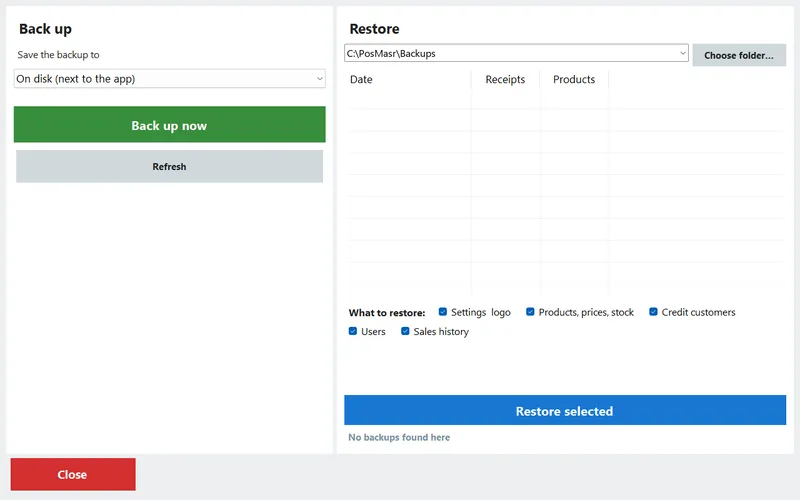
- Settings → Tests → Backup & restore.
- On the left, choose where: on disk (a folder on this PC — fine for a quick copy before an experiment, useless if the disk dies) or the USB drive, which appears in the list by itself when plugged in.
- Press Back up now. A folder named by today's date is created with everything listed above. Done.
- Unplug the stick and put it in your pocket, not in the drawer under the till.
Automatic daily backup: Settings → Features → Daily automatic backup makes a copy on exit or at shift close, every day, without anyone remembering. The owner's phone dashboard shows a last backup card, so you notice from home when it has not happened for a week. Automatic copies land on the PC; the USB (or cloud) step below is still yours.
Restoring, step by step
- On the new (or repaired) PC, install PosMasr from PosMasr-Setup.exe and open it once.
- Plug in the backup stick. Settings → Tests → Backup & restore; on the restore side, pick the backups location or Choose folder… and point at the stick.
- The list shows every backup with its date, receipt count and product count. Pick the newest one whose numbers look right.
- Tick what to bring back: settings & logo / products & stock / credit clients / users / sales history. For a dead PC, tick everything. For 'I broke the stock-take', tick only products & stock.
- Press Restore selected, then reopen the program. Reselect the printer (a new PC has a new printer name) and do a test print.
- Activate: send the new machine code with the release code from the old PC (or the written declaration) and enter the key.
The 3-2-1 rule, sized for a shop

IT people say '3-2-1'. For a shop it translates to:
- 3 copies: the live data on the till, the automatic daily copy on the same PC, and the one you carry.
- 2 media: the PC's disk and a USB stick (or a cloud folder). If the disk dies, the stick lives.
- 1 away from the shop: the stick goes home in your pocket, or the folder is synced to Google Drive / OneDrive. Fire, theft and ransomware cannot reach it there.
The cheapest version that satisfies all three: two USB sticks (≈ 100 – 200 EGP each, indicative), labelled A and B. Back up to A on Saturday and take it home; back up to B on Wednesday and take it home; bring the other one back. At any moment one stick is at home and the newest copy is at most four days old.
USB vs folder vs cloud
| Where | Protects against | Does not protect against | Cost | How, in PosMasr |
|---|---|---|---|---|
| Same PC (on disk) | Your own mistakes, a bad import, a wrong stock-take | Disk death, theft, fire, ransomware | Free | Daily automatic backup (Features) or 'on disk' in the backup screen |
| USB stick that goes home | Everything above plus disk death, theft, fire, ransomware (if unplugged) | Losing the stick; forgetting for a month | ≈ 100 – 200 EGP | Pick the USB drive in the backup screen, Back up now, unplug |
| Second internal or external disk | Disk death | Theft, fire, ransomware (always connected) | ≈ 1,000 – 2,500 EGP | Copy the backup folder there with Explorer; an external drive that shows as a USB drive can be picked in the backup screen directly |
| Cloud folder (Google Drive / OneDrive app on the PC) | Disk death, theft, fire; older versions help against ransomware | No internet for days; a sync app someone signed out of | Free tier is enough for years of backups | Copy the dated backup folder into the synced folder — a weekly drag-and-drop |
| Phone (copy the folder over Wi-Fi / cable) | Disk death, theft, fire | A lost or wiped phone | Free | Fine as the 'away' copy for a tiny shop; still take the USB one |
Prices are indicative Egyptian street prices in September 2026 and move with the dollar.



The weekly checklist (tape it to the monitor)
| When | Who | Do | Takes |
|---|---|---|---|
| Every day, automatically | PosMasr | Daily automatic backup on exit / shift close (switch it on once) | 0 s |
| Saturday, after closing | Manager | Back up to stick A; take it home | 30 s |
| Wednesday, after closing | Manager | Back up to stick B; take it home, bring A back | 30 s |
| Before anything big | Whoever does it | Stock-take, Excel import, restore, Windows update, 'cleaning': back up on disk first | 20 s |
| First of the month | Owner | Copy the newest dated folder to the cloud folder; check the 'last backup' card on the phone | 2 min |
| Twice a year | Owner | Test a restore on another PC (below) | 15 min |
Test the restore once — before you need it
A backup nobody has ever restored is a hope, not a backup. Twice a year, take the stick to any other Windows PC — the laptop at home is fine — install PosMasr (it runs as a 14-day trial there, which is all you need), restore everything from the stick, and open Reports → last month. If the numbers match the till, you are safe. If the stick is empty, unreadable, or three months old, you found out on a quiet evening instead of the morning after the disk died.
While you are at it: write the machine code, our support number and the location of the sticks on one card and keep it in your wallet. The day you need it, the till is off.
Which routine for your shop
| Your shop | Minimum | Comfortable |
|---|---|---|
| Kiosk / small grocery, one till | Automatic daily + one stick home once a week | Two sticks A/B |
| Pharmacy | Two sticks A/B (credit ledger and expiry dates are hard to rebuild) | A/B + monthly cloud copy |
| Supermarket, two tills | Back up the primary (it holds everything); A/B sticks | A/B + cloud folder + a spare PC with PosMasr installed, ready to restore onto |
| Café / restaurant | Automatic daily + weekly stick | Two sticks; the kitchen PC needs nothing (it holds no data) |
| Wholesale store with big credit balances | Daily stick, and print all balances weekly on paper | Daily stick + cloud + printed balances |
How PosMasr handles it
- One-tap backup to a USB stick or a folder, a dated folder each time, with the date and receipt count shown in the list.
- Selective restore: settings, products & stock, credit clients, users, sales — each on its own tick.
- Daily automatic backup on exit or shift close (Features), and a last backup card on the phone dashboard.
- Plain files in
C:\ProgramData\PosMasr\data— copyable with Explorer, readable in Excel, never touched by updates or uninstall. - Moving to a new PC = install, restore, activate with the release code. Products from any old copy (even a very old version) can also be imported directly (Settings → Products → Import from an old copy).
Quick answers
The PC died and I never took a backup. Is anything recoverable?
If the disk itself still spins, a technician can plug it into another PC and copy C:\ProgramData\PosMasr\data — that folder is the whole program's memory. Restore it via Choose folder… in the backup screen, or copy it into place on the new install. If the disk is dead, only a data-recovery lab can help, at a price.
Can the cashier take the backup?
Settings is a manager right by default, and it should stay that way. The automatic daily backup needs nobody; the weekly stick is a two-minute manager job.
Does the backup include the tax (e-receipt) queue?
Settings and sales are included, and receipts already submitted are on the Tax Authority's side. After a restore, check Settings → E-receipts for anything still queued before you sell again.
I use the portable ZIP on a USB stick. Is that a backup?
No — that stick is the live data. Back it up like any other PC: Backup & restore to a second stick or a folder on the PC. And never run the program from inside the ZIP file; extract it to a permanent folder first.
Your data stays in plain files on your PC — and in your pocket
No cloud account, no subscription, nothing that switches off when you stop paying. Try PosMasr free for 14 days and take your first backup on day one.