Why the till's stock never matches the shelf
A till only knows what you tell it. Every sale lowers the stock automatically, and every receive raises it — but a shop is full of movements nobody types in. Over a month they add up to numbers that look wrong, and then people stop trusting the inventory screen altogether. The usual suspects:
- Receiving mistakes. The carton says 24, it had 23, and the supplier's invoice was typed as 24.
- The wrong button. Small and large water look alike; the cashier taps the wrong one twenty times a day. The money is right, the stock of both is wrong.
- Units. Sold by the piece, received by the carton — and somebody entered 1 instead of 12.
- Breakage, expiry and tasting. The yoghurt that went in the bin, the biscuit the staff ate, the bottle that broke — all still 'in stock' on the till.
- Returns not shelved. A customer brought it back, the refund was recorded, the item sat under the counter for a week.
- Theft. By customers, and sometimes by staff. It is the one you cannot see without counting.
None of these is a software problem, and none goes away by buying a bigger program. The fix is a count — regular, fast, and cheap enough that you actually do it.

The day before: ten minutes that save two hours
- Pick the night. After closing, on a day with no delivery the next morning. Never in the middle of trading.
- Book everything first. Every delivery received, every return put back on the shelf, every expired item thrown away — and recorded. The count should measure what you don't know, not what you haven't typed yet.
- Label the unlabelled. Anything without a barcode gets a Code 128 label from PosMasr's Labels window (Inventory → Print label). Scanning is what makes the evening short.
- Get the phones ready. Same Wi-Fi as the till, the till's address saved to the home screen, batteries charged. Camera scanning needs Chrome on Android over HTTPS; if you haven't set HTTPS up, typing the code or searching by name works on any phone.
- Take a backup. Settings → Tests → Backup, one tap to a USB stick. A stock-take changes every balance in the shop; you want a copy of the 'before'.
The routine: a full count in one evening
1. Freeze sales
The 'expected' column in the stock-take is the till's balance at that moment. Sell three bottles during the count and the difference for that product is now meaningless. Close the door, or at least close the till: whatever is sold after the count starts is sold after the count ends.
2. Count by shelf, not by list
Do not walk around with the product list looking for each item. Stand at the first shelf, top left, and count everything on it in order: scan, count, type, next. The list is only for the end, to catch what you missed. Shelf and stockroom quantities of the same product go in as one number — count the back first for that product, or write it on the carton and add it when you reach the shelf.
3. Two people per phone
One person touches the goods and says the number out loud; the other scans and types. Alone, you stop to type, lose your place, and recount. In pairs, a 500-product grocery goes in roughly two hours — that is an estimate from ordinary shops, not a promise. A bigger shop puts a pair on each aisle; PosMasr accepts counts from several phones and the till at the same time, and shows who counted each line.
4. Mark what you finished
A small sticker on the shelf edge when a shelf is done. Then, before applying, open the Not counted filter: every product still on that list is either genuinely at zero or on a shelf you skipped. Walk to it and check — that is the whole point of the filter.
Paper vs the till vs the phone
Three ways to do the same job. Times are rough figures for a shop with about 500 products and two people; your shelves will differ.
| Method | How it goes | Rough time | Where errors creep in | Needs |
|---|---|---|---|---|
| Paper + Excel | Print the list, write counts by hand, type them into Excel, then adjust every product on the till one by one. | 4–6 h + a second evening of typing | Handwriting, typing twice, matching names to the wrong product | Nothing |
| On the till | Open Inventory → Stock-take on the till PC, scan with the USB scanner, type the count. One station. | 3–4 h, one pair | Carrying goods to the counter, or shouting counts across the shop | A scanner (or typing) |
| On the phone recommended | Each pair opens the till's inventory page on a phone, scans with the camera at the shelf, types the count; the till collects everything. | ≈ 2 h, one pair; less with more phones | Wrong quantity typed — caught by the Differences filter before applying | Wi-Fi, a phone, the address of the till |
Counting with the phone in PosMasr, step by step
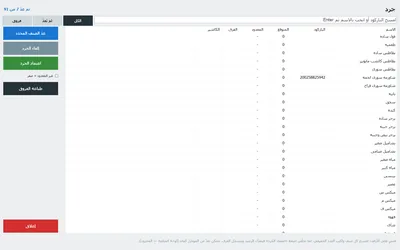
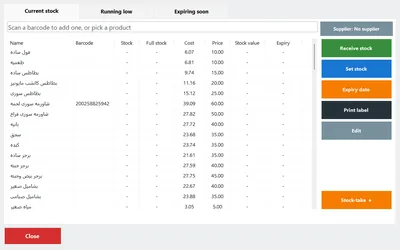
- On the till: Inventory → Stock-take. The window lists every product with its expected stock and empty counted and difference columns. Leave it open — it is the collecting point.
- On the phone: open the till's address in the browser (it is shown in Settings → Remote monitoring, e.g.
http://192.168.1.35:8090/), log in with the manager account and open the Inventory page. - Find the product: point the camera at the barcode — any 1D or 2D code — or type part of the name or the code. The product opens with its current stock.
- Type what is really there and confirm. Within seconds the line on the till fills in: counted, difference, and the name of whoever counted it.
- Review on the till: the Differences filter shows only lines where expected ≠ counted, coloured so a big gap jumps out. Recount anything that looks strange before you believe it.
- Decide about the uncounted: tick uncounted = zero only if you truly walked every shelf. Otherwise leave it off and those products keep their old balance.
- Apply. Apply stock-take sets every counted product to its counted quantity, saves the variance, and Print differences gives you the sheet with each gap valued at purchase cost — that is your shrinkage in pounds.



After the count: the two numbers that matter
Shrinkage % = the value of all negative differences at cost ÷ sales for the period since the last count. Write it on the differences sheet, sign it, and keep it in a folder. Three sheets in a row tell you more than any report: the number should go down as you fix the causes.
| What the sheet shows | Most likely cause | What to do this week |
|---|---|---|
| One product far below expected | Unit mix-up on receiving (carton vs piece), or a look-alike product | Check the last deliveries of it in Suppliers → Deliveries; rename or recolour the two look-alike buttons |
| A whole category slightly below | Consumption, breakage, small theft | Record staff consumption as a receipt on a 'staff' client; move the category nearer the counter |
| Products above expected | Deliveries received but never entered; returns not recorded | Receive by scanning at the moment the goods arrive, with the supplier chosen |
| Expired stock found on the shelf | No expiry dates on the products | Add expiry dates as you receive; use the Expiring-soon list weekly (our expiry guide) |
The reorder. The morning after a count is the one morning the Running low tab is exactly right: current stock, full stock, percentage and the suggested quantity with its cost. Place the order from it, not from memory.
Which routine for your shop
| Your shop | How often | How |
|---|---|---|
| Grocery / mini-market | Full count monthly | One phone, two people, one evening. Cigarettes and phone credit weekly — they walk. |
| Supermarket | One category a week (cycle count), full count quarterly | A phone per aisle; count the category before its delivery day, after closing. |
| Pharmacy | A shelf a night from the phone, apply weekly | Count and check expiry together: the Expiring-soon list open on the till while you count. |
| Boutique / shoes / phones | Full count monthly | Every colour and size is its own variant with its own barcode — scan the label, don't count 'shirts'. |
| Café / restaurant | Packaged goods weekly | Cans, bottles, snacks only; prepared food stays at full stock 0 and out of the count. |
| Wholesale store | Full count monthly, fast movers weekly | Count cartons, not pieces; a wireless 2D gun helps on the racks (scanner guide). |
How PosMasr handles it
- Stock-take window on the till (Inventory → Stock-take): expected, counted, difference and who counted, with All / Not counted / Differences filters and a search-or-scan box.
- Phone Inventory page in the owner portal: scan with the camera, type the count, and the till picks it up within seconds. Several phones at once, plus the till.
- Apply sets the stock, saves the variance and prints the differences valued at cost. Nothing changes before Apply.
- Same page receives stock too — quantity, cost and supplier from the phone as the goods come off the truck, so the next count starts from the truth.
- Variants (colour / size / flavour) each have their own stock and barcode, so a boutique counts exactly what is on the rail.
- Two tills? Counting is done on the primary or from the phone page; the secondary follows it within a minute.
- Running low and Profit tabs are only as good as the count — after a stock-take they are finally believable.
Quick answers
Do I need a barcode scanner for the count?
No. The phone camera scans any code on the Inventory page (Chrome on Android over HTTPS), and typing the code or the name always works. A USB scanner on the till is a bonus, not a requirement.
Can I count while the shop is open?
Technically yes, practically no: every sale during the count changes the 'expected' number. Count a category after closing, or count fast-moving items first thing in the morning before the doors open.
I applied and the numbers look wrong. Can I undo?
That is what the backup before the count is for: restore only 'products & stock' from it and the balances are back. Then recount the shelves you doubt.
What does 'uncounted = zero' do?
On Apply, every product you did not count is set to zero. Right for a full count where you walked everything; wrong for a partial count of one category — leave it off then.
Can a cashier do the count?
Inventory is a manager right by default, but you can grant it to any cashier from Settings → Users. Every counted line records the name, so you know who counted what.
Count your shop this week — free for 7 days
Import your products from Excel, open the Inventory page on your phone, and see the differences sheet for yourself. No subscription, no special hardware.