Before you start
- Close the shift on every till, so the last day goes into the file closed, with its totals.
- Pick a quiet time — after closing, or a slow morning. The file is a snapshot: anything sold on the desktop after you make it is not in it.
- Take your usual USB backup as well. Making the move file changes nothing on the PC, but the habit costs thirty seconds.
- Have your e-mail and Telegram settings at hand (the mail account, the bot details): they are the part you type again in the cloud.
- Sign in to the desktop program as the manager; the button lives in Settings. If your copy does not show it, update the program to the latest version — updates for your package are free, and we help on WhatsApp if you need it.
Step 1: the “Move to PosMasr Cloud…” file
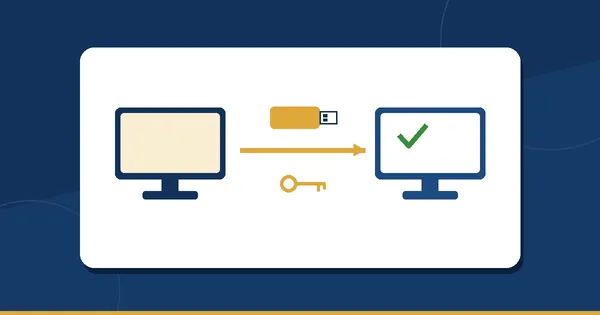
- In the desktop program open Settings → Backup (the same button is also in the PosMasr Cloud tab while the till is still local) and press Move to PosMasr Cloud….
- Choose where to save it. The default is the Desktop, with a name like
PosMasr-to-Cloud-(shop)-(date).pmbak. - A progress window counts through the work (“Preparing the pictures: 120 of 300”) and ends with one line: how many products, how many pictures, how many MB — and “upload it in PosMasr Cloud → Settings → Data”.
- If you will open the browser on another PC, copy the file to a USB stick. That is all.
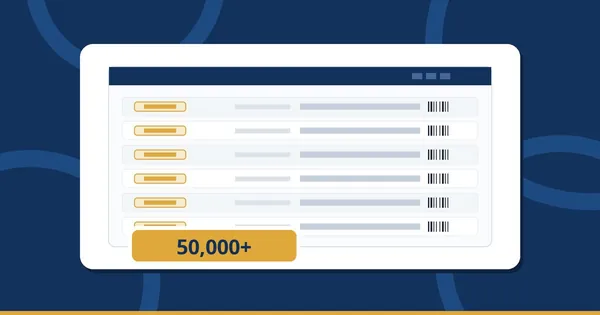
The one file holds the products and their pictures, the customers and their accounts (balances), the suppliers, the cashiers, the settings, and the last year of sales — about 400 days — with the shifts.
Big shops: pictures and the 48 MB limit
- Pictures are shrunk to 1200 px on the way, so a folder of phone photos does not weigh the file down.
- A product whose picture file is missing moves without a picture, and the count tells you how many.
- The upload limit is 48 MB. If the file would pass it, the oldest sales days are left out first, then pictures — and the window says how many.
Step 2: sign up, then import
- Open app.posmasr.com/register: shop name, e-mail, phone, one shop or a chain. There is no password: a 6-digit code arrives by e-mail, valid 10 minutes, and signs you in — every time. Already have an account? Just sign in.
- The shop starts on a 14-day free trial of the Business plan, no card — every feature is open while you check the move.
- Go to Settings → Data → Import a desktop copy and pick the
.pmbakfile. - Choose how many months of sales to bring.
- Tick clear what is here first only if you already tried things in this account (test products, a test sale) and want them gone.
- Press Start the import. It runs in the background with a progress bar, and the page refreshes itself when it is done — you can keep working meanwhile.
Pressed it twice, or uploaded the same file again? A file imported before is recognised and nothing is done twice.

What comes over, and what to retype
| Comes over as it was | Notes |
|---|---|
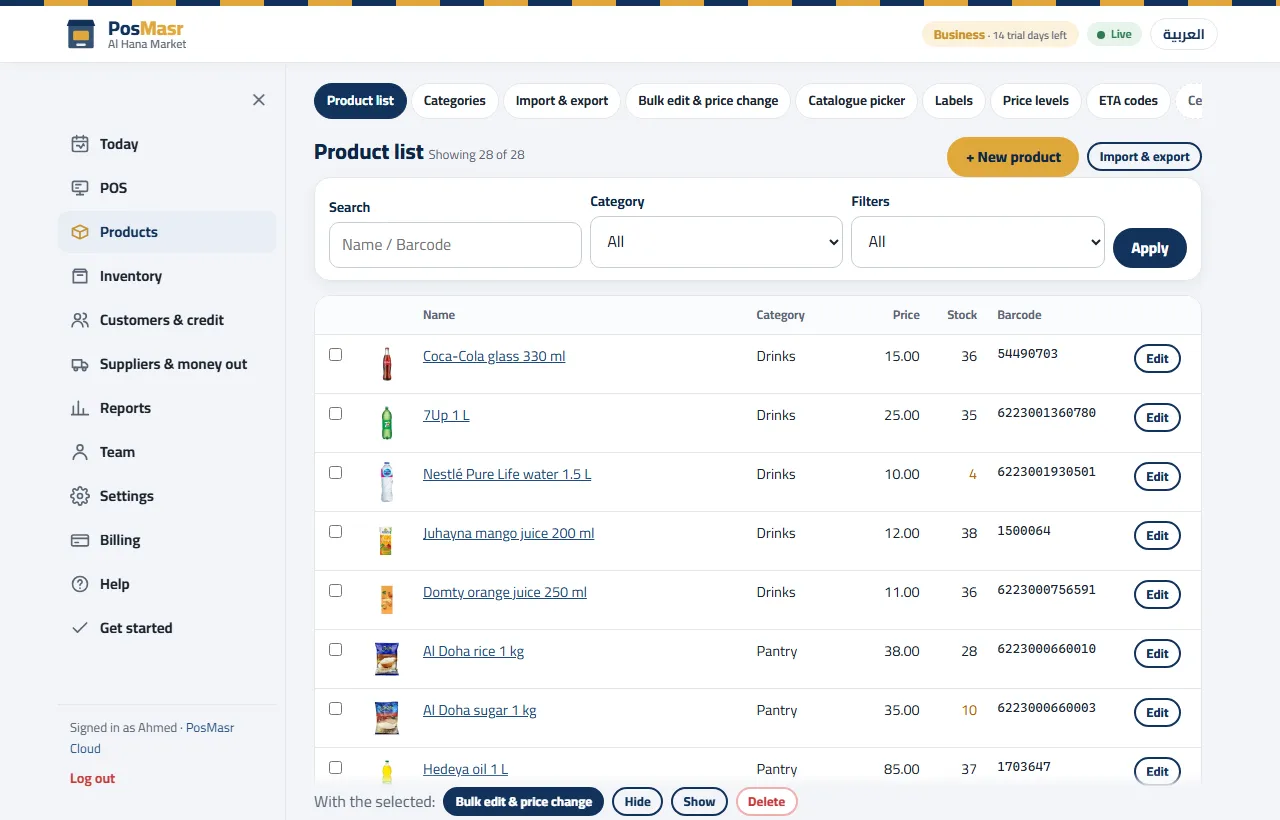
| Products, with their pictures and categories | Pictures at up to 1200 px |
| Stock | The quantities on the day of the file |
| Customers with their balances | The credit ledger comes with them |
| Suppliers with their ledger and deliveries | |
| Expenses | |
| User accounts (the cashiers) | |
| Settings | Except saved passwords and tokens (below) |
| Sales, as receipts | Under their original dates and numbers, with returns and voids |
| Shifts | Closed shifts with their totals |
What you type again: passwords and tokens do not travel — the copy masks them on purpose. After the import, enter the e-mail settings and the Telegram settings again in the cloud's settings, and check that the next report arrives.
Step 3: read the import report — and the 30-day Z check
When the import ends you get a report, and it is worth two minutes:
- What moved: counts of products, customers, suppliers, accounts, receipts, days, credit entries, stock rows, settings, supplier entries, deliveries, expenses and pictures. Compare the product and customer counts with what the desktop showed.
- Skipped rows, if any, listed so nothing disappears in silence.
- The Z check: the cloud compares the last 30 days with the desktop's own files — “N day(s) of the last 30 match the desktop's files to the piastre”. If a day differs, the report names it.
The report can be downloaded. If a day does not match and you cannot see why, keep the downloaded report and send it to us — it tells us exactly where to look.
Step 4: pair the tills (and how to go back)

Each till PC runs one of two programs; pick per PC:
- Keep the PosMasr Windows program (version 5 and up, Windows 7 and up): Settings → PosMasr Cloud → the switch-to-cloud button. The program closes, reopens and asks for the 6-digit code. Same screens and shortcuts as before.
- Or install the PosMasr Cloud app (Windows 10/11) from the download page; it opens the sign-in page and offers to connect the computer. Mac and Linux versions are coming soon.
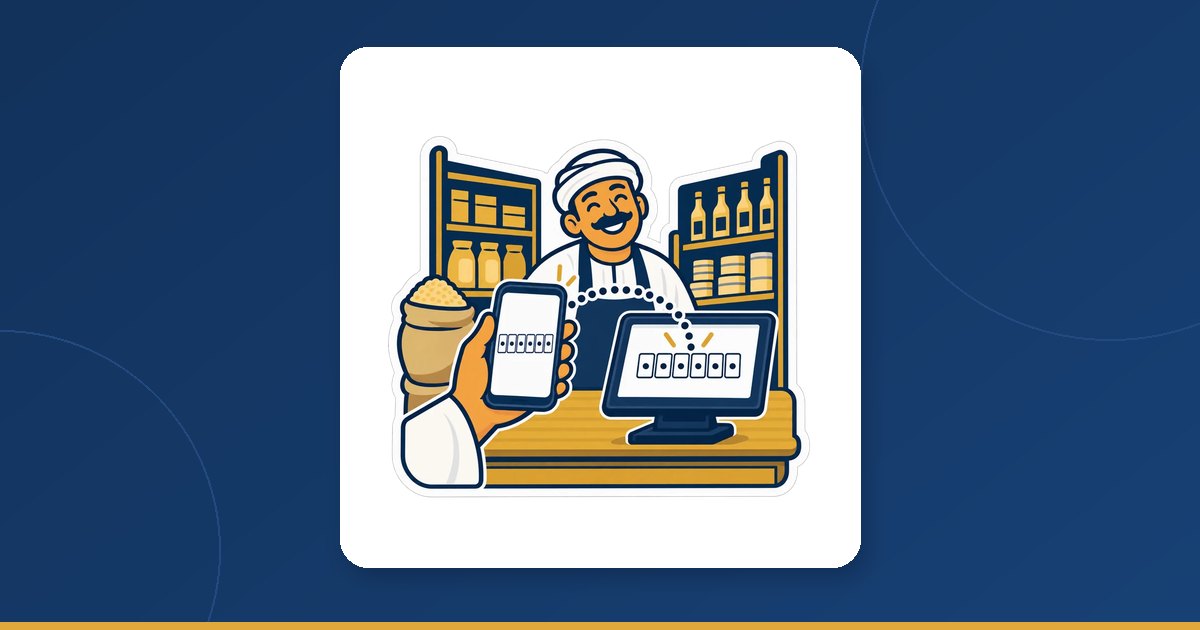
- In the browser: Settings → Tills → Connect a till. A 6-digit code appears, valid 10 minutes.
- On the till, type the code and a till name. The first letter of the name prefixes the provisional receipt numbers used when the internet is down, so give each till a different initial.
- Within a second the till shows online in the browser list. On its row in Settings → Tills set the printer and paper width, drawer, scale and display, then do a test print.
Going back
- Changed your mind during the trial? Switch the Windows program back to “On this PC”: it unpairs and returns to the local data folder, which is still there, as you left it.
- Sold on the cloud for a while and want those sales back on the desktop? Settings → Data → Download a copy as the desktop backup, and restore it in the one-time edition. Cashiers get a one-time password on the way back.
Which plan you land on
The plan that matches your desktop package is pre-selected. You can pick another, and during the 14-day trial you check everything before paying.
| Your desktop package | Pre-selected plan | Tills selling at once | User accounts | Per month (EGP) |
|---|---|---|---|---|
| Silver | Cashier | 1 | 3 | 500 |
| Gold | Shop | 2 | 6 | 1,000 |
| Platinum | Business | 4 | 15 | 2,500 |
- Upgrade any day and pay the difference for the rest of the month; a downgrade applies from the next billing day, after the page checks your accounts fit.
- Pay by card, or by bank transfer / InstaPay: send the transfer receipt on WhatsApp and it is marked paid the same day.
- If the trial ends unpaid the shop goes read-only at once — nothing is lost, and reports and exports keep working.
- Two branches or more? That is the Chain plan; see running branches from your phone.
The moving checklist (print it)
| # | Do | Where | Done |
|---|---|---|---|
| 1 | Close the shift on every till | Desktop program | ☐ |
| 2 | Take the usual USB backup | Desktop: Settings → Backup | ☐ |
| 3 | Make the move file and note the products / pictures / MB line | Desktop: Settings → Backup → Move to PosMasr Cloud… | ☐ |
| 4 | Sign up (or sign in) with the e-mail code | app.posmasr.com | ☐ |
| 5 | Import the file; choose the months of sales | Settings → Data → Import a desktop copy | ☐ |
| 6 | Read the report: counts, skipped rows, the 30-day Z check | The import report | ☐ |
| 7 | Retype the e-mail and Telegram settings | The cloud's settings | ☐ |
| 8 | Pair each till, each with a different initial | Settings → Tills → Connect a till | ☐ |
| 9 | Printer, drawer and scale on each till; a test print | The till's row in Settings → Tills | ☐ |
| 10 | Each cashier signs in once and rings up a first sale | The till | ☐ |
| 11 | Choose the plan and pay before day 14 | Billing → Plan | ☐ |
Quick answers
Does the desktop stop working once I make the file?
No. Nothing on the PC changes; it keeps selling until you switch it to cloud mode yourself — and even then its local data folder stays where it was.
Do my customers' credit balances come over?
Yes, customers arrive with their balances, and suppliers with their ledger and deliveries. The import report counts the credit entries so you can compare.
I have more than a year of sales. Does it all come?
The file carries the last year, about 400 days, and on import you choose how many months to bring. The older history stays in the desktop's folder on the PC.
What if I import the same file twice?
It is recognised and nothing is done twice.
Still deciding whether the cloud is for me at all?
Read cloud or desktop: which one fits your shop — including where the licence is simply cheaper.
Move a copy into a free trial today
14 days of the Business plan, no card — and your desktop keeps selling while you check the numbers.