How it works at the counter
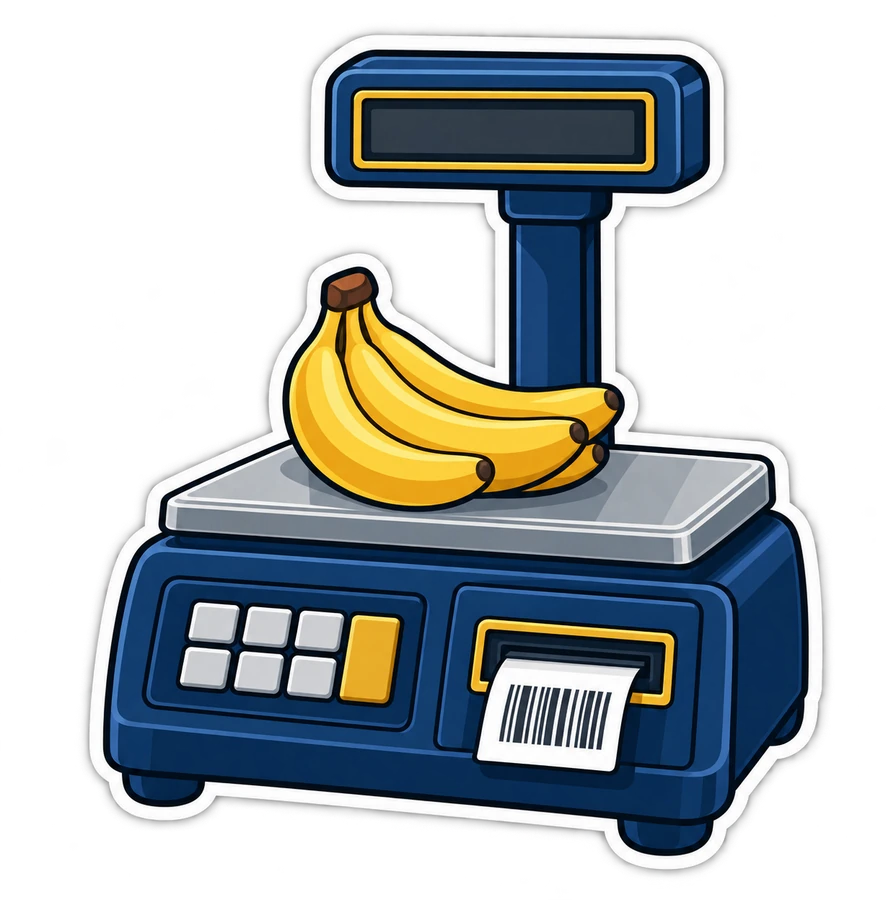
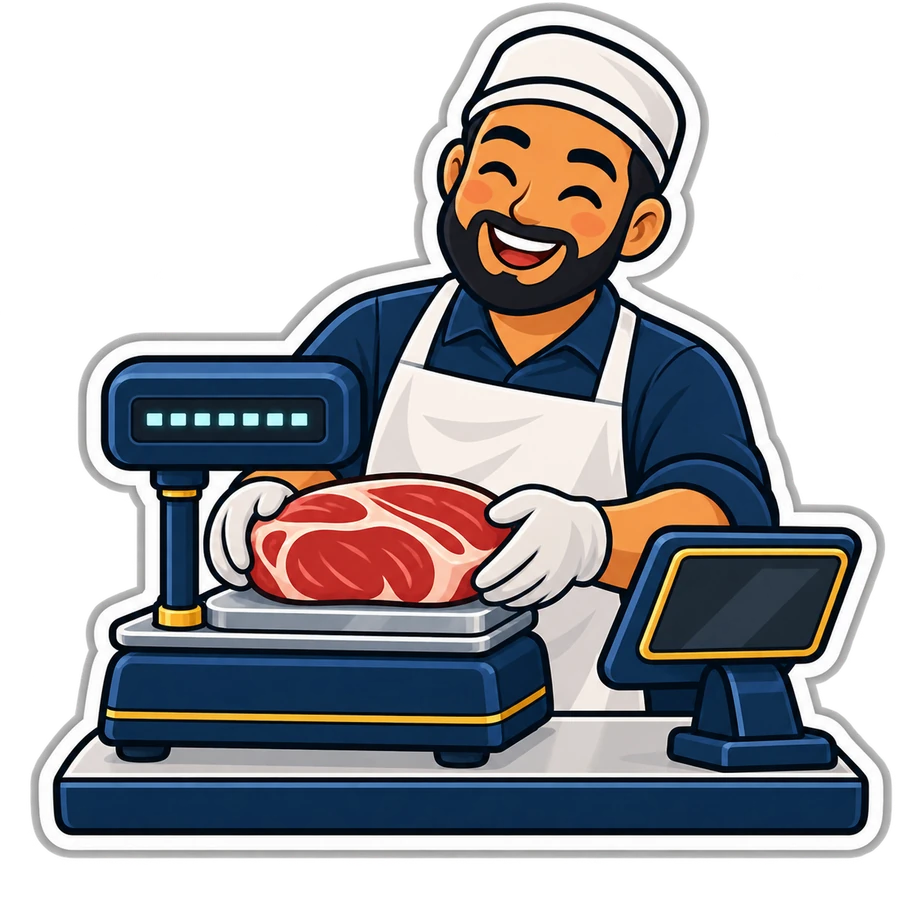
- At the weighing point — the deli counter, the vegetable stand, the back of the butcher's — a worker puts the goods on the scale and presses the item's key on the scale.
- The scale prints a sticker: the name, the weight, the price, and an EAN-13 barcode starting with 2.
- The customer carries the bag to the till. The cashier scans the sticker like any barcode.
- PosMasr reads which product it is and how much, and adds the line with that quantity. No typing, no reading the scale's screen, no 1.25 turning into 12.5.
The scale and the PC are not connected at all: the sticker is the only link. That is what lets one scale serve three tills, or three scales serve one.
What is inside the code
The sticker's barcode is 13 digits in four parts. Take a label reading 21 01234 00750 C:
| Digits | Part | In PosMasr |
|---|---|---|
21 | The prefix: “this is a scale label” | The scale barcode prefix you set |
01234 | The item code programmed in the scale | Found in the product's barcode field |
00750 | The value: always the five digits before the last | 750 grams = 0.750 kg, or 750 piasters = 7.50 pounds |
C | Check digit | Calculated by the scale |
Whether 00750 is a weight or a price depends on how the scale is set, and PosMasr has to be told the same. The general picture of this barcode family is in the barcode types guide; this article is about making it work.
Setting it up in PosMasr

- Settings → Features → tick Scale barcodes: EAN-13 labels with price or weight.
- Scale barcode prefix: the first digits of your scale's labels (it starts as 2 — read the next section before leaving it).
- Barcode value: Price (in piasters) or Weight (in grams) — whichever your scale prints.
- While you are there, tick Fractional quantities & units too, and mark the weighed products by weight with kg as the unit, so the receipt shows 0.750 kg and not a rounded number.
- Save.
In PosMasr Cloud the same switch is in the shop's settings in the web app, and the tills read the labels on the selling page the same way.
Getting the prefix right
This is the one setting people get wrong, so here is the rule PosMasr follows: the item code is every digit between the prefix and the eighth digit. The value is always digits 8 to 12.
- Prefix
21on the label21 01234 00750 C: the item code is01234. Clean. - Prefix
2on the same label: the item code becomes101234— the scale's second digit is now part of it, and a product whose barcode is1234is not found.
A two-digit prefix also keeps the other 2x ranges free for the barcodes PosMasr generates for products that have none. They always keep clear of your scale prefix; with a one-digit 2 they have to move to 04.
Linking each product to its scale key
PosMasr finds the product from the item code in one of two ways — use whichever is easier:
- Type the scale's item code in the product's barcode field.
01234or1234both work; leading zeros are ignored. - Or scan one sticker of that product into its barcode field. Any later sticker whose first seven digits (prefix + item code) are the same is matched to it, whatever the weight.
The scale's own list of items and keys is set on the scale, from its keypad or its maker's software; PosMasr does not program the scale. Keep a small sheet of “scale key → item code → product” next to the scale the first week.
Weight or price in the barcode?
Most label scales can print either. The difference matters on the day you change a price:
| Weight (grams) | Price (piasters) | |
|---|---|---|
| What PosMasr does | Takes the weight as it is and prices it at PosMasr's price | Divides the label's amount by PosMasr's price to get the weight, to the gram |
| Changing a price | In PosMasr only | On the scale and in PosMasr, the same day |
| If the two prices differ | The receipt uses PosMasr's price; the sticker shows the scale's | The weight on the receipt comes out wrong |
With price labels the line total is weight × price, so it can also differ from the sticker by a few piasters, because the weight is rounded to the gram. If your scale can print weight, choose weight: PosMasr stays the one place where prices live. If it prints price only, make changing the price on the scale part of every price change.
What the till shows
- The product lands in the cart with its quantity — 0.750 kg — and its line total.
- The status line confirms it: Scale:
× 0.750 kg , so the cashier sees at a glance that it was read as a weighed item. - For a product marked by weight, two stickers are two lines, each with its own weight — two bags, two lines.
- If stock is tracked for that product, it goes down by the weight sold.
- A sticker PosMasr cannot match — wrong prefix, an item code no product has — gives the usual “No product with barcode …”, never a wrong product.
Label scale or a scale wired to the till?
PosMasr also reads a scale connected to the PC by cable: tap the product, the weight lands in the cart. That is covered in full in the wired scale article; here is only the choice:
| Label scale | Wired scale | |
|---|---|---|
| Where it stands | Anywhere — the weighing point can be far from the till | Next to the till, on the cable |
| Who weighs | A worker at the counter, before the till | The cashier, at the moment of sale |
| Consumables | Rolls of stickers | None |
| Fits | Queues, pre-packed trays, several scales or tills | One counter, one scale, weigh and pay in one step |
You do not have to pick one: both settings live side by side, so a shop can have a wired scale at the till for walk-in orders and read labels from the deli counter's scale.
Butchers, delis, vegetables: how it usually looks
- Butcher: trays of mince, cuts and chicken are weighed and labelled in the back and go into the fridge ready. At the till it is scan, scan, pay — no weighing while the customer waits.
- Deli counter in a supermarket: cheese, luncheon, olives and pickles are cut and weighed at the counter; the customer carries the labelled bags to the main tills with the rest of the basket.
- Vegetables and fruit: a scale in the aisle with a worker next to it, so the tills never stop for a bag of potatoes.
- Nuts, sweets and spices: boxes and bags filled and labelled in quiet hours for the busy ones — the same idea as the butcher's fridge.
The items that are not weighed — a pack of rice, a bottle of oil — keep their maker's barcode, and the ones that came with none can get an in-store code.
Which package has it
Reading scale labels is part of the scale features: on the desktop from Silver up, online from the Shop plan up (prices). The 7-day desktop trial has everything open, so you can scan your own scale's stickers before you decide.
Quick answers
Which scale brands does this work with?
It does not depend on the brand, only on the label: a 13-digit EAN-13 with the prefix, the item code, a five-digit weight or price and a check digit. Ask the seller whether the scale prints that layout, or look at one of its stickers.
Does the scale need to be connected to the PC?
No. The sticker carries everything; any ordinary barcode scanner at the till reads it.
The sticker scans but says “No product with barcode”. Why?
Usually the prefix: set it to the first two digits of the sticker. Then check that the product's barcode field holds the scale's item code, and, for price labels, that its price is not 0.
Can I read weight labels from one scale and price labels from another?
Not on the same till: the barcode value is one setting, weight or price. Set all your scales the same way.
Will my generated in-store barcodes be mistaken for scale labels?
No. When scale labels are on, PosMasr picks a prefix for generated codes that cannot be read as a scale label.
Scan your own scale's sticker
Download PosMasr, switch on scale barcodes with your scale's two-digit prefix, and scan one sticker. 7 days free, every feature open.