Why the Ramadan rush is different from a busy Friday
A busy Friday is spread over a day. Ramadan is not: everybody wants the same things in the same hour, the staff are fasting, and the menu itself changes — yameesh, qatayef, family iftar sets, sahur items, and the Eid sweets after. Three things follow from that:
- Every second at the till counts — one extra touch per order is minutes of queue over an hour.
- Anything that has to be typed at 5 pm will be typed wrong. Prices, new items, a second cashier's account — all of it must exist before the month starts.
- The close matters more, not less. More cash, more discounts, more returns, more staff on the drawer — the ten-minute close at night is what tells you whether the month was actually profitable.




Menu and prices in bulk — not one product at a time
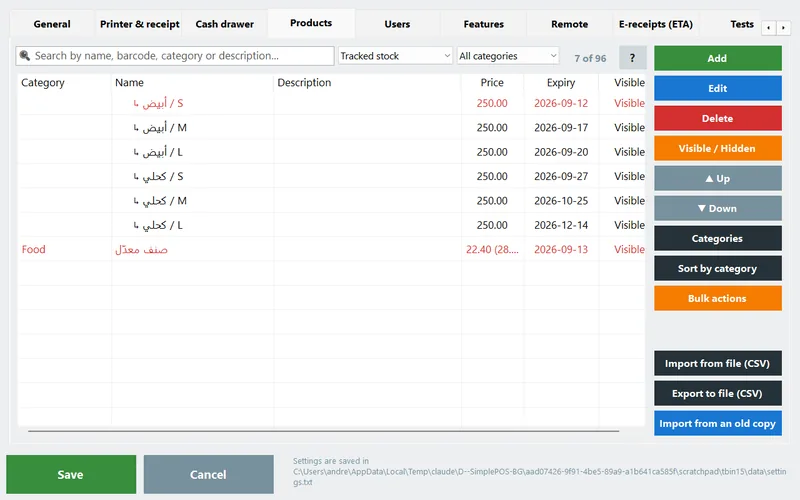
Settings → Products is where the month is won. Since 3.0 the list has a search box, filters, categories management and bulk actions on any selection — so a whole season's changes take one evening:
- Price change by %: select the rows (Ctrl or Shift with the click,
Ctrl+Afor all, or filter by category first) → Bulk actions → change the price by ± % or ± amount, rounded to 0.25 / 0.5 / 1. An example line shows the result before you apply, and the action asks with the count. Supplier raised the juice by 8%? One action, not forty edits. - Show / hide by season: put the Ramadan items in their own category and hide it the rest of the year. Two weeks before: select the category → show. After Eid: hide. Nothing is deleted, the history stays.
- Categories in the right order: the Categories dialog has ▲ / ▼ — move 'Ramadan' or 'Iftar sets' to the top so it is the first thing the cashier sees. The sales screen follows the same order.
- New items fast: in the new-product screen Save & add another (
Ctrl+Enter) keeps the same category, unit and 'needs cooking' flag — type the whole sahur menu in one run. Hundreds of items? Import them from Excel instead. - Sale prices for the Eid offers: a per-product sale price shows on the button as '4.00 (was 5.00)' and comes off by itself when you clear it (Features → Discounts).
- Sizes and add-ons for drinks and desserts (small / large, extra nuts, no sugar) — the picker opens on tap and the choice prints on the receipt and the kitchen ticket. Set them up now, not while the queue watches.
Held orders, tables and the kitchen screen
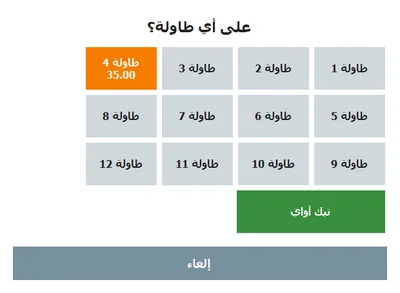
For cafés and restaurants the iftar hour is really an ordering problem, not a payment problem: forty orders arrive in fifteen minutes and are paid an hour later. Three optional features (Settings → Features) handle it:
- Hold on a table (F6): build the order, press Hold, pick the table — the cart is parked and the kitchen gets it at once. Press Tables (F6 with an empty cart) to bring it back for payment with the same number. Delivery? Use a 'table' called Delivery 1, 2, 3.
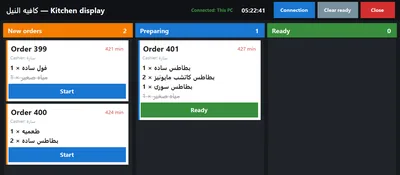
- Kitchen screen: Settings → General → send orders to the kitchen screen. A board with New → Preparing → Ready; the cook taps to move a ticket, ready items are hidden after 10 minutes. Put it on a second monitor, or on a PC or laptop in the kitchen with PosMasr-Kitchen.exe over the shop network (till IP, port 8077). Only products marked needs cooking appear; drinks show struck through so the cook sees the whole order.
- Kitchen ticket printer if the kitchen prefers paper: a second thermal printer prints a ticket per order with only the items to prepare. Both can run at once. Which suits you is in the kitchen screen vs tickets article.
A second till — paired in two minutes (3.2)
If one till queues for twenty minutes before iftar, the cheapest fix is a second PC on the counter. A second till is a second license at 40% off, linked to the first on Gold and up, and since 3.2 connecting the two needs no IP addresses or passwords:
- On the main PC: Settings → General → This till is: the primary. It keeps the products, stock, clients and the credit ledger.
- On the second PC (same Wi-Fi or cable network): This till is: a secondary → Find the primary till and pair. It finds the primary by itself.
- A 6-digit code appears on the primary's screen for two minutes; type it on the secondary. Done — the two tills now talk over HTTPS with a shared secret key.
From then on the secondary pulls products, stock and clients every minute and pushes every receipt, void, return and credit payment to the primary. Network drops? Nothing stops: the secondary queues and sends when it is back, numbering its own receipts meanwhile. And if the primary itself goes down for more than a minute and a half, the secondary takes over as primary by itself and hands the receipts back when the old one returns. Reports on the primary cover both tills; each receipt carries the till's name. Tables, shifts and the drawer stay per till.



Keys instead of the mouse
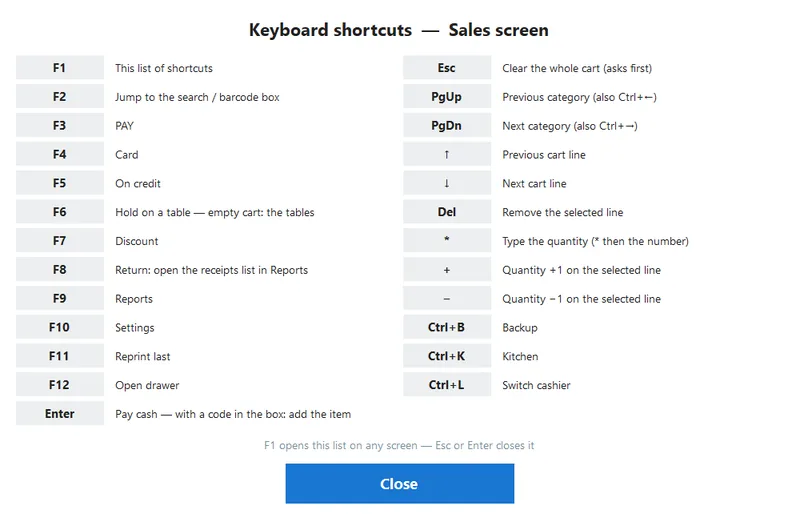
A cashier who learns six keys serves noticeably faster than one hunting with a mouse. Since 3.0 every button shows its key in its corner and F1 lists them; these are the ones worth drilling before the month:
| Key | Does | Why it matters at iftar |
|---|---|---|
| F2 | jump to the search / barcode box | type three letters of an item instead of scrolling categories |
| * then a number | set the quantity of the selected line | '12 qatayef' is *, 1, 2 — not twelve taps |
| Enter | pay cash (with the search box empty) | the most common payment in one key |
| F3 / F4 | cash / card | no reaching for the buttons |
| F6 | hold on a table / open the tables list | park an order in two keystrokes |
| F7 | discount | Ramadan offers without the mouse |
| F12 | open the drawer | change for the 200-pound notes |
| Ctrl+L | switch cashier | hand over the shift without closing the program |
Customer display and the payment QR
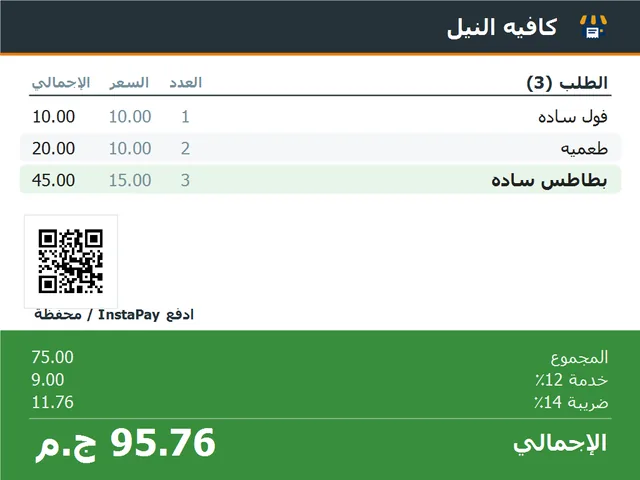
When the queue is long, half the questions at the counter are 'how much?' and 'what did you add?'. A customer display answers both without the cashier turning the screen: a second monitor shows every line and the total, then the amount paid and the change in huge digits; a 2×20 pole display or an 8-digit LED shows the total (3.1). And with the payment QR (Settings → Payment QR) your InstaPay or wallet code is on the display while the order is rung up — the customer scans and pays without asking for a number. Which display fits which counter is in the customer displays guide.
Paper rolls, backups and staff accounts
- Paper rolls: a receipt is roughly 15–25 cm, so an 80 mm roll gives a few hundred receipts; count last Ramadan's daily receipts (Reports → by day) and buy the month's rolls before the prices go up with the demand. Keep a spare roll under the counter and one in the printer's box. Sizes and prices are in the thermal printers guide.
- Backups: switch on the daily automatic backup (Settings → Features) and take a USB copy with Ctrl+B before day one and once a week during the month. A busy month is exactly when a disk decides to die.
- Staff accounts: the extra cashier you hire for the month gets their own account (the Users button in the top bar) with cashier rights only — no reports, no voids, a discount ceiling. Every receipt carries the name, so the close by cashier tells you who was short.
- Manager cards (3.1): when the cashier needs a void, a return or a discount above the limit, the manager swipes a card instead of typing a password in front of the queue. A USB card reader and a few blank cards — set up in Settings → Users. More in the manager cards article.
- Expiry dates for the Ramadan stock: dates, yameesh and juices bought in bulk should carry their expiry when received, so the Expiring tab flags what to discount before Eid instead of after.




The daily close in Ramadan
Ramadan nights end late and everybody is tired, which is exactly when the close gets skipped. Keep it to the ten-minute routine: close the shift by counting the drawer against the Z report, glance at voids and discounts in the receipts list, print the low-stock list for the morning order, and let the automatic e-mail or Telegram summary (3.2) reach your phone so you can check it from home. The full routine, with a printable checklist, is in the 10-minute daily close.
The two-week timeline

| When | Do | Where in PosMasr |
|---|---|---|
| Day −14 | Final menu and price list; Ramadan category shown and moved to the top; bulk price changes; sizes and add-ons; duplicates cleaned | Settings → Products, Categories, Bulk actions |
| Day −12 | Update every till to 3.2; test print; drawer diagnostic | Settings → Support → Updates; Tests |
| Day −10 | Order paper rolls and the Ramadan stock; receive it with expiry dates; set full-stock levels for the low-stock alert | Inventory → Receive quantity |
| Day −7 | Second till paired; kitchen screen or ticket printer running; tables named; twenty test orders end to end | Settings → General (till role, kitchen); Features (tables) |
| Day −5 | Accounts for the seasonal staff with cashier rights and a discount ceiling; manager cards registered; customer display and payment QR checked | Users; Settings → Customer display, Payment QR |
| Day −3 | Train everyone on F1 and the eight keys above; a mock iftar hour with real orders; shifts opened and closed once | Sales screen; Shift |
| Day −1 | USB backup; automatic daily backup on; e-mail / Telegram close report tested with 'Send test now'; spare roll under the counter | Ctrl+B; Settings → Features, E-mail |
| Day 1 onwards | Ten-minute close every night; low-stock print for the morning order; USB backup weekly | Shift → Close; Inventory → Print stock |
| Eid −7 | Eid sweets and gifts category shown; sale prices set; the same drill in miniature | Settings → Products |
| After Eid | Hide the seasonal categories; discount what is expiring; compare the month in Reports → by day and by hour and write down what to change next year | Reports; Inventory → Expiring |
How PosMasr helps
- Bulk actions and filters turn the seasonal menu into one evening's work — and back again after Eid without deleting anything.
- Held orders, tables, the kitchen screen and the ticket printer are built in and optional — switch on what your counter needs.
- A second till pairs with a 6-digit code (3.2), keeps selling when the network drops, and takes over if the primary goes down.
- Keyboard-first since 3.0: every button shows its key, F1 lists them, and the scanner keeps working as before.
- Per-cashier accounts, rights and manager cards mean seasonal staff can sell fast without being able to void or discount at will.
- The close comes to your phone (Platinum): the daily summary on Telegram or e-mail, and the dashboard from anywhere with PosMasr Link — no router set-up.
- Works offline. If the internet drops in the middle of iftar, nothing stops: the till, the kitchen screen and the second till are all on the shop's own network.
Quick answers
Can I change prices for Ramadan and put them back after?
Yes. Bulk actions apply ± % or ± an amount to any selection; apply the reverse after Eid, or export the products to Excel before the change and import the file back after.
Do I need a second license for the kitchen screen?
No — the kitchen screen (PosMasr-Kitchen.exe) comes with the Gold and Platinum packages and connects to the till over the network at no extra cost. The second license is for a second till that sells.
The second till is a laptop on Wi-Fi. Is that OK?
It works — pairing finds the primary on Wi-Fi as well. For the iftar hour a cable is steadier; if Wi-Fi drops, the secondary just queues and keeps selling.
A cashier gave a big discount to a friend during the rush. Will I know?
Yes: set a discount ceiling per cashier (above it a manager card or password is needed), and the receipts list and the Z report show discounts by cashier.
We only get busy for Eid, not Ramadan. Same plan?
Same plan compressed into one week: menu and prices, staff accounts, a test run, backup. The Eid −7 row in the table is your starting point.
Set it up before the crescent is sighted
Try PosMasr free for 14 days — long enough to build the Ramadan menu, pair a second till and run a mock iftar hour before you decide.