Why ten minutes, every night
A shortage found the same night has one suspect and one explanation. The same shortage found at the end of the month has thirty days of suspects and no explanation at all. Every check in this routine is cheap on the day it happens and expensive later — that is the whole argument. And the order matters: count first, while the cash is still in the drawer and the cashier is still in the shop.

1. Count the drawer against the Z report (3 minutes)
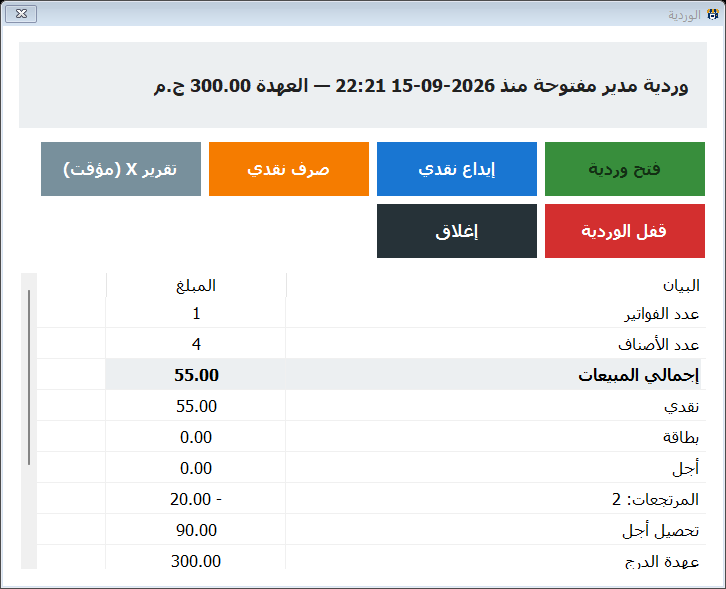
This needs shifts on (Settings → Features → Shifts & Z report; Silver and up). The shift was opened in the morning with the float — the change you left in the drawer. At close:
- Press Close shift. The program asks you to count the cash in the drawer and type it — it does not show the expected figure first, so the count is honest.
- It then shows expected — counted — difference and asks to close and print the Z report: cash, card and credit sales, discounts, returns, VAT and service, every cash-in and cash-out with its note, the float, and the difference.
- A difference of a few pounds is change rounding. Anything bigger is a question you ask tonight, with the report in your hand: a cash-out without a note? a receipt paid by card but recorded as cash? Write the answer on the report and file it.
2. Voids, returns and discounts (2 minutes)
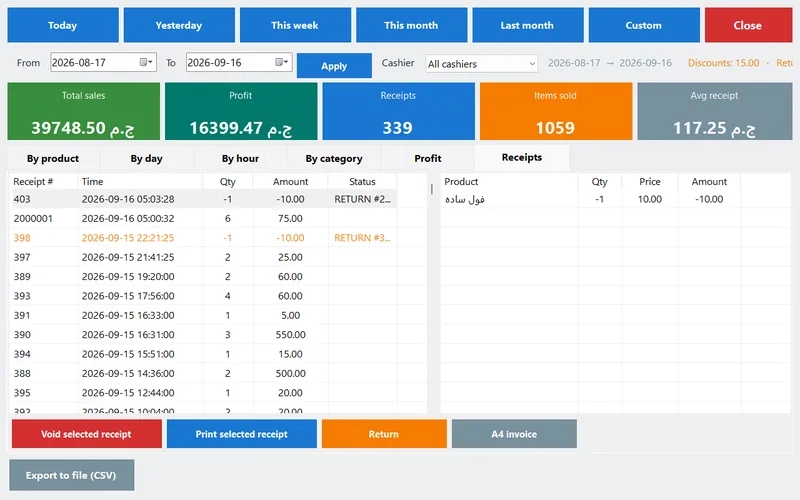
These three are where a dishonest cashier lives, and where an honest one makes expensive mistakes. The Receipts button in the top bar (3.2) opens today's list; a search box above it (Ctrl+F) finds a receipt by number, customer or amount as you type. Look for:
- Voided receipts — how many, which cashier, what time. One a day is life; three around the same hour is a pattern.
- Returns — each has its own return receipt number and puts the stock back. A return without a customer standing there is a refund to the cashier's pocket.
- Discounts — the Z report totals them; the receipts list shows them one by one. Set a discount ceiling per cashier so anything above it needed a manager card or password.
The five ways a till gets robbed, and which report shows each, are in the cashier theft article. This two-minute glance is the one that catches four of them.
3. Low stock and expiring (2 minutes)
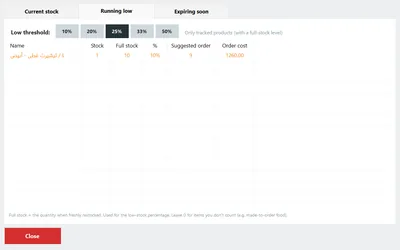
- Inventory → Running low lists what to reorder before it runs out, with a threshold you set (10–50% of full stock), the suggested quantity and its cost. Since 3.2 the Print stock button (Ctrl+P) prints the list as you see it on the receipt printer — the morning order for the supplier, grouped by category, with running-low rows marked !.
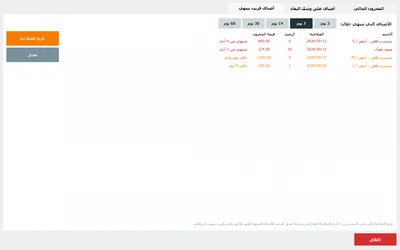
- Inventory → Expiring shows what expires within the window you chose. Pull it to the front tomorrow, or set a sale price tonight — a yoghurt discounted three days early is money; the same yoghurt on day zero is a bin. The routine is in the expiry dates article.
4. The backup (1 minute — or zero)
Switch on the daily automatic backup (Settings → Features) and it runs by itself on exit or on shift close — zero minutes. Once a week, plug in the USB stick and press Ctrl+B so a copy leaves the PC. The phone dashboard has a 'last backup' card, so you will notice if it stopped. Why this matters is in the backups article; how it saves you on moving day is in moving to a new PC.
5. The close report by e-mail (3.2) — set up once, arrives every night
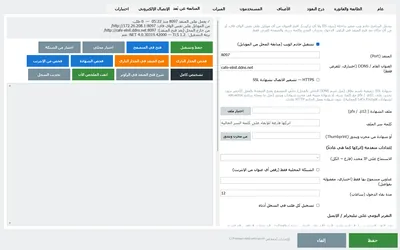
Everything above is on the till. The owner is usually not. Since 3.2 PosMasr sends a close report from the shop's own e-mail account once a day — plain text, nothing attached, readable on any phone (Platinum package). Setting it up takes five minutes:
| Field (Settings → E-mail) | What to put |
|---|---|
| Send the daily close report by e-mail | tick it |
| SMTP server / port / TLS | Gmail: smtp.gmail.com, 587, TLS on. Outlook and Zoho: their SMTP server, 587, TLS on. Your ISP's mail works too. |
| User / password | the shop's e-mail address, and — for Gmail — an app password from Google's security settings, not the account password (Google refuses the normal one for programs) |
| From address | the same address |
| Recipients | you, your partner, the accountant — comma separated |
| Send time | e.g. 23:30. Leave it blank to send only when the shift is closed. |
| Send it when the shift is closed | tick it if shifts are on: the report goes out right after the last close of the day (a shift closed earlier in the day is a cashier change, not the close), or at the send time if nobody closed |
| Report content | tick what you want: the daily summary (same text as the Telegram message), the Z report (or an X report if the shift is still open), the low-stock list, the expiring list |
| Send test now | press it — you see the result at once; check the inbox (or Spam the first time) |
It goes out once a day. If the send fails (the internet was down at 23:30) it is retried once, five minutes later, and the attempt is written to the program's log. Nothing about your sales leaves the PC except that one e-mail, from your own account to the addresses you typed.




The Telegram summary — the short version
If you want just the numbers as a chat message, the daily summary (Settings → Features, Platinum) sends them on Telegram at the time you choose: sales, receipts, cash / card / credit, returns, low stock, expiring items and credit owed. The set-up: create a bot with @BotFather in Telegram and paste its token, send the bot any message from your phone, press Fetch chat id, then Send summary now to see it arrive. Both can run at once — Telegram for the glance, e-mail for the full Z report you can forward to the accountant.
Reading it from the phone: dashboard or PosMasr Link
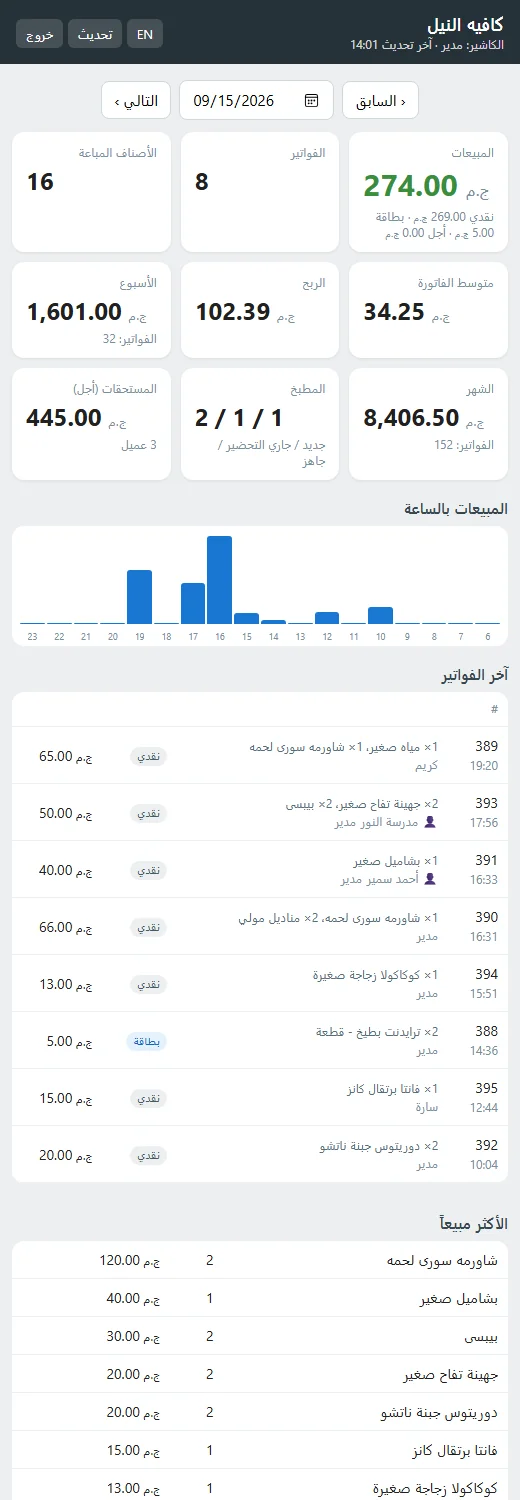
The e-mail is yesterday's story. For right now there is the phone dashboard (Platinum): today / week / month sales, sales by hour, the latest receipts with the cashier's name, best sellers, running-low and expiring items, credit owed, the drawer, suppliers owed and the last backup — refreshing every 30 seconds, view-only, behind the manager login. On the shop Wi-Fi it is three steps (Settings → Remote monitoring → run the web server → allow in firewall → open the address on the phone).
From home is where it used to get technical: Egyptian ISPs put shops behind a shared network (CGNAT), so a phone outside could not reach the till even with the router's port forwarded. PosMasr Link (3.2) fixes that: tick it in the same tab and the till keeps one encrypted connection open to link.posmasr.com; you get an internet address (and a QR to scan) that opens the same dashboard from anywhere, with the same manager login. Nothing to set up on the router, the relay stores nothing — every page is answered by your till. A New address button retires the old link if a phone is lost.



The printable checklist
Tape it next to the till. The cashier ticks the first column; the owner ticks the second from the phone.
| Cashier | Owner | Step | Where | Min |
|---|---|---|---|---|
| ☐ | Last receipt done; held tables all paid or cleared | Sales screen → Tables | 1 | |
| ☐ | Count the drawer, type the count, close the shift, print the Z report | Shift → Close shift | 3 | |
| ☐ | ☐ | Difference explained and written on the Z report (or zero) | Z report | — |
| ☐ | Voids, returns and discounts glanced at — by cashier and time | Receipts (top bar) / Reports | 2 | |
| ☐ | Low-stock list printed for the morning order | Inventory → Running low → Print stock | 1 | |
| ☐ | Expiring items pulled forward or discounted | Inventory → Expiring | 1 | |
| ☐ | Backup ran (automatic) — USB copy on the weekly day | Ctrl+B | 0–1 | |
| ☐ | Cash to the safe; float left in the drawer for tomorrow | — | 1 | |
| ☐ | Close report read on the phone (e-mail / Telegram); anything odd asked about tonight | Inbox / Telegram / PosMasr Link | 2 |
How PosMasr handles it
- Shifts with a blind count: the cashier types the count before seeing the expected figure; the Z report prints expected, counted, the difference and every movement with its note.
- Every receipt carries the cashier and the time, voids and returns included, and the receipts list is one button and a search box away (3.2).
- Low-stock and expiring lists are computed for you from full-stock levels and expiry dates; the low-stock list prints on the receipt printer (3.2).
- Automatic daily backup on exit or shift close, and a one-key USB copy.
- The close report by e-mail (3.2) from your own account, once a day, with the summary, the Z report and the two lists — retried once if the internet blinks.
- The Telegram summary at the time you choose, and the phone dashboard from anywhere with PosMasr Link — no router set-up, nothing stored outside your till.
- Works offline: the count, the Z report and the backup never need the internet; only the e-mail and Telegram do, and they wait for it.
Quick answers
Gmail says 'username and password not accepted'.
You used the account password. Google only lets programs in with an app password: Google account → Security → 2-step verification on → App passwords → create one for 'PosMasr' and paste those 16 characters into the password field.
I do not use shifts. Can I still get the e-mail?
Yes — set a send time and it goes out then, with the day's X report (the day so far) in place of the Z report.
Two tills — do I get two reports?
The primary's reports cover both tills, so set the e-mail up on the primary. Each till closes its own shift and prints its own Z report.
The drawer is short 200 pounds and the cashier says the till is wrong.
The Z report lists every cash movement. Compare it with the card terminal's total for the day and the credit sales: a card sale recorded as cash, or a credit sale recorded as cash, explains most 'the till is wrong' cases. If everything matches, the till is right.
Is the report safe to send by e-mail?
It is sent over TLS from your own account to addresses you chose, and it contains totals and lists — no customer card numbers, no passwords. Use a strong e-mail password and keep the recipients list short.
Tonight's close could be in your inbox
Try PosMasr free for 14 days: open a shift in the morning, close it at night, and get the report on your phone before you have left the shop.