Why a screen for the customer at all
Three reasons, and none of them is decoration. Fewer disputes: the customer sees every item and its price the moment it is added, so a wrong item or a wrong quantity gets corrected before the receipt is printed, not shouted about after. A cleaner till: the cashier cannot say a number that is different from the one on the screen — which is one of the quiet controls in our cashier-theft article. Trust with the paperwork: the amount on the screen is the amount on the receipt, and if you are registered for e-receipts it is the same amount that reaches the Tax Authority. Nobody has to take the cashier's word for it.
Is it required? For an ordinary shop, not as far as we know — a customer display is a trust tool. The receipt itself, and PosMasr's e-receipt feature, are a separate article.


The four kinds
1. A full second monitor
Any ordinary monitor — 15 to 22 inches, the same kind as the cashier's — turned to face the customer. Because it is a real screen, it can show anything: every line of the order with quantity, price and line total, subtotal, discount, service and VAT when they apply, the grand total in large digits, then the amount paid and the change. Between customers it shows your logo and a welcome line, and it can show a QR code the customer scans to pay by InstaPay or a wallet. This is what PosMasr has done since 2.1, and it is the kind you see at the big café and fast-food chains.
2. The classic two-line pole display (VFD / LCD)
The one on a stalk above the till at Starbucks, McDonald's and every supermarket lane: two lines of 20 characters each. The top line shows the last item and its price, the bottom line shows TOTAL and the amount. The glowing blue-green ones are VFD (vacuum fluorescent); the cheaper flat ones are backlit LCD; both are 2×20. It sits on a pole 20–30 cm tall that turns, or clips onto the monitor or printer. It is a character device: it has a built-in font of Latin letters and digits and shows exactly what the program sends it, one line at a time.

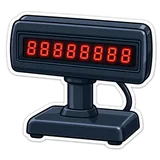
3. The 8-digit LED amount display
A strip of eight red seven-segment digits, like an old calculator, on a short stand or stuck on top of the drawer. It shows one thing: a number. The total while the sale is rung up, sometimes the paid amount and the change after. No letters, no item names. It is the cheapest and the most visible from three metres away, which is why bakeries, scales and busy grocery counters like it.

4. The rear screen built into an all-in-one
Many all-in-one terminals (Sunmi, Posiflex, the generic Chinese ones) come with a customer screen built into the back of the main screen. It is one of the two things above in disguise: either a small 2-line VFD/LED strip, or a 7–10 inch LCD that behaves like a second monitor. You do not buy it separately; you choose the model that has it. The catch is that you cannot turn it or move it — it faces wherever the terminal faces.


How each one connects
This is where the four kinds really differ. A monitor is a display; the pole and the LED are serial devices that speak a small command language.
| Kind | Cable | How Windows sees it | Command set |
|---|---|---|---|
| Second monitor | HDMI, VGA or DVI to a second output on the PC; a USB display adapter if the PC has only one output | A second display. Set it to Extend (not Duplicate) in Windows display settings. | None — the program draws whatever it wants on it. |
| 2×20 pole (VFD / LCD) | Serial RS-232 (the 9-pin plug) on old tills, or USB on new ones; USB models install a virtual COM port (CH340 / Prolific / FTDI driver) | A COM port (COM3, COM4…). The program needs the port name and the speed — 9600, 8 bits, no parity is the usual default. | EPSON ESC/POS display (the DM-D110 / D210 language; most Chinese poles ship in 'Epson mode'), AEDEX (Logic Controls / Bematech; each line is prefixed with a small code), UTC, CD5220 (Partner Tech), DSP800… A DIP switch or a setup menu on the unit picks the mode. Almost every unit also accepts plain text: send 20 characters, a carriage return moves to the next line. |
| 8-digit LED | Same as the pole: serial or USB-to-COM | A COM port. | Simpler: a few bytes with the digits, or the same ESC/POS display subset. Digits and a decimal point are all it understands. |
| All-in-one rear screen | Internal — no cable to buy | An LCD rear screen appears as a second display; a VFD/LED strip appears as a built-in COM port (often COM2 or COM3). | As above, per type; the terminal's manual says which mode and port. |
Arabic on each kind
This is the question everyone asks, so here is the honest answer per kind.
- Second monitor: full Arabic. It is a Windows screen; the program draws the text, so product names, discount lines, the welcome message and the thank-you all appear exactly as you typed them, right-to-left, in a proper font.
- 2×20 pole: Latin letters and digits only. The font lives inside the display. Some units list an 'Arabic code page', but they show disconnected letters, left-to-right — unreadable. Treat every pole as Latin-only. What works: give products a Latin name too ('Americano', 'Pepsi 1L' — many cafés already do), and rely on the second line, which is the number everyone actually reads.
- 8-digit LED: digits only. No language question at all — the amount is the amount.
- All-in-one rear screen: the LCD kind shows Arabic like any monitor; the strip kind is Latin/digits like the pole.
In practice the number is what settles an argument, and digits are universal. If you want the customer to read the item names in Arabic, only a monitor (or an LCD rear screen) does it.
Rough prices in Egypt
Indicative September 2026 street prices; they move with the dollar and differ between sellers, so read them as ranges, not quotes.
| Kind | Rough price | You also need | Brands you see |
|---|---|---|---|
| Second monitor, 15–19 inch | ≈ 1,500 – 3,500 EGP new; a used 17-inch is much less | An HDMI or VGA cable, and a USB display adapter if the PC has one output only; a small arm or stand if the counter is tight | HP, Dell, Lenovo, LG, Samsung, any used office monitor |
| 2×20 pole, VFD or LCD | ≈ 900 – 2,500 EGP | The USB-serial driver, or a serial cable for a real COM port | Epson DM-D110 / D210, Posiflex PD, Bixolon BCD, generic Chinese VFD-220 / LCD-220 |
| 8-digit LED | ≈ 400 – 900 EGP | Same as the pole | Generic; usually sold as 'LED8' or 'customer display 8 digits' |
| All-in-one rear screen | Bundled — part of the terminal price | Nothing; ask whether the 'customer display' option is a 2-line strip or an LCD | Sunmi, Posiflex, generic all-in-ones |
Notice that the monitor, the most capable option, is not the most expensive by much — and a used office monitor makes it the cheapest. That is why we point most shops there.
Which display for which shop
| Your shop | Buy this | Why |
|---|---|---|
| Café / restaurant | Second monitor with the payment QR | Orders have sizes and add-ons the customer wants to see; the InstaPay QR on the screen means nobody asks for a number, and the customer reads the total while waiting for the coffee. |
| Supermarket lane | 2×20 pole or an 8-digit LED per lane | No room on the lane for a monitor, fifty items a basket, and the customer only wants the number. A pole if you want the last item shown too. |
| Kiosk / delivery counter | An all-in-one with a rear screen, or nothing | One device, no cables, no counter space. If the budget is a used PC, an LED is the only thing that fits. |
| Pharmacy | Second monitor; a pole if the counter is narrow | Long medicine names and a VAT line read better on a monitor; the pole still shows the total. |
| Boutique / phone shop | A small 15-inch second monitor | Few sales a day, but each one has a discount the customer wants to see applied. |
| Wholesale store | Second monitor | Twenty lines per invoice and a client who checks every one; the screen matches the A4 invoice line by line. |
How PosMasr handles it
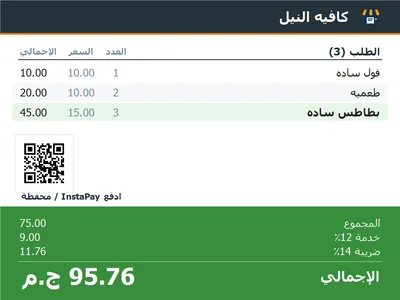
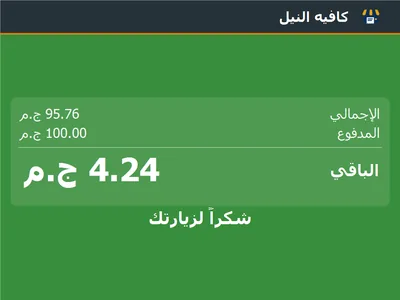
- Second monitor (since 2.1). Plug in the monitor, set Windows to Extend, then Settings → Features → tick Customer display. It opens with the program and fills the second monitor ('Auto' picks the first monitor that is not the main one). Every line as it is rung up, the last one highlighted, subtotal / discount / service / VAT when they apply, the total, then paid and change in huge digits — or 'paid by card' / 'on account' — with a thank-you. Your logo and a welcome line you write yourself while idle. It never takes the keyboard away from the cashier. Silver package or higher.
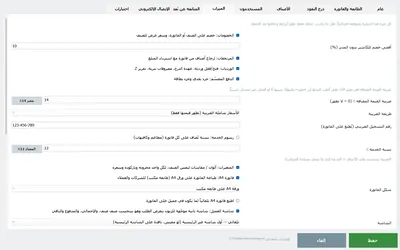
- The InstaPay / wallet QR on it (2.2). Settings → Features → Payment QR → choose the picture of your account's QR from the InstaPay or wallet app. It shows on the customer display while the order is rung up, so the customer scans and pays without asking for a number — and it can print at the bottom of every receipt too.
- Pole and LED displays (3.1). The same Features tab gets a customer display type: none / monitor / 2×20 pole / 8-digit LED. For the pole and the LED you pick the COM port, and a Test button sends a sample line so you see it working before a customer does. On a pole PosMasr shows a Latin line for the item and the total on the second line; on an LED it shows the total, then the paid amount and the change. Arabic-only product names cannot be shown on a pole — give the product a Latin name as well if you want it to appear.
- Only one monitor? Tick the feature anyway: with a single monitor the customer display opens as a small window, so you can see what the customer would see and decide before buying anything.

Quick answers
Does the customer monitor have to be a touch screen?
No. The customer only looks at it. Any monitor with an HDMI or VGA plug works — the cheaper and older, the better.
Can I use an old TV?
Yes, if it has HDMI or VGA. Set it to Extend like any monitor. Keep the size sensible; a 32-inch screen on a counter is a lot.
Will the pole display show Arabic product names?
No. Its font is Latin letters and digits. It shows the total correctly, and the item line in Latin letters if the product has a Latin name.
Does the customer display slow the cashier down or steal the keyboard?
No. It is a separate window on the second monitor; the till keeps the keyboard and the scanner. The cashier does not have to touch it at all.
I have a pole display from my old program — can I keep it?
Very likely. If it appears as a COM port in Windows and supports Epson mode or plain text, pick it in Settings → Features (3.1) and press Test. Send us a photo of the label on its back if unsure.
See the customer display on your own monitor, free, for 14 days
Install PosMasr, tick Customer display in Features, ring up a sale. With one monitor it opens as a window — so you can judge it before buying a second screen.