The three routes to a till screen
Forget the catalogue for a minute. Every till in Egypt, from the kiosk to the hypermarket lane, is one of three things: a normal PC with a touch monitor, an all-in-one terminal, or a plain PC with a plain monitor and a mouse. Each one is a fine choice for the right shop — and a waste of money for the wrong one.

Route 1 — a normal Windows PC or an old laptop + a touch monitor
You buy (or already own) any small Windows PC — a Dell OptiPlex, HP ProDesk or Lenovo ThinkCentre small-form-factor box from the used market is the classic — and plug a 15" or 15.6" touch monitor into it over HDMI/VGA plus one USB cable for the touch. The PC hides under the counter; only the screen, the printer and the scanner are on top. Cheapest way to get touch, and the easiest to repair: if the monitor dies you swap the monitor; if the PC dies you swap the PC. A laptop works exactly the same way, and its own screen becomes a free second monitor for the customer display.
Route 2 — an all-in-one POS terminal
One unit: the computer is inside the stand, the touch screen is on top, often with a small second screen on the back for the customer and a built-in card reader slot you will never use. Looks professional, takes one power cable, and the wiring is tidy. The price is the whole point: a generic Chinese one costs about what a used PC plus a touch monitor cost together, a branded one (Sunmi, Posiflex) two to three times that. The catch: when anything fails, the whole unit goes to the repair shop and your till is down.
Route 3 — a used PC, a plain monitor and a mouse
The honest budget option, and more common than people admit: a used office PC, any 19–22" monitor, a mouse and a keyboard. No touch at all. For a grocery where the scanner does 95% of the work, or a pharmacy where the cashier types names anyway, touch adds little — the scanner beeps, the total shows, you press Enter. PosMasr is designed for touch but every button is mouse-sized and every action has a keyboard shortcut, so this setup is fully supported.


Screen sizes: 15, 15.6, 17 and 21.5 inches
Inches measure the diagonal, so two screens with the same number can have very different shapes. The classic POS screen is a squarish 15" (4:3); the cheap modern one is a wide 15.6" laptop panel (16:9) that is actually shorter; 17" is the old 5:4 office monitor, tall and comfortable for long product lists; 21.5" is a normal wide desktop monitor. Drawn to scale:

| Size | Shape | Where you see it | Good for | Watch out |
|---|---|---|---|---|
| 15" | 4:3, almost square | most all-in-ones and dedicated POS touch monitors | cafés and restaurants: a big touch grid, small footprint on the counter | resolution is usually 1024×768 — fine for PosMasr, cramped for Excel |
| 15.6" | 16:9, wide | cheap generic touch monitors and budget all-in-ones | tight budgets; same panel as a laptop so it is cheap | shorter than a 15" — fewer product rows on screen |
| 17" | 5:4, tall | used office monitors (Dell, HP, Samsung, LG) and 17" touch monitors | groceries and pharmacies with long lists; very cheap used | touch versions are rarer and pricier than 15" |
| 21.5" | 16:9, wide | any desktop monitor; 21.5" touch monitors too | supermarket lanes and the customer display; full HD shows everything | needs counter depth; a touch one is a two-hand reach |
Capacitive vs resistive touch
Two technologies are sold here, and the shop assistant will rarely tell you which one is in the box. Capacitive is what your phone has: a glass surface that senses your finger, sharp, bright, multi-touch, and it stays accurate for years. Resistive is the older, softer plastic surface that you press: it works with gloves and a stylus, costs less, but it is dimmer, wears out in the spot everyone presses, and drifts so you have to recalibrate it.
| Capacitive (glass) | Resistive (plastic film) | |
|---|---|---|
| Feel | light tap, like a phone | needs a firm press |
| Works with | bare finger; not most gloves | finger, glove, pen, fingernail |
| Picture | bright and sharp | slightly dim and soft |
| Wear | hard glass, years of use | dead spots after heavy use; needs recalibration |
| Wet / greasy hands | water drops can confuse it; wipe and go | does not care |
| Price | a little more | the cheapest touch there is |
| Our pick | every shop, unless the hands are always wet | butchers, fish shops, workshops |

Ask for "capacitive" by name. On a spec sheet it may say PCAP, P-CAP or "10-point touch"; resistive says "5-wire resistive" or just "touch". Both connect over a single USB cable and Windows treats them as a mouse — no driver, and PosMasr does not care which one it is.
A second monitor: for the customer, or for the kitchen
This is the cheapest upgrade in the whole hardware list. Any PC has a second video output (HDMI, VGA, DisplayPort — or a 500-pound USB display adapter if not), and Windows can run two screens as one wide desktop. PosMasr uses that second screen in two different ways:
- Customer display (2.1, Silver and up): turn a 19–22" monitor towards the customer and tick Customer display in Settings → Features. They see every line as it is rung up, the total, and after paying the amount paid and the change in huge digits — plus your InstaPay QR while the order is open. Set Windows to Extend, not Duplicate.
- Kitchen screen: if the kitchen is within cable reach, the same second monitor can show the kitchen board instead — orders move from New to Preparing to Ready with a tap. Farther away? Any old Windows PC or tablet on the shop Wi-Fi runs PosMasr-Kitchen and connects to the till by IP.
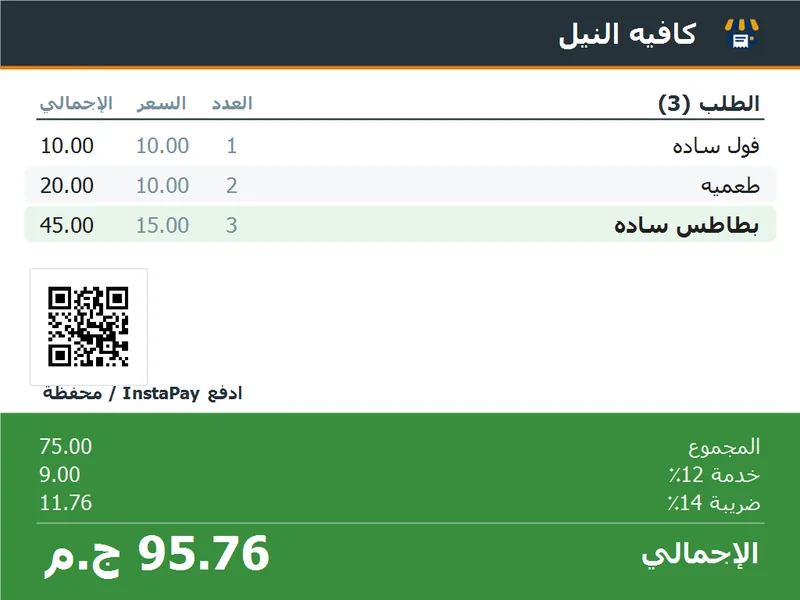
A laptop till gets this for free: its own screen faces the customer and the touch monitor faces the cashier. An all-in-one with a rear customer screen shows the same thing on that little panel — check that the rear screen is a real second display (VGA/HDMI to Windows), not a two-line LED pole that only shows numbers.


Minimum PC specs for PosMasr
PosMasr is a small Windows program with no database server and no browser inside, so the PC bar is low — deliberately, because half the tills in Egypt are hand-me-down office machines. What it needs:
- Windows 7 SP1 or newer (8.1, 10, 11), 32 or 64-bit. On Windows 7 install .NET Framework 4.8 once; newer Windows has it.
- Any CPU from the last ten years — a Core i3 of the 4th generation, a Celeron, an old AMD, all fine. The program never waits on the processor; the printer is always the slow part.
- 2 GB of RAM runs it; 4 GB keeps Windows 10 comfortable next to it.
- An SSD is the one upgrade worth paying for (≈ 600 – 1,200 EGP for 120–240 GB): the till boots in 20 seconds instead of 3 minutes, and a power cut hurts less.
- Ports: two or three USB (scanner, printer, touch), one video output — two if you want the customer display. No internet needed; Wi-Fi only for the kitchen screen or the phone dashboard.
Brands seen in Egypt, and rough prices
What follows is what we see in shops and online in Egypt in September 2026. Everything moves with the dollar, so read it as a guide, not a quote — and remember that a used Dell for 4,000 pounds does the same job as a new one for 20,000.
| Type | Brands / models here | Rough price | Notes |
|---|---|---|---|
| Used small-form-factor PC | Dell OptiPlex 3040/7040/3060, HP ProDesk 400/600 G2–G4, Lenovo ThinkCentre M700/M720 (i3/i5, 4–8 GB, SSD) | ≈ 3,500 – 8,000 EGP | the best value in the whole list; ask for a Windows 10 license sticker |
| Used laptop | any Core i3/i5 with a working screen and a USB-C or HDMI output | ≈ 4,000 – 9,000 EGP | built-in UPS (the battery) and a free customer display |
| Generic touch monitor 15" / 15.6" | unbranded Chinese, sold as "POS touch monitor"; capacitive or resistive | ≈ 5,000 – 9,000 EGP | insist on capacitive and a metal stand |
| Branded touch monitor | Elo 1502L / 1509L / 1517L, Posiflex TM-3115, Dell P2418HT (21.5"–24") | ≈ 12,000 – 28,000 EGP | Elo is what the big chains use; overkill for a café |
| Generic all-in-one terminal | Chinese 15" / 15.6" units with a Core i3/i5 or J1900/J4125 board, 4–8 GB, SSD, Windows 10 | ≈ 13,000 – 25,000 EGP | check the Windows license and the rear screen type |
| Branded all-in-one | Sunmi (Windows models), Posiflex XT / PS series, HP Engage One, Elo PayPoint | ≈ 25,000 – 60,000 EGP | chains, hotels, anyone with a service contract |
| Plain monitor (mouse till or customer display) | any used 17"–22" Dell / HP / Samsung / LG | ≈ 1,000 – 3,500 EGP used, 3,000 – 5,000 new | VESA holes let you bolt it to a pole facing the customer |
| USB display adapter | generic USB 3.0 to HDMI/VGA | ≈ 500 – 1,200 EGP | when the PC has only one video output |
Which setup for which shop
| Your shop | Buy this | Rough hardware total | Why |
|---|---|---|---|
| Kiosk / canteen / small grocery | Route 3: used PC + used 17"–19" monitor + mouse | ≈ 5,000 – 10,000 EGP | the scanner does the work; touch would be paid for and not used |
| Café / juice bar / fast food | Route 1: used PC or laptop + 15" capacitive touch | ≈ 9,000 – 17,000 EGP | orders are tapped, not scanned; sizes and add-ons pop up on touch |
| Restaurant with tables | Route 1 or a generic all-in-one + a second monitor or a kitchen PC | ≈ 15,000 – 30,000 EGP | tables and held orders on touch; the kitchen screen saves the shouting |
| Pharmacy | Route 3 with a 21.5" monitor, or Route 1 if you like touch | ≈ 6,000 – 15,000 EGP | long product lists and a 2D scanner; keyboard search is faster than tapping |
| Supermarket lane | Generic or branded all-in-one + 19"–22" customer display on a pole | ≈ 18,000 – 35,000 EGP per lane | tidy wiring, a screen the customer can read, and easy to replicate per lane |
| Boutique / phone shop | Route 1 with a laptop | ≈ 9,000 – 16,000 EGP | the laptop doubles as the office PC and the customer display |
Totals above are for the screen and PC only; add the printer, drawer and scanner from our cheapest complete setup post.
How PosMasr handles all of them
- Touch, mouse or keyboard — same program. The selling screen is a grid of big product buttons; tap or click. Enter / F12 pays, + and − change the quantity, Delete removes a line, and the search box is always ready for the scanner.
- Any resolution. From a 1024×768 all-in-one to a full-HD 21.5", the layout stretches; on Windows scaling (125%, 150%) everything stays sharp.
- Customer display on the second monitor (2.1) with the order, total, paid and change, your logo and welcome message, and your payment QR — Settings → Features, one tick.
- Kitchen board on the second monitor or any PC on the network — no server, no cloud, the till is the server.
- Windows 7 and up, old PCs welcome. No database server, no browser, works fully offline. If the PC you have runs Windows, try the free trial on it before buying anything.
- We never force hardware. Buy the screen from us, from the used market or from anywhere; the license is per till PC and moves with a release code if you change the machine later.
Quick answers
Do I need a touch screen to use PosMasr?
No. It is designed for touch but works perfectly with a mouse and keyboard, and every action has a shortcut.
Is a 15.6" touch monitor worse than a 15"?
Not worse — shorter. It is a wide laptop panel, so you see fewer product rows. If the price difference is small, take the 15"; if it is big, the 15.6" is a fine till.
My all-in-one has a small screen on the back. Will the customer display work on it?
If Windows sees it as a second display (check Display settings → Extend), yes. If it is a two-line LED pole display, no — that is a different kind of device.
Can I use a laptop as the till?
Yes, and it is a good idea: the battery covers power cuts, and its screen can face the customer while a touch monitor faces the cashier.
The touch is off by a centimetre.
That is a resistive screen that needs calibrating: Windows Control Panel → Tablet PC Settings → Calibrate. Capacitive screens do not drift.
Try it on the screen you already have
PosMasr runs on any Windows PC, touch or not. 14 days free, no subscription. During the launch offer we set it up and connect your hardware for free.