Scan barcodes with the camera
On the Sell screen the camera of a phone, tablet or laptop can read barcodes.
1Open Sell
Open Sell. Under the search there is Scan with the camera.
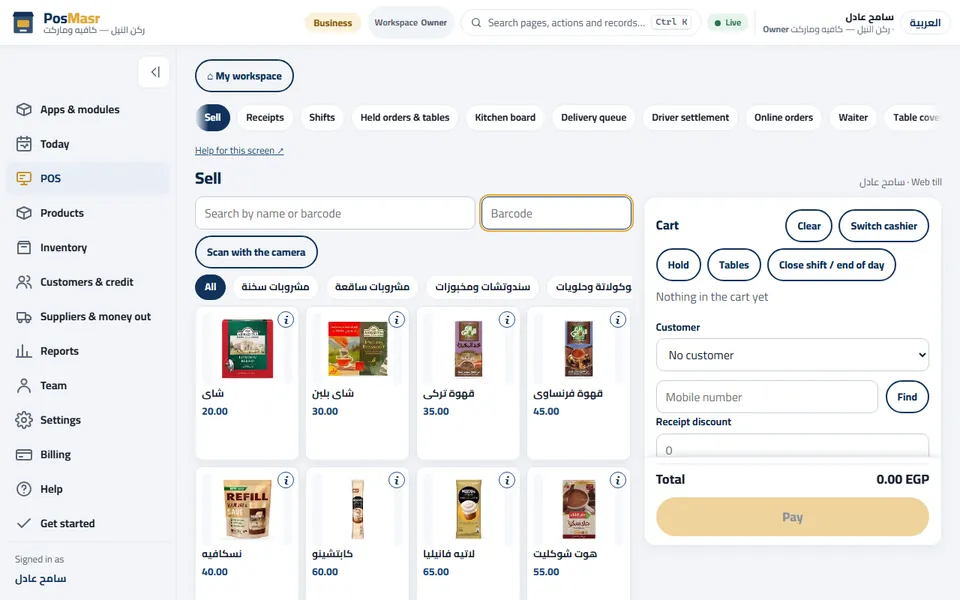
The Sell screen with Scan with the camera under the search. 2Allow the camera
Press Scan with the camera. When the browser asks, allow the camera.
3Scan
Hold the barcode in view. The page says it is reading the barcode, then the product goes into the cart.
4A barcode the shop does not know
If the barcode is not in your products, a sheet lets you add it there with a name and a price, when your account may add products.
5Or type it
You can always type the barcode in the Barcode box.
The words on the screen
| On the screen | What it means |
|---|---|
| Scan with the camera | Opens the camera to read a barcode. |
If it does not work
- It says The camera is not available: allow the camera for this site in the browser, and close other apps that use it.
- It says the barcode could not be read: hold the phone steady, get closer and try again, or type it.
- You cannot add an unknown barcode: your account has no right to add products. Ask the owner.