Cashier sign-in with a PIN on a shared till
Cashiers can sign in on a till browser with their name and a PIN instead of an e-mail. It stays off until the owner turns it on. A PIN opens only selling, shifts and the camera scan page.
1Turn it on
Open Team and find Cashier sign-in with a PIN. Press Turn on. You see The shop's sign-in address with a Copy button.
2Give each cashier a PIN
Type a PIN in New PIN (4 to 8 digits) and press Set PIN. You see PIN saved. Easy PINs such as 1111, 1234 or a year are refused. Later you can use Change PIN.
3Make a pairing code for the till
Press Add a till browser and type the Name of the till (for example Front counter). You get a Pairing code: to type on the new till within 15 minutes. It works once and is shown only then.
4Set up the till browser
On the tablet or PC at the counter, open the shop's sign-in address. On Set up this browser as a till, type the Pairing code and press Set up this browser.
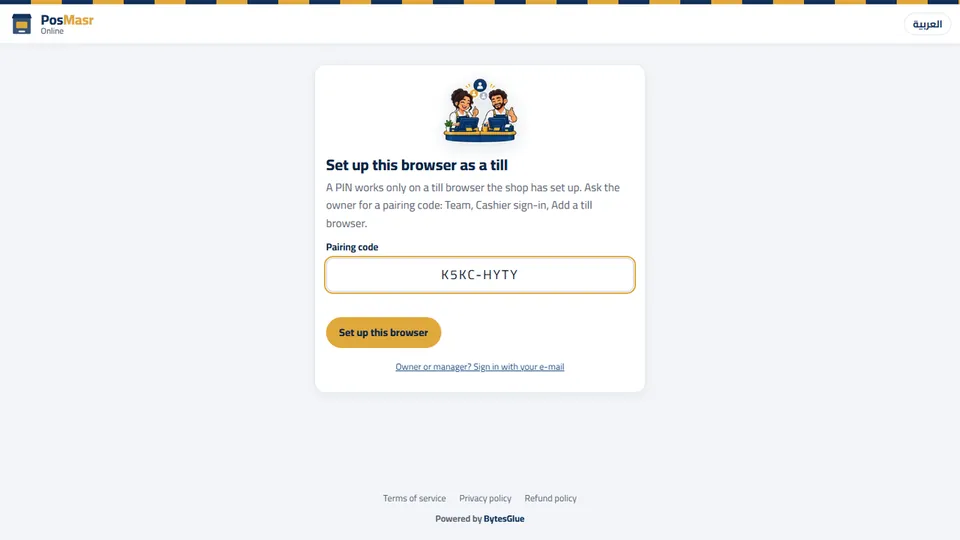
Set up this browser as a till: the pairing code from the owner. 5The cashier signs in
Under Who is selling? the cashier picks their name (or types it in Your name), types the PIN and presses Sign in. The Sell screen opens. Other pages say they are for the owner or a manager.
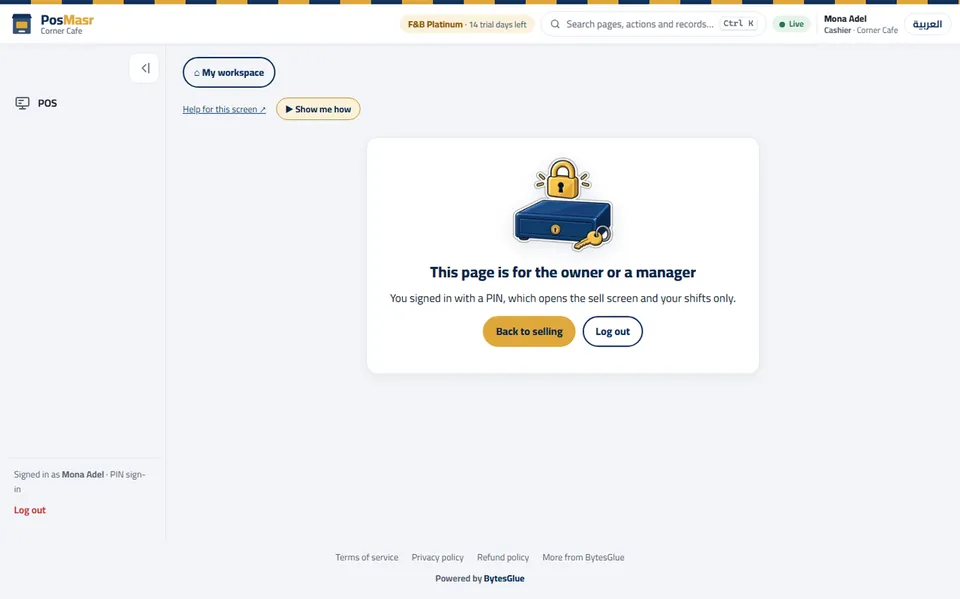
A PIN session opens selling only; other pages say they are for the owner or a manager. 6Change cashier or end the day
Press Switch cashier to hand the till over. A PIN session ends when the shift is closed, and after 12 hours at the latest.
The words on the screen
| On the screen | What it means |
|---|---|
| Till browsers | The browsers set up as tills. Remove takes one away. |
| New address | Makes a new sign-in address; the old one stops working. |
| Pairing code | A one-time code that turns a browser into a till of your shop. |
If it does not work
- The PIN is locked: five wrong tries lock it for 15 minutes, then for an hour, then until the owner presses Unlock now in Team.
- The pairing code is refused: it is older than 15 minutes or was already used. Press Add a till browser again; at most 5 codes can be open at once.
- There is no Cashier sign-in with a PIN group, or it is off: only the owner sees it in Team, and the shop must be allowed to sell in the browser.