Product labels and electronic shelf labels
Product labels are printed from the product list. Shelf labels are electronic price tags linked to your products; they need the tags themselves and are switched on per branch.
1Open Labels
Open Products and press the Labels tab.
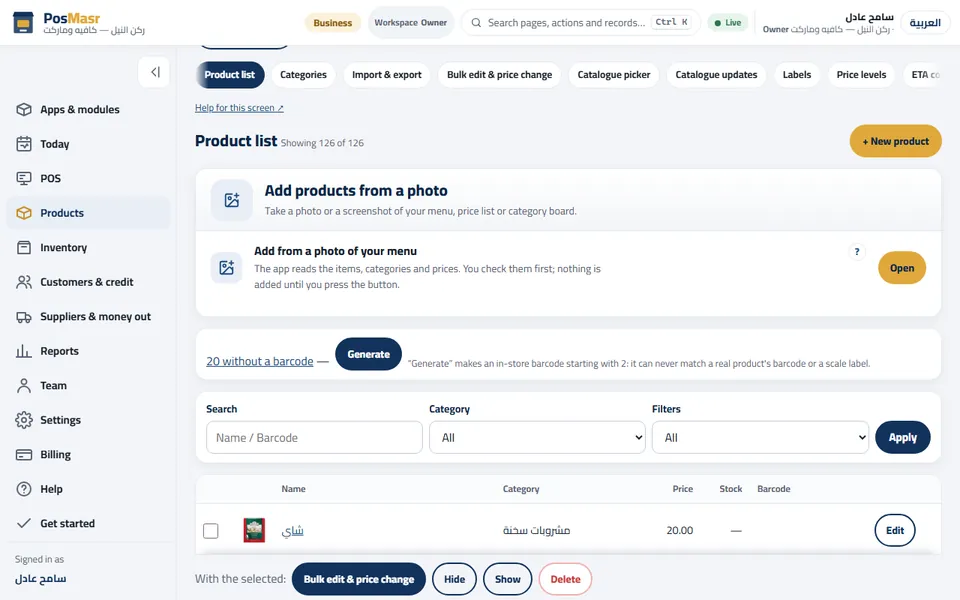
The product list with the Labels tab and the Generate button for products without a barcode. 2Type how many
Type the Count of labels for each product, and pick the label size, or Custom size in millimetres.
3Products without a barcode
Under Make a barcode, pick the product: it gets an in-store barcode starting with 2, which can never match a real product's barcode or a scale label. In the product list, Generate does the same for all of them.
4Print
Press Print the labels. The labels open in a new tab to print; choose the label printer and the label paper size.
5Electronic shelf labels
Open Inventory, then Shelf labels. If it says it is switched off for this branch, a manager can switch it on in Settings → Modules, or press Switch on.
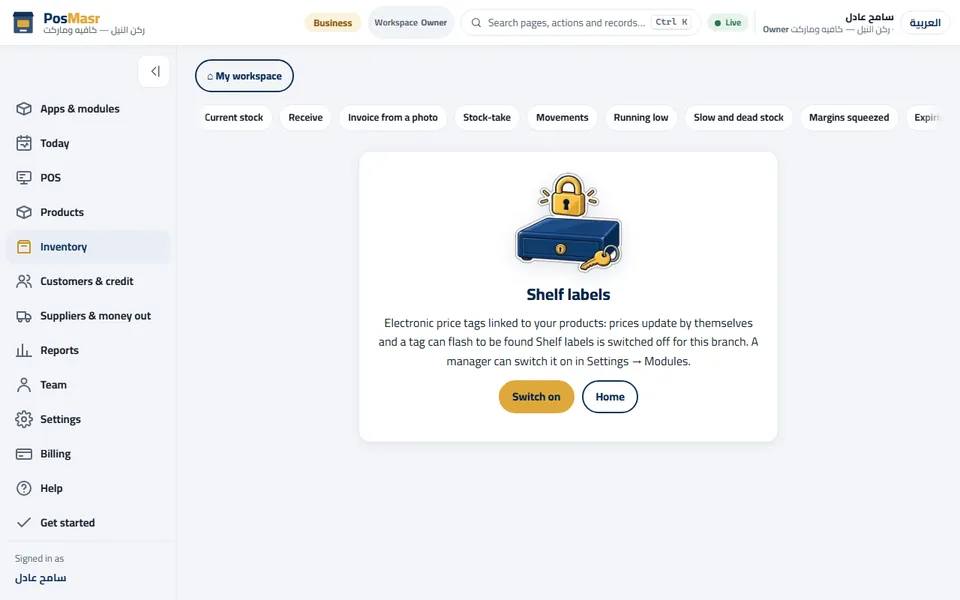
Shelf labels, switched off for this branch until a manager switches it on. 6Make a tag flash
In Flash tags, choose Find this item, Pick list or Offers running now to make the tags light up.
In PosMasr Desktop: Inventory → Print label, then Label size and Print (or Print all products).
The words on the screen
| On the screen | What it means |
|---|---|
| Custom size | A label size you type yourself. |
| Shelf labels | Electronic price tags linked to your products: prices update by themselves. |
If it does not work
- Print the labels is not offered: label printing is in the Gold plan and above.
- The labels print too small or cut off: when you print, choose the label paper size and a scale of 100 %.
- Shelf labels says it is switched off for this branch: switch it on in Settings → Modules. It needs electronic price tags.