Quick search: one box for everything
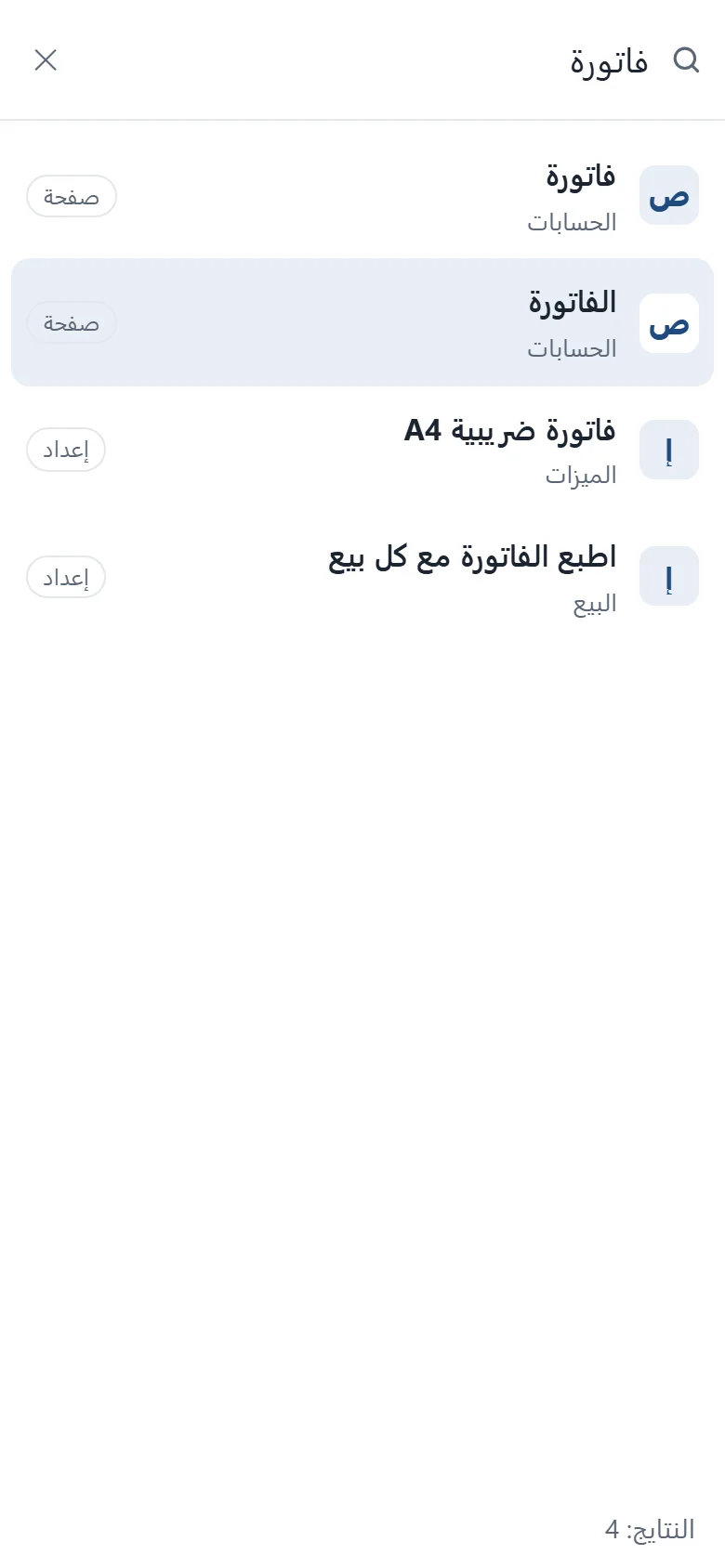
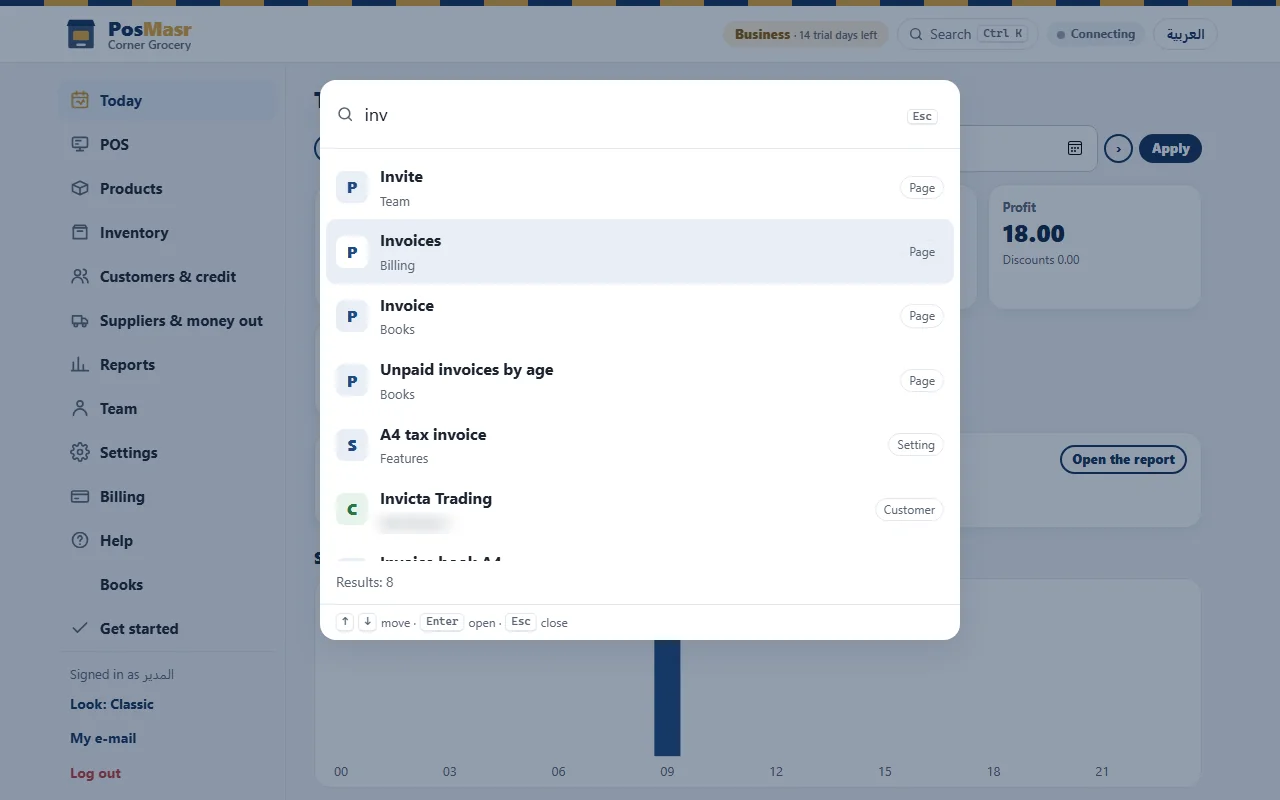
Press Ctrl+K (⌘+K on a Mac) on any page of PosMasr Cloud, or click the Search button with Ctrl K on it in the top bar — on a phone it is just a magnifier icon. A box opens; start typing and the results update as you type. The shortcut works with the Arabic keyboard layout too, so you do not have to switch to English first.
- ↑ ↓ to move, Enter to open, Esc to close — your hands never leave the keyboard.
- On a phone it opens full screen, so the results are big enough to tap.
- It works with screen readers: the results are announced as you type.
What it finds
Each result says what it is — page, setting, receipt, customer, product, invoice or appointment — so you know where Enter will take you.
| Type | What matches | For example |
|---|---|---|
| Pages | The page title — in Arabic, and in English too | “receipts” in an Arabic session opens the Receipts page |
| Settings | Settings sections and every feature switch | “A4” finds the A4 tax invoice switch |
| Receipts | The printed number, the customer, the amount | “1043” |
| Customers | The name, or the phone for whoever may see phones | “Hassan” |
| Products | The name in either language, the barcode | “pepsi”, or the barcode digits |
| Books invoices | Number or customer, this month and last — when Books is on | A customer's name |
| Appointments | Customer, number or phone, this week and last — when Bookings is on | “Mona” |
Up to 8 results of each type and 25 in all, the closest match first. And it shows each person only what they may open: a cashier without the Reports right gets no receipts, a page your plan does not include does not appear, and nobody ever sees another shop's rows.
Type a receipt number
A customer is at the counter with a receipt in hand. Type its number alone — 1043, #1043 or ١٠٤٣ in Arabic digits — and receipts come first in the list, before pages and products. Enter, and you are on the receipt itself.
Where it is, and where it is not
- PosMasr Cloud: every signed-in page, on every plan — the results follow your plan and your rights.
- The till app: on the Sell page.
- The program on your PC: not there. In the desktop program Ctrl+K keeps its old job and opens the kitchen screen.
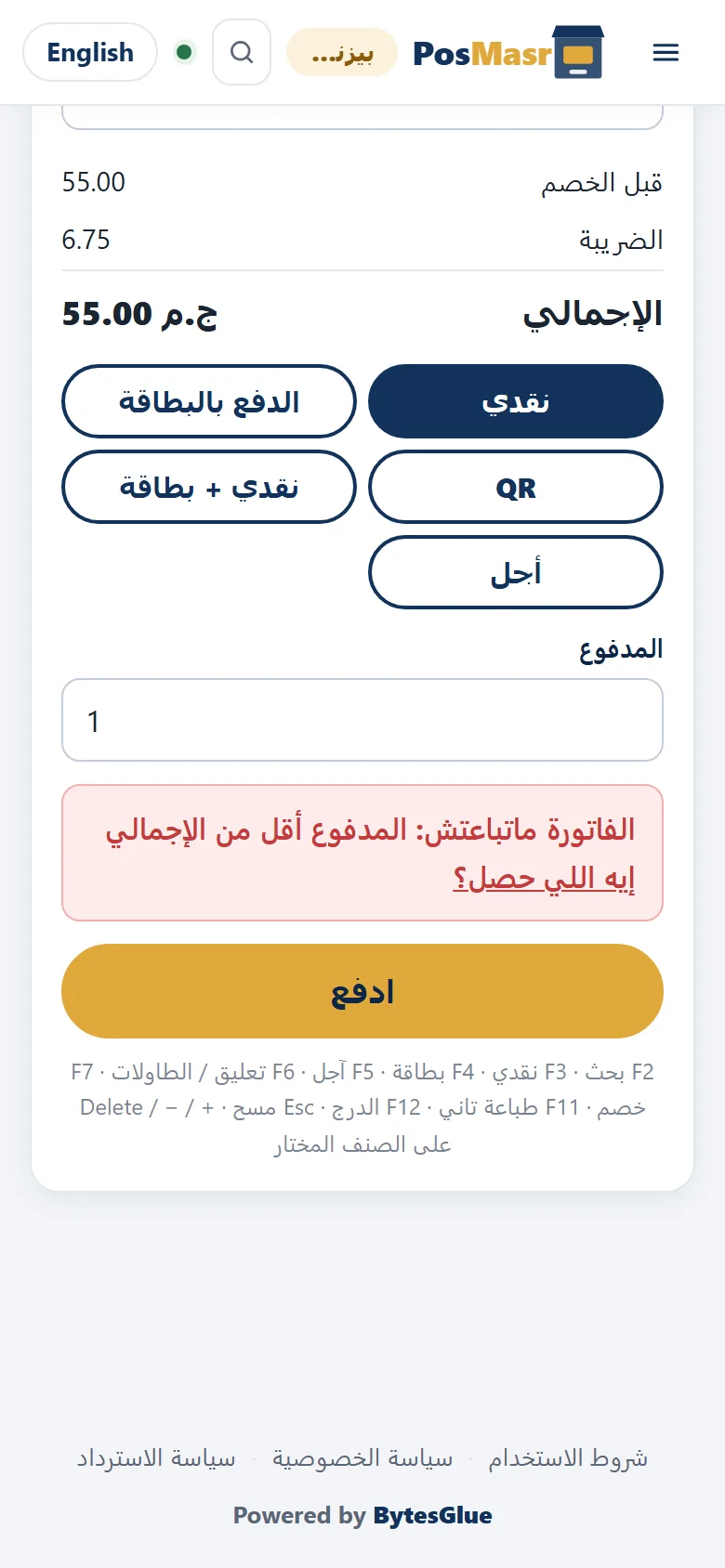
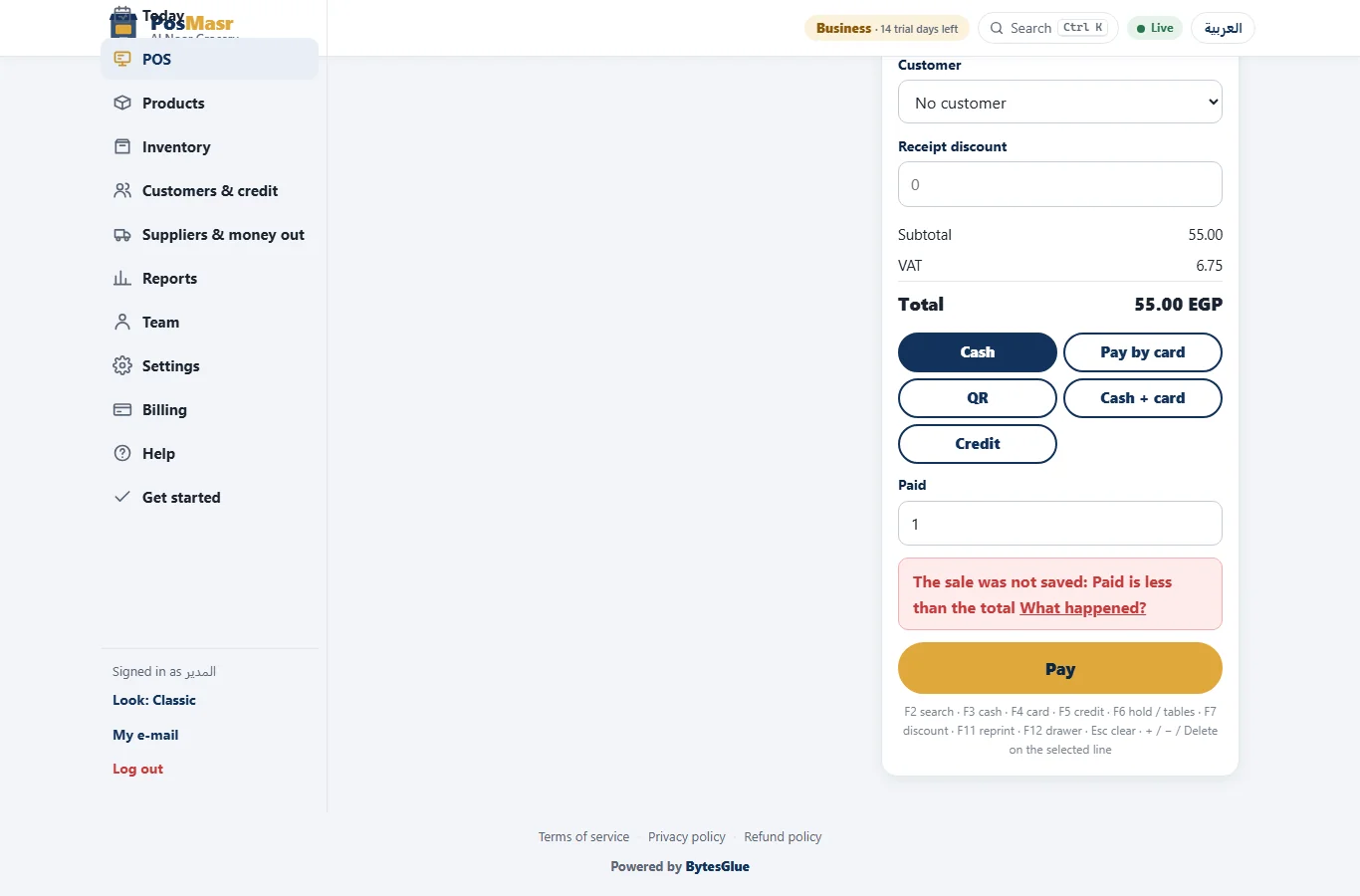
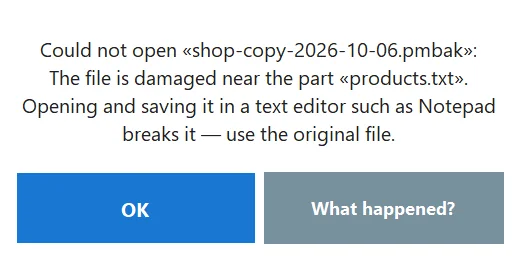
“What happened?” on every error

An error message has one line to say what went wrong. That is rarely enough to fix it, especially for a new cashier. So every error in PosMasr Cloud, in the till app and in the program on your PC now carries a small “What happened?” link or button. In the program on your PC alone that is 125 places.
Press it and the troubleshooting guide opens in the browser, straight on the section for that exact message.
Inside the guide
The guide is one page with hundreds of messages explained, each with its own code. Every section answers four things:
- What it means — the message in plain words.
- What may have happened — the usual reasons, most likely first.
- How to fix it — numbered steps.
- Still stuck? — what to do next, and what to tell us.
At the top there is a search box: type the code or one word from the message and the list narrows as you type. So even a message you only saw on a cashier's screen can be looked up later from your phone.
Calling support with the code
Look at the address the link opened: the part after # is the message's code — for example receipt_not_found. If the steps did not solve it, send us that code on WhatsApp with one line about what you were doing. “The receipt page says receipt_not_found when I search 1043” gets you an answer far faster than “the program is giving an error”.
What they do not do yet
- Arabic plurals do not match yet. “فاتورة” finds “الفاتورة” but not “الفواتير”. Type the word the way the page names it, or type a few letters in English.
- Partial numbers and names search the last 30 days of receipts only.
- Quick search is not in the program on your PC — only online and in the till app.
- The error guide is in English for now, and opening it needs an internet connection, since it is a page on posmasr.com.
Quick answers
Which plans have quick search?
All of them, in PosMasr Cloud and the till app. What it shows follows your plan: a page your plan does not include will not appear.
Can a cashier find a customer's phone with it?
Only if their account may see phones, exactly as on the Customers page. The search never shows more than the page it opens would.
Ctrl+K opens the kitchen screen on my PC. Is that a bug?
No — in the program on your PC Ctrl+K has always opened the kitchen screen, and it still does. Quick search lives in PosMasr Cloud and the till app.
Does “What happened?” send anything to PosMasr?
It opens a page of the guide in your browser; the code is in the address so the page can jump to the right section. If you want our help, you send us the code yourself.
When will the guide be in Arabic?
The Egyptian Arabic version is being written now. Until it is out, the explanations are in English; the buttons and messages in the app are already in your language.
Try both in a minute
Start the 14-day trial, press Ctrl+K on the Today page, and type a receipt number.
First year 20% off every plan and add-on — with the code