Butcher carcass yields, waste and cut costs
A carcass is an input with several outputs, by-products and possibly declared loss. Its cost must be allocated once, with an explained basis, while its mass reconciles. Use a fictional batch to understand the workflow before changing real inventory or promising compatibility with a scale.
Before using this with live customers
Start in a fictional training workspace with a small catalogue, named staff and known opening quantities. Decide what the operator should be able to do, which branch owns the work and which evidence will show that it succeeded. Check the installed edition and build before following a new control. A plan entitlement, a workspace switch and a staff permission are separate checks. Hiding a menu simplifies the view; it never grants permission to the underlying operation. Keep administrator credentials private and give each employee an account that matches their responsibilities.
A short, repeatable acceptance exercise
Write down the starting record and the expected result before making the change. Use one ordinary item and one edge case: a decimal quantity, a modifier, a discount, a missing cost or a long Arabic product name, depending on the task. Perform the action once, inspect its saved record, then reopen the screen in a separate session. Verify that the original identity and totals survived. If a button disappears, examine role, feature switches and branch scope before assuming that data has been lost. A fictional demonstration is evidence of that tested workflow, not of every possible customer configuration.
Online / SaaS
Carcass yields, waste and cut costs
- Receive the source carcass into the correct branch with its actual quantity and cost. Use a supported unit; a kilogram and a piece are not interchangeable quantities.
- Preview the breakdown once. List unique output products, recoverable bone/fat and declared loss. Reconcile input mass against all outputs plus loss; do not hide excess output as negative waste.
- Choose mass allocation or an explicit economic allocation. For the synthetic example, 100 kg at EGP 300/kg plus EGP 1,000 processing cost gives EGP 31,000. Outputs of 60/20/10/5 kg plus 5 kg loss reconcile to the input.
- Review output quantities and allocated costs before commit. Use batch history for an authorized reversal with a reason; never overwrite old receipts or reverse the same batch twice. Verify branch stock and profit separately.
Recipe ingredients and prepared stock
- Choose one fulfilment mode for each finished product: made to order or prepared stock. Do not configure the same sale to consume both finished stock and recipe ingredients.
- For made-to-order products, enter ingredient quantities and compatible units. Selling the finished item deducts its configured ingredients; use the intended return/restock option when reversing a sale.
- For prepared stock, record preparation first. The batch consumes raw ingredients and creates finished inventory. Selling then consumes the finished inventory, without another raw-material deduction.
- Verify a demo example: prepare 10 kg, sell 2 kg and record 1 kg waste; 7 kg remains. Inspect the ingredient movements separately, then test a return and a recipe edit without rewriting historical consumption.
Classic Desktop / Windows
Carcass yields, waste and cut costs
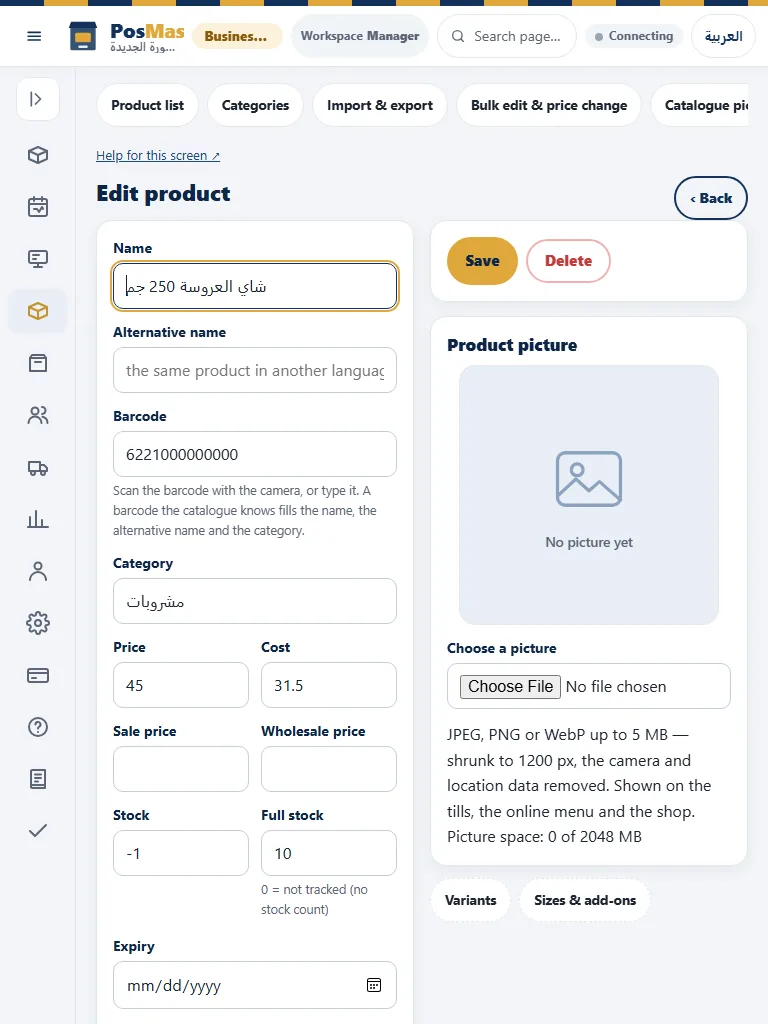
- Open Products and verify the unit, weight price and barcode/scale settings for a test weighed product.
- Use manual weight entry until the exact device and protocol have been tested. Software support is not hardware certification or a hardware price quotation.
- Review weight, unit price and total before payment, then inspect stock and cost movements.
- The new carcass batch allocation and audited reversal pages belong to Online. Refer to that edition for mass balance and value/percentage allocation.
Use the actual native weighing, recipe and inventory controls supported by the Desktop build. The online durable carcass batch history/reversal page is an online workflow. Device certification requires the real scale/printer model; the synthetic example is not customer traction or hardware proof.
Recipe ingredients and prepared stock
- Open the product and recipe/preparation settings actually available in your installation. Review ingredient quantities, units and the prepared-product setting.
- Post a preparation batch once and verify the input and prepared-stock movements. Keep preparation separate from selling the prepared item.
- Sell a small test quantity and inspect the resulting stock record. Do not deduct the same ingredients both at preparation and again at sale.
- Use the online recipe guide for cloud recipe and production routes. Browser batch/audit screens are not native screens.
Classic Desktop exposes its native recipe and stock-preparation controls when enabled. Verify the fulfilment mode in that product’s editor. Online production add-ons and their browser order/quality screens are separate capabilities.
Review the evidence rather than the animation
A preview is not a posted movement, an accepted request is not provider settlement, and a queued message is not verified delivery. After a financial or inventory action, inspect the original receipt or movement before retrying. Keep the original request identity for an uncertain replay. Do not create a new sale merely because the first response was slow. For exports, compare the selected range and totals with the source report. For staff reports, distinguish an actual event from a missing timestamp. Do not turn missing data into zero seconds or a claim that an employee did no work.
Keep edition and external-service limits explicit
Classic Desktop, a cloud-connected till and the SaaS browser share concepts but do not expose every control in the same place. The sections below give separate procedures and explain real alternatives. Follow the manual for the edition you are actually using. Device compatibility still requires the exact model and protocol to be tested. External payment, accounting and dashboard services require their own account, authorization and configuration. This article does not promise a live delivery-platform integration, a new paid-plan inclusion, a hardware supply service or an approved wallet pass. Confirm those conditions separately before a customer commitment.
Actual interface reference images