Screens
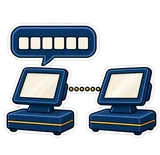
Screens lists the TVs over your counter: menu boards and order screens, with their state, offers and set-up steps. A manager opens it to add a TV, check that it is online, or switch screens off.
/settings/screens5 optionsSwitch screens on
1 optionsSwitch screens on#
Turns the TV screens on for your shop; you can switch them off again here.
Add a screen
3 optionsName#
This screen's name in your list of screens.
Example: A burger shop names its screens "Menu board 1" and "Pick-up numbers".
When it is empty, the screen is named after its type.
Type#
A menu board shows products and offers; an order screen shows numbers being prepared and ready.
Example: A burger shop adds an order screen so guests watch their number move to Ready.
Branch#
The branch whose menu and orders this screen shows.
Setting up a TV
1 optionsSwitch screens off#
The TVs stop showing anything; your screens and offers stay saved.
Common questions
I added a screen. How does the TV show it?
Open the screen's page to get an 8-digit code. In the TV's web browser open the address shown, type the code and press Start. The code works once, for 15 minutes.
Why do I get "reached the most screens" when adding one?
A shop can hold a limited number of screens and offers. Remove a screen you no longer use, then add the new one.
What happens when I switch screens off?
The TVs stop showing anything, but your screens and offers stay saved. Switch them on again here when you need them.