Your public menu and its look
Guests see your public menu when they scan your QR code. You choose its look, your colour and your pictures. The menu comes with the café and restaurant plans that include it.
1Open Menu look
Open Settings, then Online, and press Menu look.
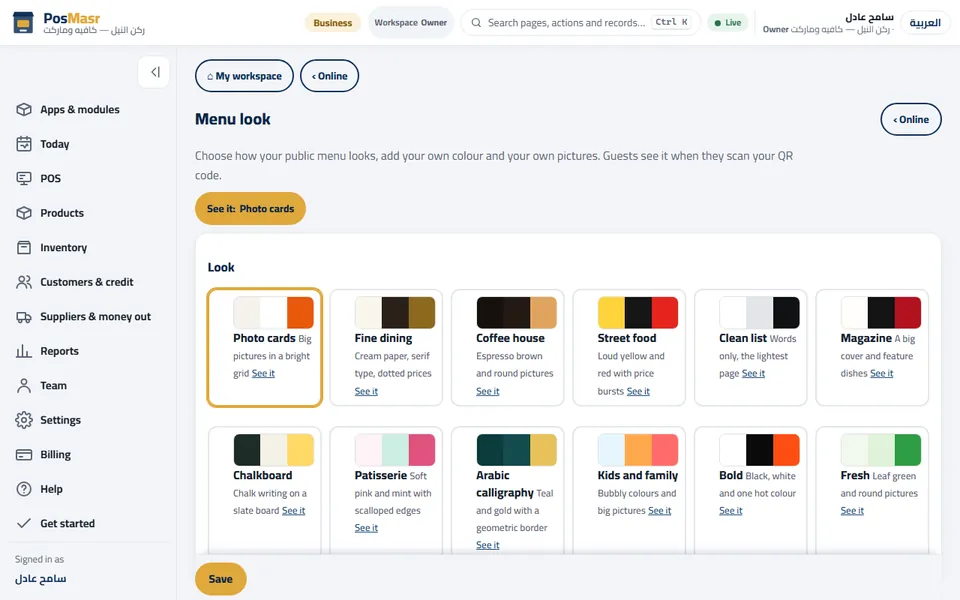
Menu look: the 12 looks, each with See it. 2Pick a look
There are 12 looks: Photo cards, Fine dining, Coffee house, Street food, Clean list, Magazine, Chalkboard, Patisserie, Arabic calligraphy, Kids and family, Bold, and Fresh. Press See it under a look to open it with a sample menu.
3Your colour
Keep Use the look's own colour, or choose Your colour.
4Your words and links
Fill in Short tagline, Opening hours (text), Instagram and Google Maps link.
5Your pictures
Under Cover picture choose one wide picture (about 1600 × 800 pixels) and press Upload. Under Gallery add up to 8 pictures of your place and your food. Removing a picture happens at once, without a question.
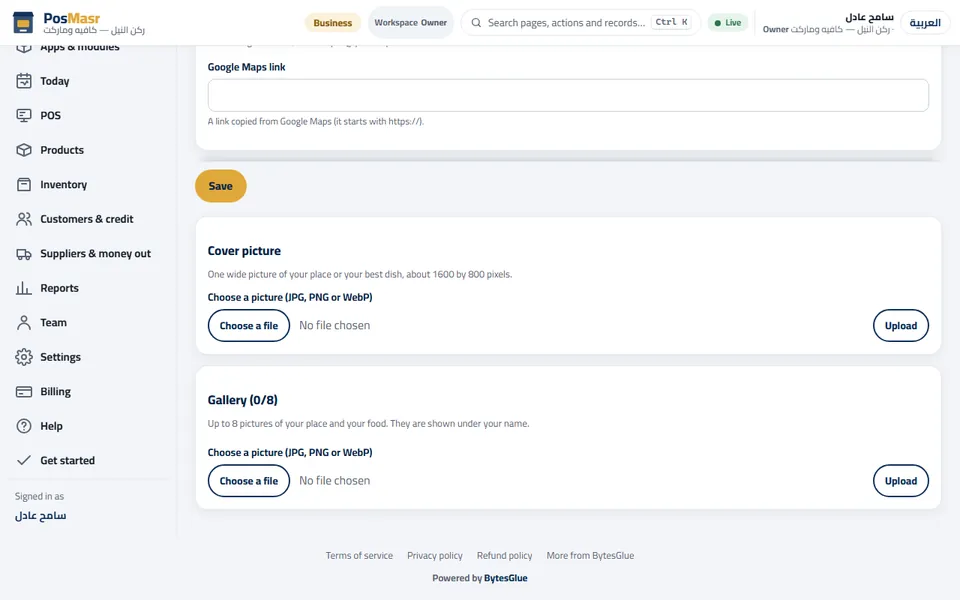
The cover picture and the gallery of the public menu. 6Save and look
Press Save, then open your menu from Settings → Online to see it as guests do.
The words on the screen
| On the screen | What it means |
|---|---|
| See it | Opens the look with a sample menu. |
| Gallery | Up to 8 pictures shown under your name. |
If it does not work
- There is no Menu look link: your plan has no online menu.
- A picture is refused: use JPG, PNG or WebP.
- Guests still see the old look: press Save, then reload the menu page.