Share one item across restaurant bills
Three guests sharing one item should produce one exact bill total, not three rounded approximations that lose money or duplicate stock. Allocate the shared item explicitly, keep the original order responsible for preparation, and review the remainder before accepting a payment. A paid share has different rules from an unpaid allocation.
Before using this with live customers
Start in a fictional training workspace with a small catalogue, named staff and known opening quantities. Decide what the operator should be able to do, which branch owns the work and which evidence will show that it succeeded. Check the installed edition and build before following a new control. A plan entitlement, a workspace switch and a staff permission are separate checks. Hiding a menu simplifies the view; it never grants permission to the underlying operation. Keep administrator credentials private and give each employee an account that matches their responsibilities.
A short, repeatable acceptance exercise
Write down the starting record and the expected result before making the change. Use one ordinary item and one edge case: a decimal quantity, a modifier, a discount, a missing cost or a long Arabic product name, depending on the task. Perform the action once, inspect its saved record, then reopen the screen in a separate session. Verify that the original identity and totals survived. If a button disappears, examine role, feature switches and branch scope before assuming that data has been lost. A fictional demonstration is evidence of that tested workflow, not of every possible customer configuration.
Online / SaaS
Share restaurant items and payments
- Open Split between guests on the active bill. Add at least two named guests and choose items, equal shares or custom amounts.
- Assign a shared item with precise fractions, such as one third of a pizza per guest. Review each guest’s discount, service, VAT and rounding, and resolve every unallocated remainder.
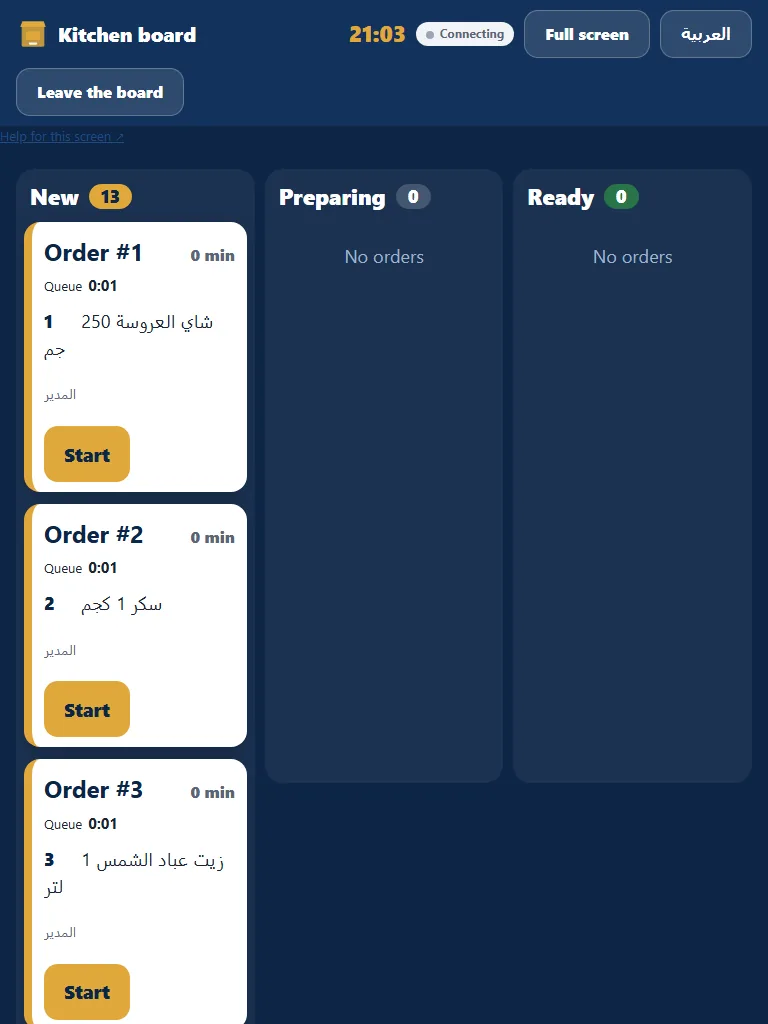
- Save the plan and collect each guest’s exact current amount. Paid shares cannot be silently reassigned. Keep preparation and stock against the original order; sharing does not fire another kitchen ticket.
- A manager can refund a manual held-order deposit before checkout with the original payment ID, reason and confirmation that the money was returned. It does not call a card provider. After final checkout, use the receipt return path. Do not retry an uncertain payment as a new charge.
Checkout and paper-light receipts
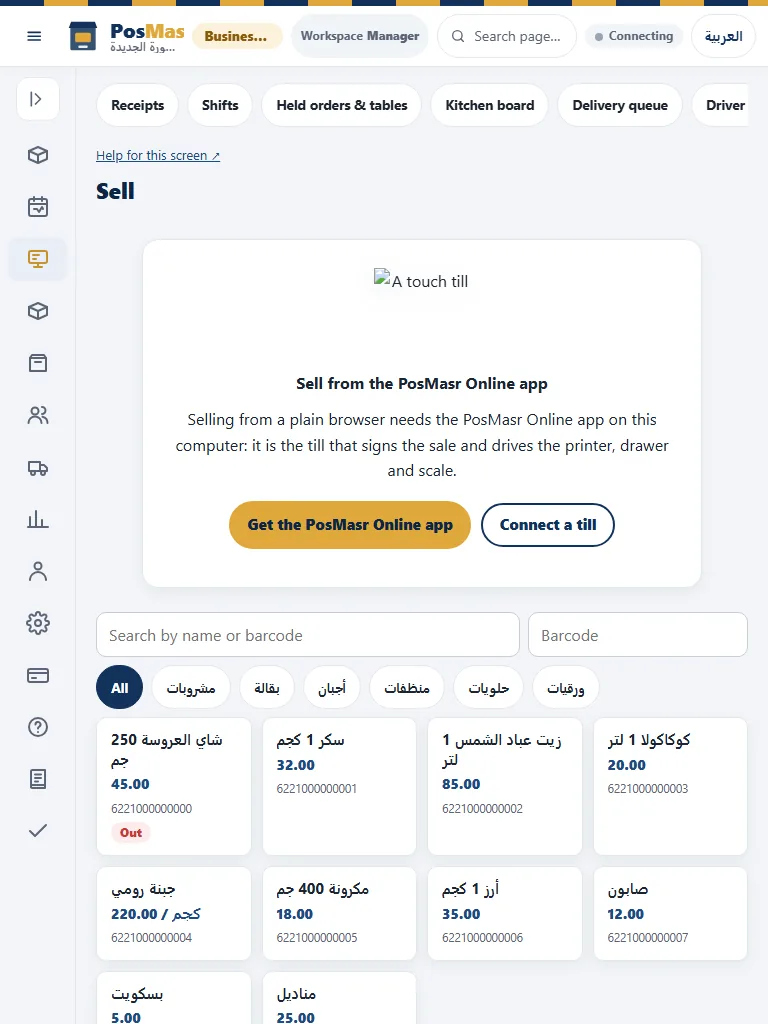
- Sign in as a cashier and open the required shift where the shop uses shifts. Select the correct branch and till.
- Scan or choose products. Review the full names, quantities, modifiers, discount, service and tax before payment.
- Choose cash, card or supported split tender. A manually recorded card payment is not a provider-verified transaction. Do not charge a customer again when a response is lost; inspect the payment/queue state.
- Choose printed, digital or no customer copy where offered. Complete checkout once and verify the saved receipt. A no-copy choice suppresses customer printing; it does not bypass fiscal or audit records.
Classic Desktop / Windows
Share restaurant items and payments
- Open the held order from Tables and choose the native split/payment action.
- Use Split by items for whole or decimal quantities. Review how the original discount is allocated between the resulting held orders.
- For shared money, use Pay a part with equal parts or typed amounts. For 100.00 split three ways, review 33.34, 33.33 and 33.33.
- Verify recorded parts before taking the closing payment. Named guest fractions are an Online/cloud-till feature, not a native Desktop dialog.
Named fractional guest shares are supported by the cloud-connected till and online table bill. Classic Desktop has its existing bill splitting and partial-payment controls; do not assume the new browser guest plan editor is a native screen. Online prepaid QR credits currently require their existing settlement/release path rather than silently assigning them to named shares.
Checkout and paper-light receipts
- Open Sales under the correct cashier. Search or scan the product and review its displayed name, quantity and price.
- Review discounts, tax and service settings before opening payment. Enter the amount actually received and the actual tender.
- Complete the sale once. Verify its receipt number, total and tender in Reports before retrying an uncertain action.
- Use the original receipt for a permitted return. A refund does not imply that an external card provider has returned the money.
Use the native Sell screen, cashier sign-in and configured printer in classic Desktop. Digital delivery depends on the actual available channel and customer destination. Do not treat an unsent digital copy as delivered, or assume a printer is paired simply because preview works.
Review the evidence rather than the animation
A preview is not a posted movement, an accepted request is not provider settlement, and a queued message is not verified delivery. After a financial or inventory action, inspect the original receipt or movement before retrying. Keep the original request identity for an uncertain replay. Do not create a new sale merely because the first response was slow. For exports, compare the selected range and totals with the source report. For staff reports, distinguish an actual event from a missing timestamp. Do not turn missing data into zero seconds or a claim that an employee did no work.
Keep edition and external-service limits explicit
Classic Desktop, a cloud-connected till and the SaaS browser share concepts but do not expose every control in the same place. The sections below give separate procedures and explain real alternatives. Follow the manual for the edition you are actually using. Device compatibility still requires the exact model and protocol to be tested. External payment, accounting and dashboard services require their own account, authorization and configuration. This article does not promise a live delivery-platform integration, a new paid-plan inclusion, a hardware supply service or an approved wallet pass. Confirm those conditions separately before a customer commitment.
Actual interface reference images