A restaurant shift from table order to clean table
A table order is a sequence of responsibilities, not merely a receipt. A useful training shift starts with one table, a few products and named staff, then follows the order until payment and cleaning are complete. Keep each hand-off visible so an operator can distinguish preparation from service and settlement.
Before using this with live customers
Start in a fictional training workspace with a small catalogue, named staff and known opening quantities. Decide what the operator should be able to do, which branch owns the work and which evidence will show that it succeeded. Check the installed edition and build before following a new control. A plan entitlement, a workspace switch and a staff permission are separate checks. Hiding a menu simplifies the view; it never grants permission to the underlying operation. Keep administrator credentials private and give each employee an account that matches their responsibilities.
A short, repeatable acceptance exercise
Write down the starting record and the expected result before making the change. Use one ordinary item and one edge case: a decimal quantity, a modifier, a discount, a missing cost or a long Arabic product name, depending on the task. Perform the action once, inspect its saved record, then reopen the screen in a separate session. Verify that the original identity and totals survived. If a button disappears, examine role, feature switches and branch scope before assuming that data has been lost. A fictional demonstration is evidence of that tested workflow, not of every possible customer configuration.
Online / SaaS
Enter a table order as a waiter
- Sign into the waiter workspace and go on duty. Select or claim the tables you serve. An unassigned table notifies all on-duty waiters in that branch.
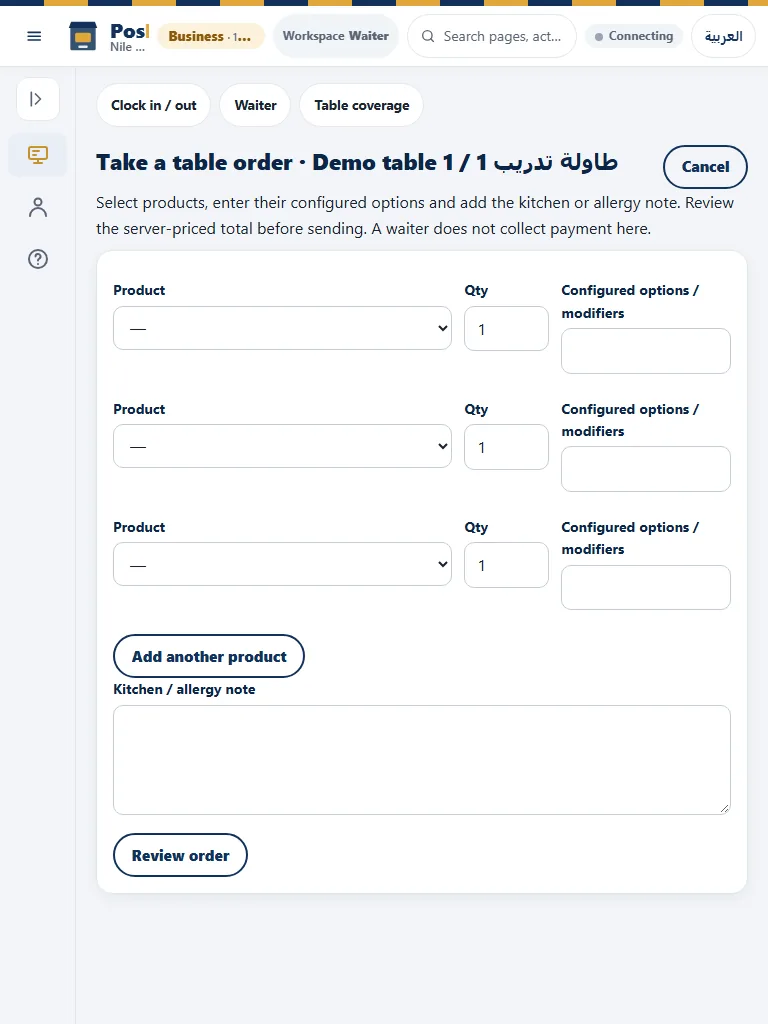
- Open the table’s active visit and choose Add order. Choose products, quantities, modifiers and preparation/allergy notes. Use Add row for more lines.
- Select Review. Check the server-priced subtotal, discounts, service, VAT and final total. If you change the draft or the shop changes prices, review again.
- Send once. Pay-first orders wait for cashier settlement; ordinary accepted rounds create kitchen work. Follow Preparing/Ready, mark actual service and send further rounds against the same visit.
Kitchen progress, service timing and cleaning
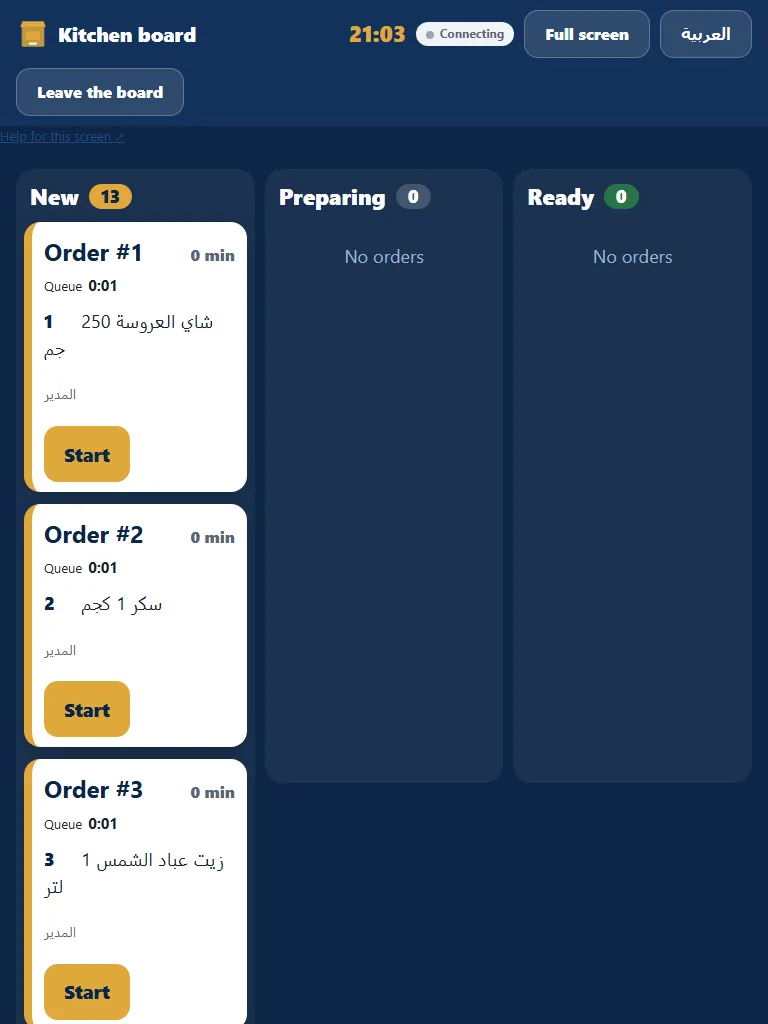
- A chef opens their kitchen workspace and claims work for the appropriate station. Record Start, pause/resume with a reason, Ready and any rework or waste accurately.
- A ready kitchen item alerts the assigned waiter. The waiter claims ready service and marks Served only after handing it to diners; Ready and Served are different events.
- Review the order/visit timeline for immutable timestamps, actors and reasons. Compare similar stations and preparation types rather than ranking staff on incomparable work.
- After final settlement and checkout, the table requires cleaning. Claim cleaning and mark it complete before the next visit. Settling one guest share does not close the visit for the remaining diners.
Classic Desktop / Windows
Enter a table order as a waiter
- Open the native Tables screen and select a table. Start or resume its held order.
- Add the requested products and quantities, then save or hold the order using the native controls.
- Check the table reference and the saved held order before sending any additional items.
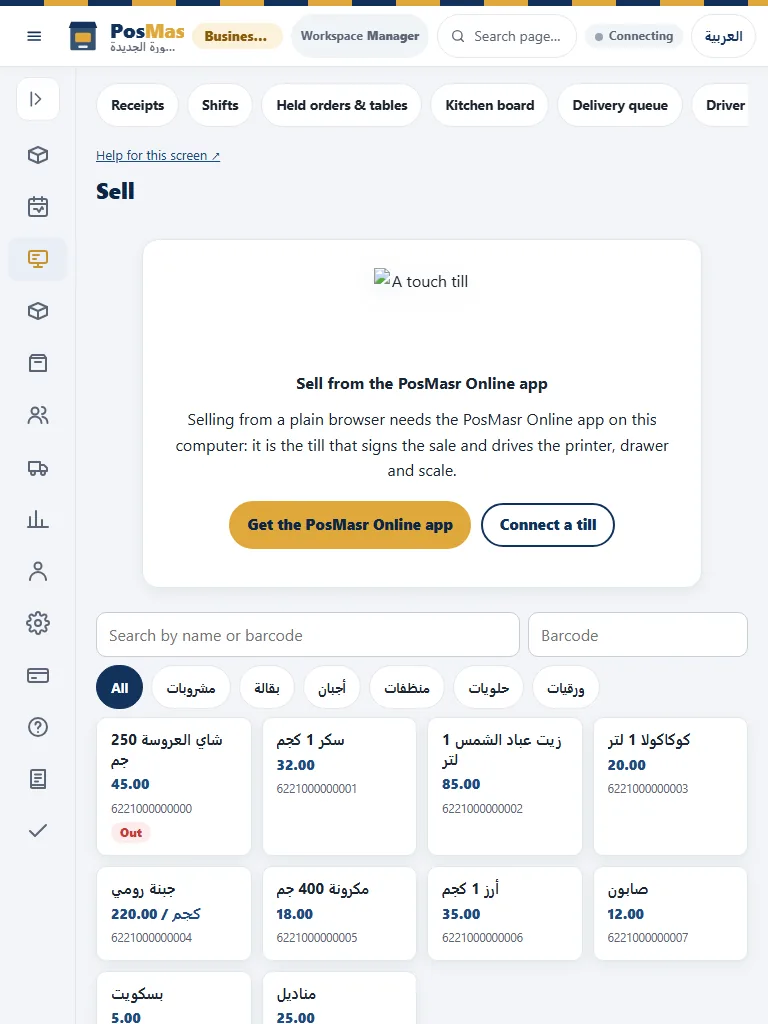
- The SaaS waiter-duty screen and public QR ordering are separate browser features. Use the Online guide when demonstrating those workflows.
The dedicated waiter visit/order workflow is online. Classic Desktop can hold and resume table-labelled orders, but does not supply this full browser visit/assignment workflow. Use the online waiter workspace for the sequence shown here.
Kitchen progress, service timing and cleaning
- Open Tables and inspect the held order for the selected table.
- Review the ordered items before completing payment. Do not recreate a held order after an uncertain save.
- Complete the native receipt and verify the table/order state.
- SaaS kitchen action timing, waiter notifications and the cleaning lifecycle are not classic Windows controls. Use the Online workflow for those operations.
Classic Desktop kitchen tickets and held orders are separate from online immutable visit/service events. Do not claim the browser cleaning roster or staff performance dashboard exists in the native program. A cloud-connected restaurant may use the online kitchen and waiter workspaces alongside its till.
Review the evidence rather than the animation
A preview is not a posted movement, an accepted request is not provider settlement, and a queued message is not verified delivery. After a financial or inventory action, inspect the original receipt or movement before retrying. Keep the original request identity for an uncertain replay. Do not create a new sale merely because the first response was slow. For exports, compare the selected range and totals with the source report. For staff reports, distinguish an actual event from a missing timestamp. Do not turn missing data into zero seconds or a claim that an employee did no work.
Keep edition and external-service limits explicit
Classic Desktop, a cloud-connected till and the SaaS browser share concepts but do not expose every control in the same place. The sections below give separate procedures and explain real alternatives. Follow the manual for the edition you are actually using. Device compatibility still requires the exact model and protocol to be tested. External payment, accounting and dashboard services require their own account, authorization and configuration. This article does not promise a live delivery-platform integration, a new paid-plan inclusion, a hardware supply service or an approved wallet pass. Confirm those conditions separately before a customer commitment.
Actual interface reference images