Digital receipts and a paper-light checkout
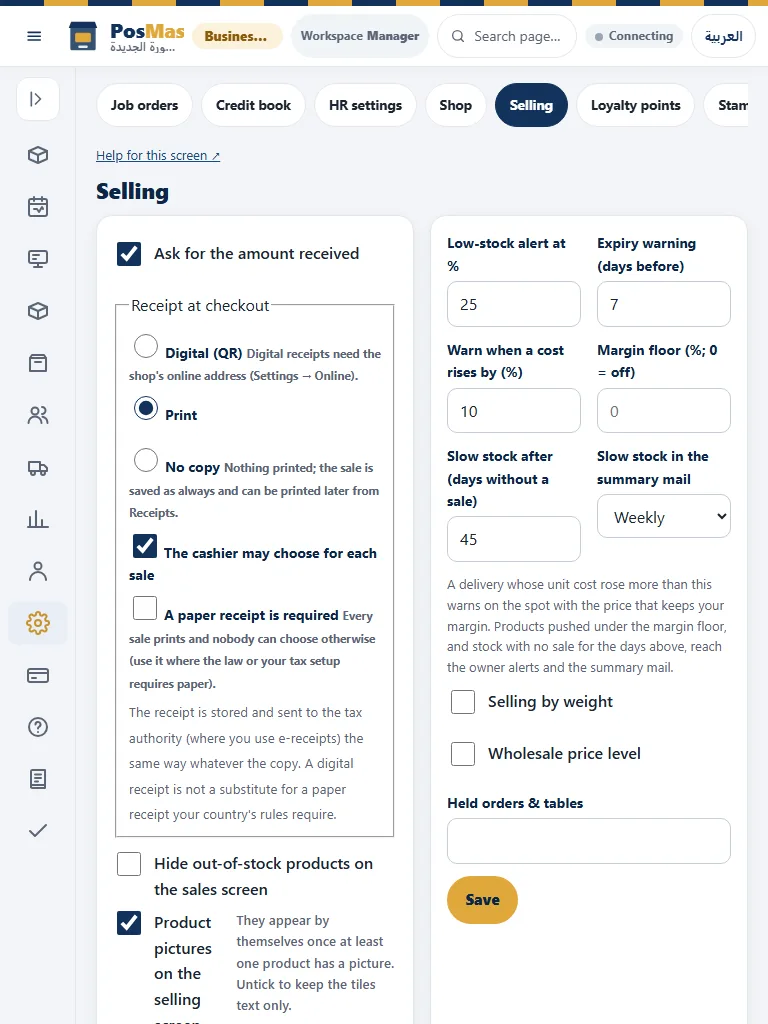
Paper-light checkout means offering a usable receipt alternative, not hiding the evidence of a transaction. A digital receipt still needs the correct order, total and customer destination. Keep the customer choice visible and verify the saved receipt before treating an attempted message as delivered.
Before using this with live customers
Start in a fictional training workspace with a small catalogue, named staff and known opening quantities. Decide what the operator should be able to do, which branch owns the work and which evidence will show that it succeeded. Check the installed edition and build before following a new control. A plan entitlement, a workspace switch and a staff permission are separate checks. Hiding a menu simplifies the view; it never grants permission to the underlying operation. Keep administrator credentials private and give each employee an account that matches their responsibilities.
A short, repeatable acceptance exercise
Write down the starting record and the expected result before making the change. Use one ordinary item and one edge case: a decimal quantity, a modifier, a discount, a missing cost or a long Arabic product name, depending on the task. Perform the action once, inspect its saved record, then reopen the screen in a separate session. Verify that the original identity and totals survived. If a button disappears, examine role, feature switches and branch scope before assuming that data has been lost. A fictional demonstration is evidence of that tested workflow, not of every possible customer configuration.
Online / SaaS
Checkout and paper-light receipts
- Sign in as a cashier and open the required shift where the shop uses shifts. Select the correct branch and till.
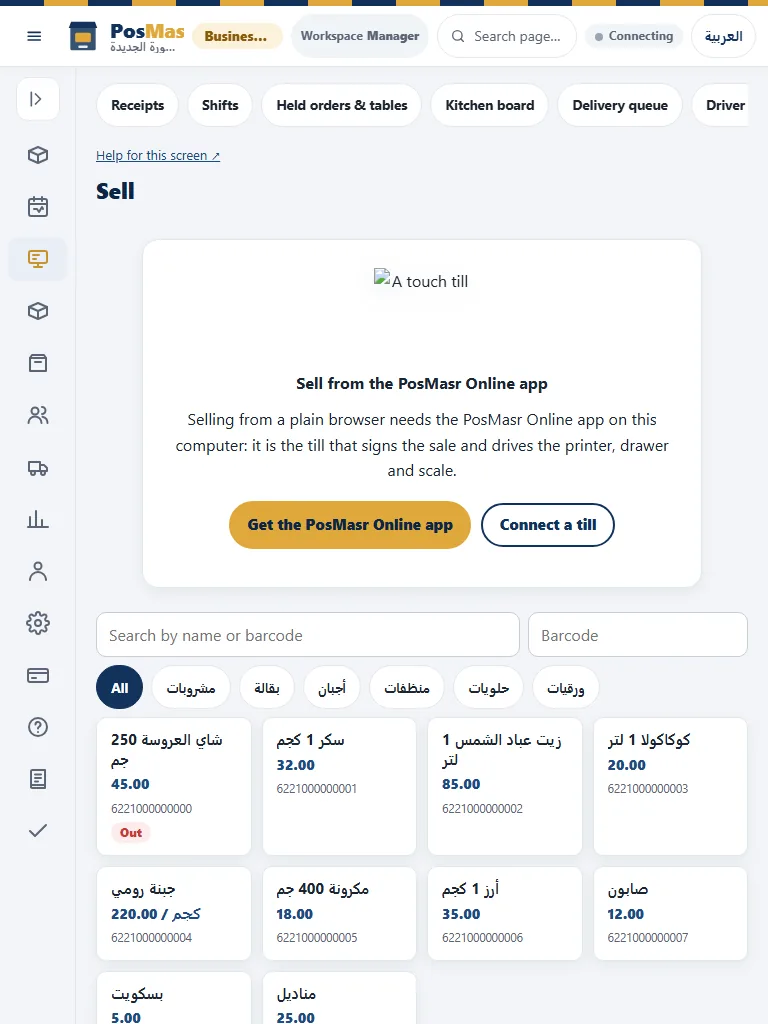
- Scan or choose products. Review the full names, quantities, modifiers, discount, service and tax before payment.
- Choose cash, card or supported split tender. A manually recorded card payment is not a provider-verified transaction. Do not charge a customer again when a response is lost; inspect the payment/queue state.
- Choose printed, digital or no customer copy where offered. Complete checkout once and verify the saved receipt. A no-copy choice suppresses customer printing; it does not bypass fiscal or audit records.
Customer stamps and points
- Configure the live loyalty scheme and redemption rules with owner permissions. Explain eligible visits/purchases rather than promising a reward for every event.
- Give the customer their supported card link or scan flow. The phone card shows current stamps and points balance; inspect the correct customer record before adding or redeeming value.
- After an eligible visit or purchase, verify the updated balance and reward state. Returns, voids and reversals must follow the loyalty rules rather than manually inventing visits.
- Apple Wallet and Google Wallet remain Coming soon and disabled. The live web card works without issuing a Wallet pass; no installation or automatic pass-update promise is made today.
Classic Desktop / Windows
Checkout and paper-light receipts
- Open Sales under the correct cashier. Search or scan the product and review its displayed name, quantity and price.
- Review discounts, tax and service settings before opening payment. Enter the amount actually received and the actual tender.
- Complete the sale once. Verify its receipt number, total and tender in Reports before retrying an uncertain action.
- Use the original receipt for a permitted return. A refund does not imply that an external card provider has returned the money.
Use the native Sell screen, cashier sign-in and configured printer in classic Desktop. Digital delivery depends on the actual available channel and customer destination. Do not treat an unsent digital copy as delivered, or assume a printer is paired simply because preview works.
Customer stamps and points
- Open the loyalty/customer controls available in your installed edition and verify the chosen customer.
- Record a small test transaction and inspect the resulting balance before promising a reward.
- Use the SaaS customer-card guide for the phone card, points display and online reward controls.
- Apple Wallet and Google Wallet issuance remains coming soon. Do not claim the Windows program issues wallet passes.
Classic Desktop has its native customer/loyalty controls where enabled. Cloud phone cards and their server balance belong to the online loyalty workflow. Neither edition currently issues the proposed new Wallet pass.
Review the evidence rather than the animation
A preview is not a posted movement, an accepted request is not provider settlement, and a queued message is not verified delivery. After a financial or inventory action, inspect the original receipt or movement before retrying. Keep the original request identity for an uncertain replay. Do not create a new sale merely because the first response was slow. For exports, compare the selected range and totals with the source report. For staff reports, distinguish an actual event from a missing timestamp. Do not turn missing data into zero seconds or a claim that an employee did no work.
Keep edition and external-service limits explicit
Classic Desktop, a cloud-connected till and the SaaS browser share concepts but do not expose every control in the same place. The sections below give separate procedures and explain real alternatives. Follow the manual for the edition you are actually using. Device compatibility still requires the exact model and protocol to be tested. External payment, accounting and dashboard services require their own account, authorization and configuration. This article does not promise a live delivery-platform integration, a new paid-plan inclusion, a hardware supply service or an approved wallet pass. Confirm those conditions separately before a customer commitment.
Actual interface reference images