Export business data to Excel and refresh Power BI
A spreadsheet and a refreshed dashboard are only as reliable as their source period. Start with an exact range and a report whose totals you can reconcile. Exporting a file is different from authorizing an external connector, and an accepted connection is different from verifying a successful refresh.
Before using this with live customers
Start in a fictional training workspace with a small catalogue, named staff and known opening quantities. Decide what the operator should be able to do, which branch owns the work and which evidence will show that it succeeded. Check the installed edition and build before following a new control. A plan entitlement, a workspace switch and a staff permission are separate checks. Hiding a menu simplifies the view; it never grants permission to the underlying operation. Keep administrator credentials private and give each employee an account that matches their responsibilities.
A short, repeatable acceptance exercise
Write down the starting record and the expected result before making the change. Use one ordinary item and one edge case: a decimal quantity, a modifier, a discount, a missing cost or a long Arabic product name, depending on the task. Perform the action once, inspect its saved record, then reopen the screen in a separate session. Verify that the original identity and totals survived. If a button disappears, examine role, feature switches and branch scope before assuming that data has been lost. A fictional demonstration is evidence of that tested workflow, not of every possible customer configuration.
Online / SaaS
Export safely to Excel, JSON and BI
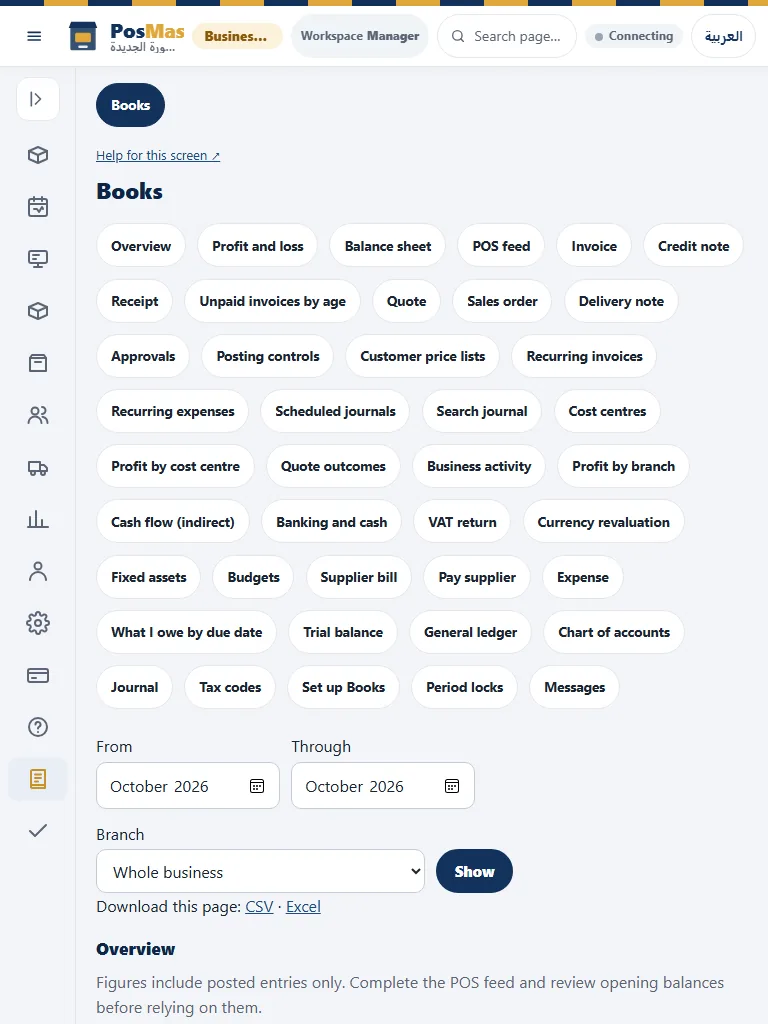
- Select the intended dataset/report, authorized branches and time range before exporting. The export must contain the same permitted rows and scope as the report.
- Choose CSV, Excel or JSON where offered. Legacy CSV conversion preserves every cell as text, including leading-zero identifiers. Typed datasets retain documented numeric types; do not treat a text column as a numeric measure without conversion.
- For a large result, use an export job and its expiry/status rather than repeatedly downloading a truncated file. Legacy conversion refuses files above 10 MiB and Excel’s row/column limits.
- For Power BI, use a scoped read-only dataset connection and inspect range/snapshot/cursor metadata. For Zoho, preview mapping and a dry run before confirming an actual push with the correct organization access; a downloaded file is not a completed integration.
Charts, datetime ranges and profit
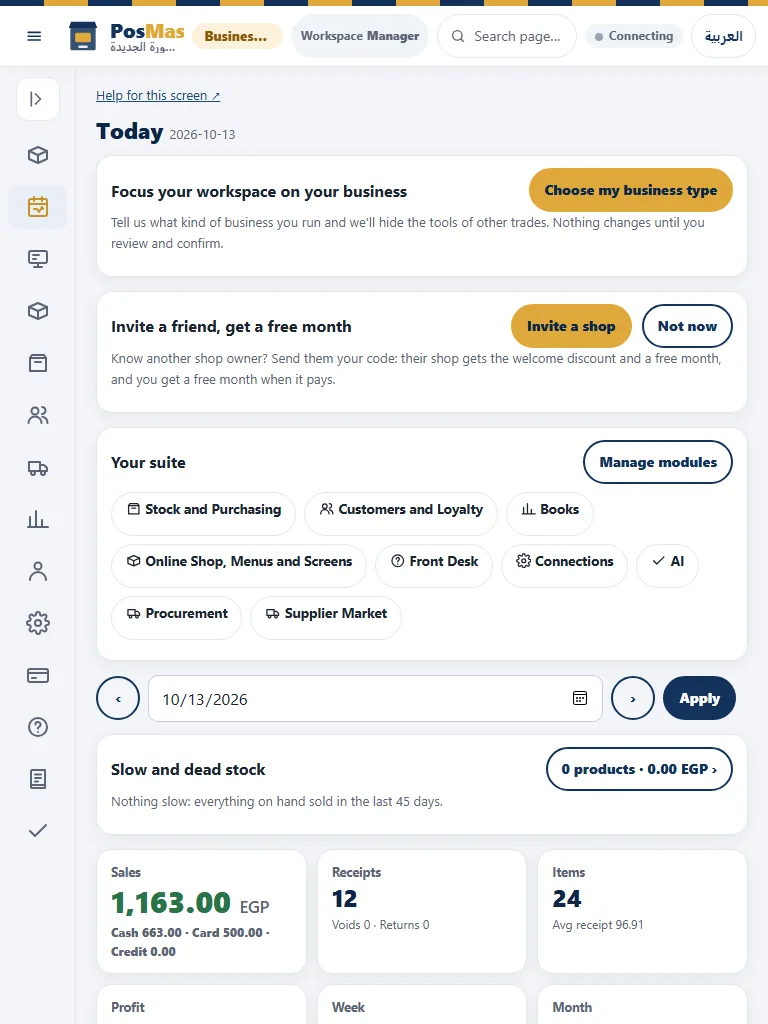
- Open the report with the required read right and select the branch scope. Set an explicit start and end date/time for reports that use transaction timestamps.
- Check the displayed branch timezone. The start is included and the end is excluded; a transaction exactly at the ending instant belongs to the next range. Day-based payroll/legal periods remain calendar periods.
- Read axis labels and units before comparing series. Money, counts and quantities are different measures. Use the accessible data table to inspect exact values behind a chart.
- Distinguish sales, gross margin and net profit. Historical cost of goods, waste/shortage, expenses and unallocated costs need separate review. Do not deduct purchase payments again as cost of sales or call transfers revenue.
Classic Desktop / Windows
Export safely to Excel, JSON and BI
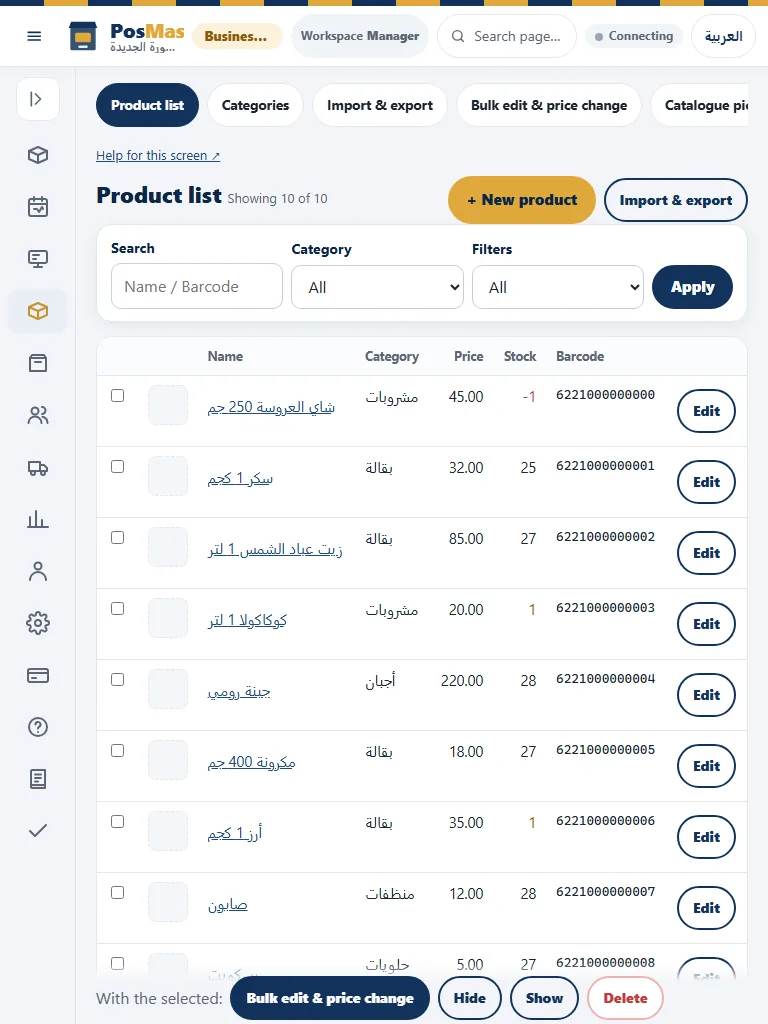
- Open the native report or product list and choose the desired date/time range and filters first.
- Select Export and choose CSV, Excel or JSON where the human report offers them. The sales report records its start and exclusive end in structured exports.
- Open the saved file and verify identifiers, Arabic text, totals and the selected period. Text cells preserve leading zeroes and do not execute formula-like names.
- Imports, device files and scheduled integration contracts retain their own formats. Native file export is not a live Power BI or Zoho connection.
Native sales reports and product lists offer CSV, Excel and JSON. Other native reports retain their own typed Excel options. Power BI refresh and provider pushes are separate authorized connections; exporting a file does not activate them.
Charts, datetime ranges and profit
- Open Reports and set both the starting date/time and the ending date/time. The end is excluded: 08:00 to 10:00 includes 08:00 but excludes 10:00.
- Choose the cashier filter where appropriate and refresh the range. Check the receipt list before interpreting the hourly, product or profit charts.
- Read the money axis and negative values. For a partial-day range, daily expense records cannot produce precise partial-day net profit; the profit tab explains this limitation.
- Export the selected report tab as CSV, Excel or JSON. Retain the chosen range and review the actual rows rather than comparing unlike date ranges.
Native Reports now supports exact start and exclusive-end date/time, money axes including negative profit, and CSV/Excel/JSON. Daily expense records limit partial-day net profit.
Review the evidence rather than the animation
A preview is not a posted movement, an accepted request is not provider settlement, and a queued message is not verified delivery. After a financial or inventory action, inspect the original receipt or movement before retrying. Keep the original request identity for an uncertain replay. Do not create a new sale merely because the first response was slow. For exports, compare the selected range and totals with the source report. For staff reports, distinguish an actual event from a missing timestamp. Do not turn missing data into zero seconds or a claim that an employee did no work.
Keep edition and external-service limits explicit
Classic Desktop, a cloud-connected till and the SaaS browser share concepts but do not expose every control in the same place. The sections below give separate procedures and explain real alternatives. Follow the manual for the edition you are actually using. Device compatibility still requires the exact model and protocol to be tested. External payment, accounting and dashboard services require their own account, authorization and configuration. This article does not promise a live delivery-platform integration, a new paid-plan inclusion, a hardware supply service or an approved wallet pass. Confirm those conditions separately before a customer commitment.
Actual interface reference images